Configure record rules and guided relation work
In Advanced → Unique combinations, choose two to five eligible scalar fields whose combined values must be unique. Empty values are ignored by default. Run the duplicate check and review its bounded results before publishing; adding a rule does not clean up existing duplicates. The same rule applies to imports and automated writes. For a Status field, configure lifecycle conditions and status locks, editable exceptions, deletion blocking, and any child relations that inherit a lock. Configure Freeze separately if that status should capture a version, and choose the included relations and version label. In the status template, set reason, attachment, and separation-of-duties requirements for transitions. Test both an allowed transition and a refusal as the intended member after publication. In Rules → Limits, cap the count or sum of child records linked to the same parent. Choose the parent limit field or a fixed number and, if needed, the inclusion condition. The form’s Available caption is guidance; the save rechecks capacity, including when a status change makes a record count toward the limit. A missing parent limit means no limit. Lowering the parent’s limit does not repair existing over-allocation. Reduce or remove the excess records and retry instead of repeatedly submitting the same values. For a relation tab, choose Checklist and configure labels, grouping, a single-choice field, optional inline fields, evidence collection, completion condition, and optional parent action for Generate. Choices save immediately. Use Incomplete and Missing evidence to find remaining work, then open the evidence control for the row. Progress follows the configured completion condition; inspect missing evidence separately. Generate runs the configured action and waits for its rows. If it produces none, check the action result and permissions before running it again. Record locks and field permissions also apply to inline edits and evidence changes. For a relation to a hierarchical record type, choose the tree picker to search and expand parents. For a multiple-value relation, With all below selects the currently accessible descendants as explicit values; future descendants are not added automatically. Dependent relation filters still apply. Configure hierarchy levels when children must have a deeper rank than their parents. For rollups, include descendants only when the total should cover the subtree; inspect preview limits and the saved result after recalculation. Continue with Roles and scopes for assignment-based access and Calculated fields for dependency rules.Arrange the record page and inspect visibility
Use the record-page builder to add, reorder, duplicate, or remove configured blocks and choose their widths. Sections support one, two, or three columns and a plain style. Named layouts and page-setup templates help reuse arrangements. Check the narrow-screen layout before publishing. Preview as user helps inspect visibility and read-only fields for the selected context. It is a builder preview, not proof that every live authorization path has been tested. Verify important allowed and denied actions with an appropriate non-owner account. Configured record pages can offer updates, attention records, milestones, charts, related lists, checklists, sheets, and outlines. A post in an Updates block can change only fields that the block offers, under the configured action and ordinary field rules. Editable sheet and outline controls still use normal record permissions. If a block is absent, check the published record-page configuration before assuming a data problem.Configure richer timelines and calculations
Timelines can show related milestones, owner avatars, baseline dates, weighted group progress, and configured status or option colors. Dragging or resizing requires rescheduling to be enabled and permission to edit the date fields; use the offered undo if the move was wrong. Inline creation is a separate setting. Changing a display color does not change record status. Rollups can follow several linked record types, apply conditions, and calculate earliest, latest, or weighted-average results. Use the sample-record preview to check the path and included records. Number fields can display progress bars or gauges with color bands. Conditions support nested AND/OR groups, relative dates, and comparisons with another field; expressions that the visual editor cannot represent retain their expression editor. Test empty relations and boundary dates before publishing.Configure timelines, record summaries, and rollups
Add Timeline to an entity’s configured list views when its records have suitable date fields. Bind the schedule fields and, where available, progress, grouping, baseline dates, and dependencies. Members can compare the baseline, collapse groups, and open a record from its name. A timeline displays the configured data; changing the view does not reschedule records or grant update access. Check field bindings when bars or progress are missing. For a record cockpit, configure the overview blocks and stage path around the decisions members make. Available blocks include value tiles, signals, metrics, schedule, spend chart, breakdown, sheet, and hierarchical outline. The outline can show parent/child records, weights, owners, periods, progress, and amounts. Choose a section rail when members need required-field completeness beside the section list; phones use compact section controls. Completeness is a guide to missing required fields, not an approval or a guarantee that all business rules passed. Use the rollup builder to select related records, the calculation, and any filter instead of writing the whole formula manually. Verify the generated calculation against a small known set, including empty relations. Figures can also express ratios, distributions, and thresholds. Test totals, units, zero denominators, and restricted-role visibility before publication. Continue with Calculated fields for calculation rules.Start with the decision, not the field picker
An entity is the record type your team manages: a request, permit, inspection, asset, employee assignment, project, or payment adjustment. A field answers one question about that record. A layout decides when and where that question is shown. Before adding a field, write down:- What decision will this value support?
- Who enters it, and at what point in the process?
- Is it free narrative, a controlled choice, a relationship, a time value, or a calculated result?
- Must it be searched, filtered, reported on, signed, exported, or kept private?
A practical model: service licensing and inspections
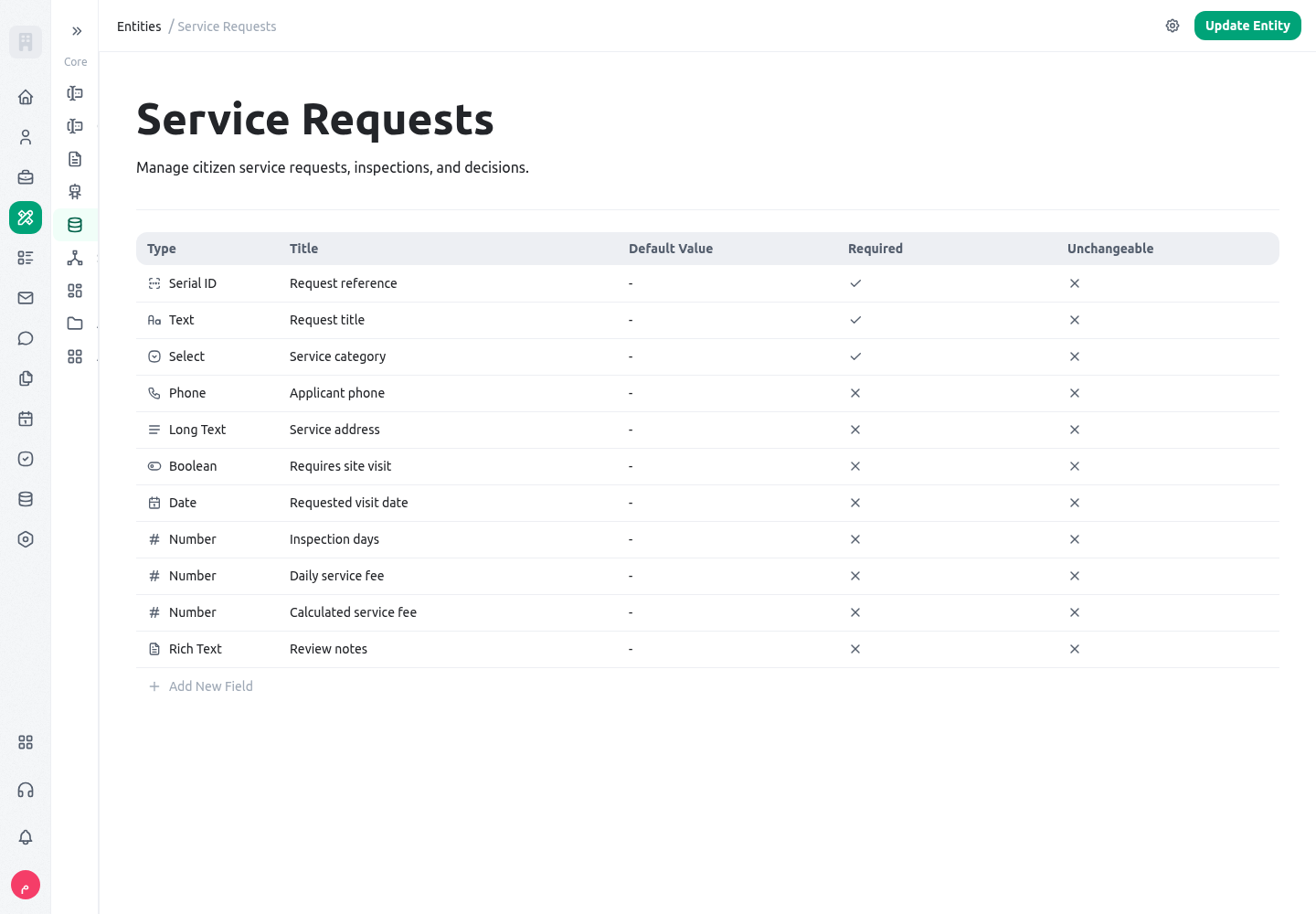
A city service team can use one app to receive a business-license request, assign an inspection, record the decision, and notify the responsible team. The same design pattern works for municipal permits, maintenance tickets, social-service cases, procurement requests, HR onboarding, and project change requests.
The request should not contain every inspection detail. Use relations so each record has a clear owner and lifecycle while the team can still navigate between them.
Field type reference
Every field below is supported by KayanOS entities. Choose the type for the meaning of the value, not for the visual control that happens to look convenient.Dedicated guides for governed fields
Two capabilities need a decision beyond choosing a field type. Read Serial IDs before issuing a public reference: it explains namespaces, generation modes, manual-assignment limits, audit history, and collision-safe testing. Read Calculated fields before deriving values: it explains expression context, direct and inverse relations, persistence, background refresh, and data-quality limits.text
Use Text for a short, single-line value: a request title, external reference, neighborhood name, vehicle plate, or short contact name.
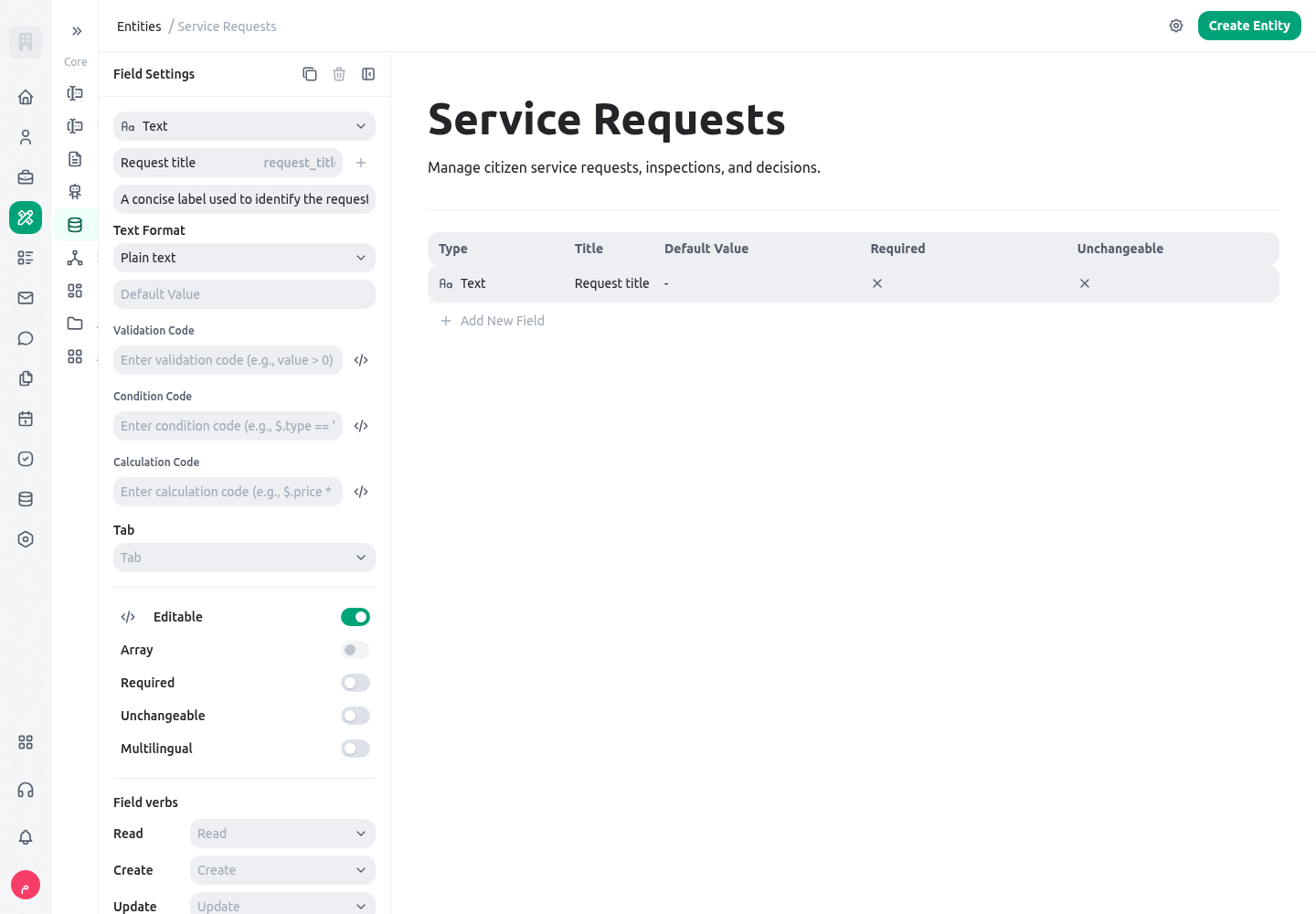
- Choose it when the value is primarily read as text and is usually short.
- Do not use it for long narratives, controlled states, dates, or numeric calculations.
- Use a stable field key such as
external_reference; a readable title can change later without breaking integrations. - For identifiers where leading zeroes matter, use Text rather than Number.
long_text
Use Long text for an unformatted narrative: an issue description, inspection observation, justification, or hand-over note.
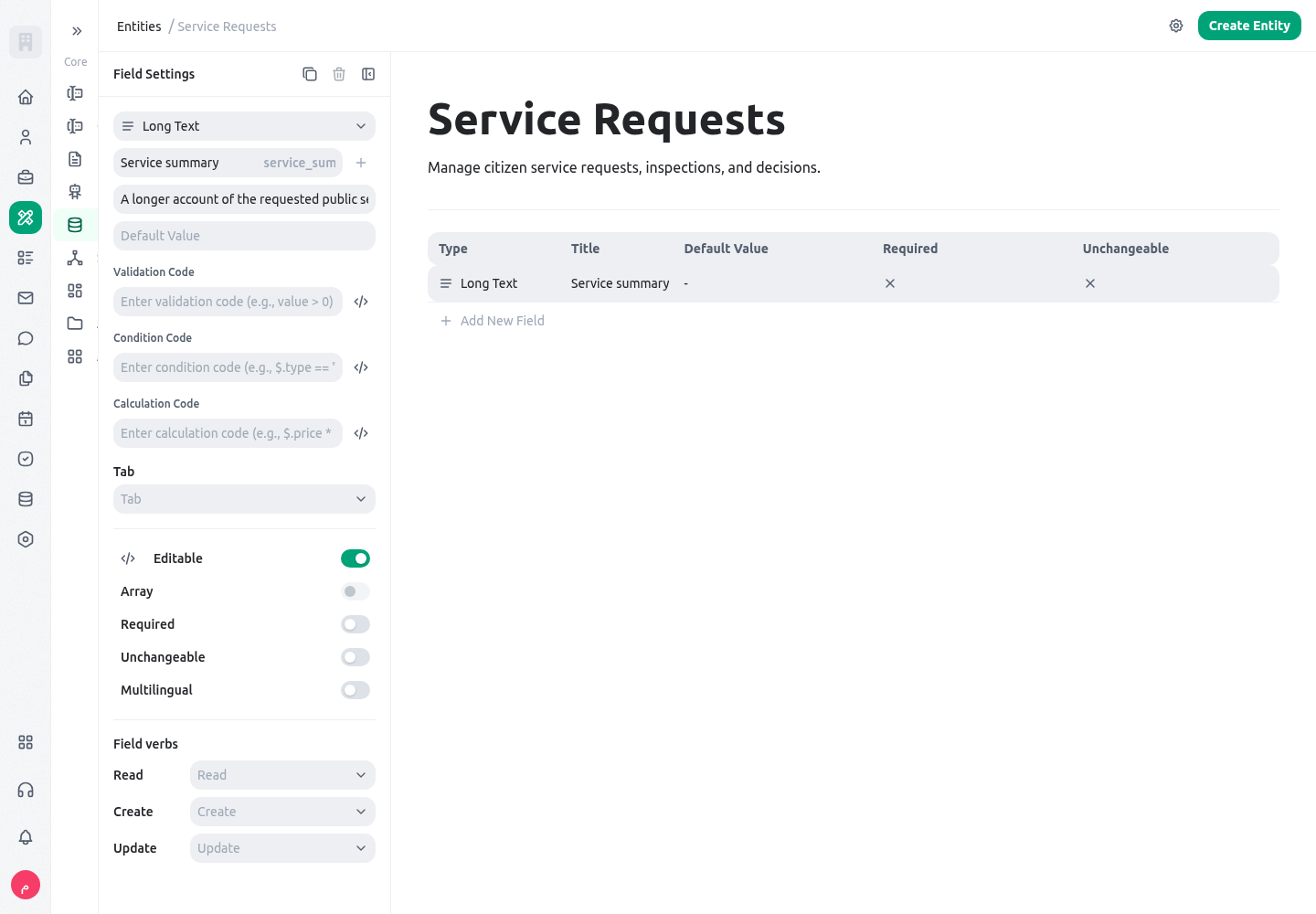
- It preserves a clear paragraph-style answer without turning it into a document editor.
- Ask one focused question per field. Separate “problem observed” from “recommended action” so both can be reviewed and reported independently.
- Do not use it as a substitute for controlled fields that you need to filter or count.
- Set the field as required only when the process cannot proceed without a meaningful explanation.
rich_text
Use Rich text when the author needs formatting such as headings, lists, emphasis, or structured instructions.
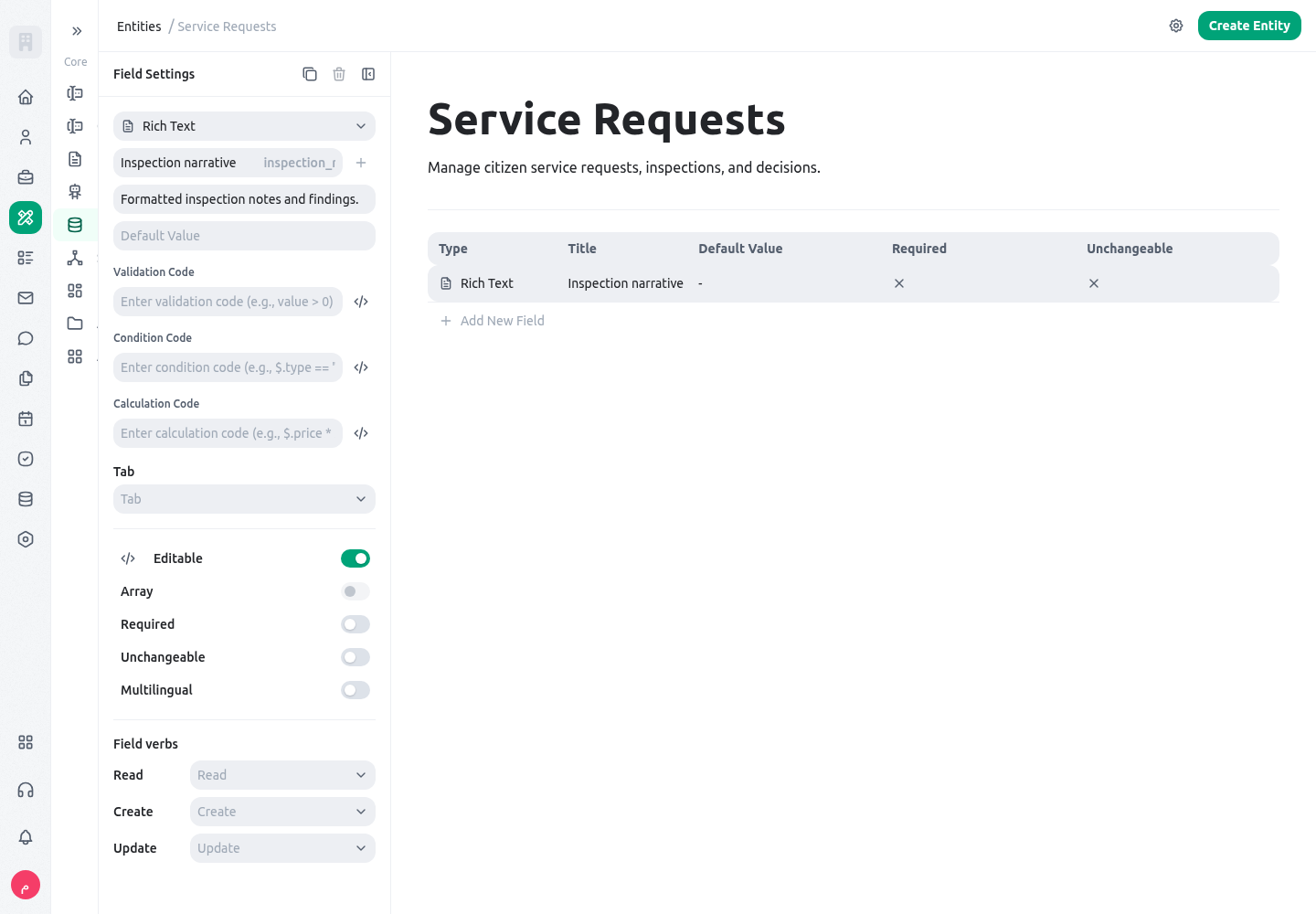
- Good uses include an inspection report, service guidance, decision rationale, or internal knowledge article.
- Keep the title, status, owner, and dates in separate fields; rich text is not a reliable source for reporting.
- Use it carefully in public-facing flows. Structured fields are better for searchable or auditable facts.
- Decide which roles may edit rich text, because formatting can make a change appear more significant than a simple note.
phone
Use Phone for a contact telephone number that should be entered and displayed as a phone value.
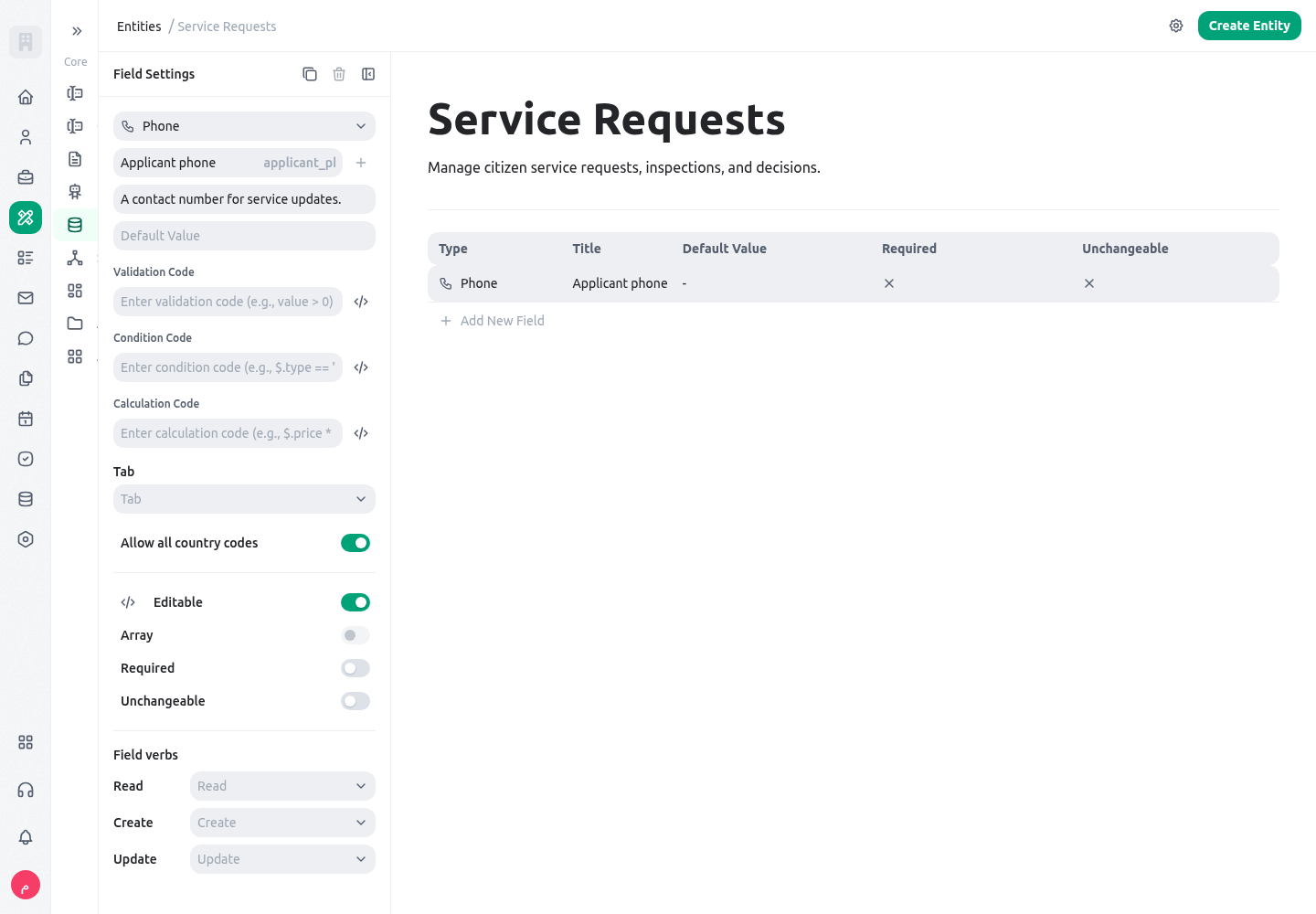
- Use it for a preferred contact number, emergency line, or service desk number.
- Keep a separate Text field for extensions or a reference number that only looks like a phone number.
- Do not use Phone for a national identifier or a value that may contain leading zeroes but is never dialed.
- Consider who is allowed to view or export it; phone data is often personal data.
serial_id
Use Serial ID for a human-readable, traceable record number generated by the system.
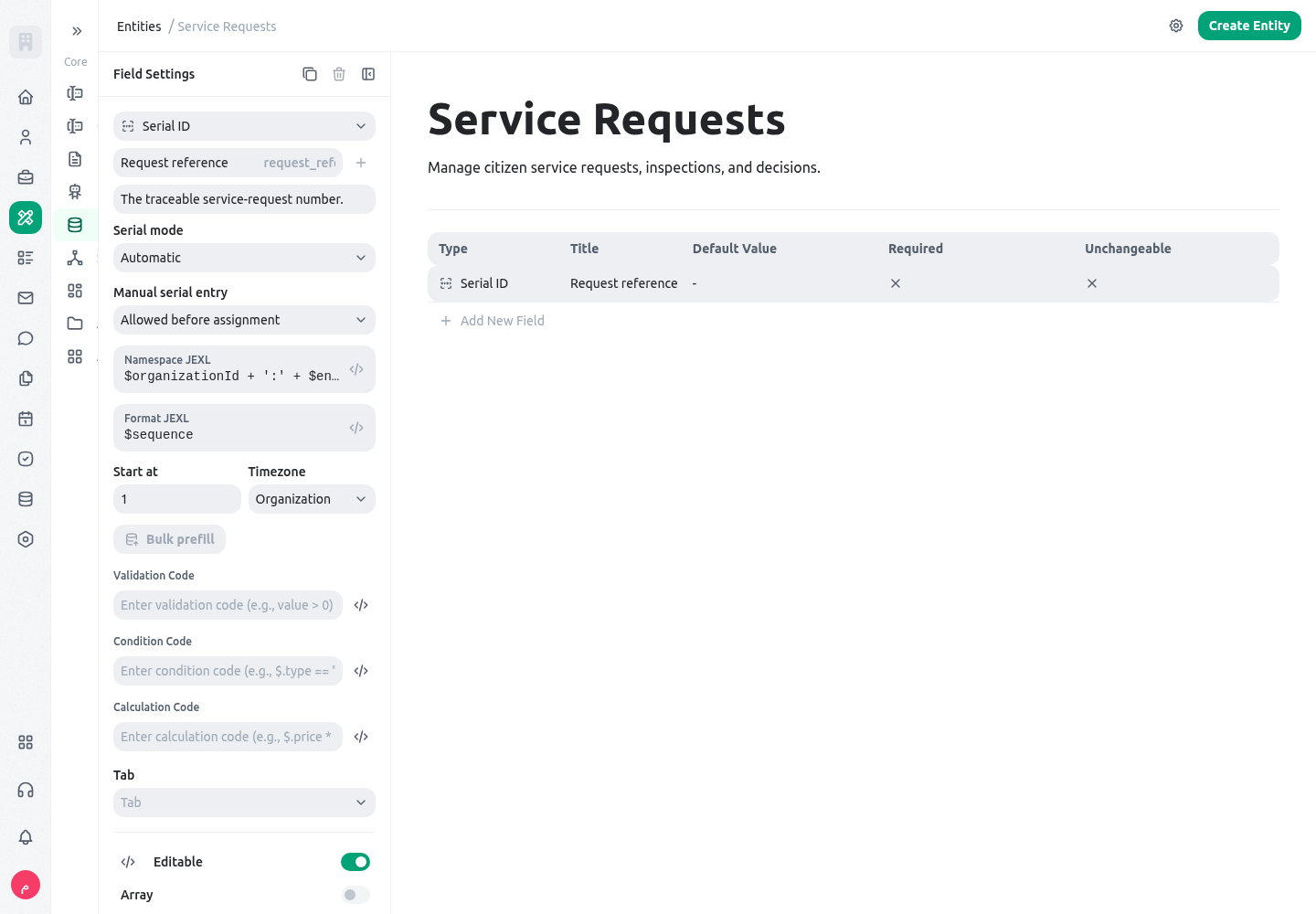
- Good examples are
LIC-2026-0142, an inspection number, a payroll cycle code, or a maintenance ticket number. - Use it as the reference shown in conversations, documents, and dashboards; do not ask staff to invent it manually.
- Keep the generated identifier separate from the database record ID and from an external reference supplied by another system.
- Design the prefix and numbering rule before publishing. Changing a numbering convention after external use creates avoidable confusion.
- Use the full Serial IDs guide to configure allocation mode, namespace, date format, prefill, correction history, and test cases.
number
Use Number for values you need to calculate, compare, aggregate, or chart.
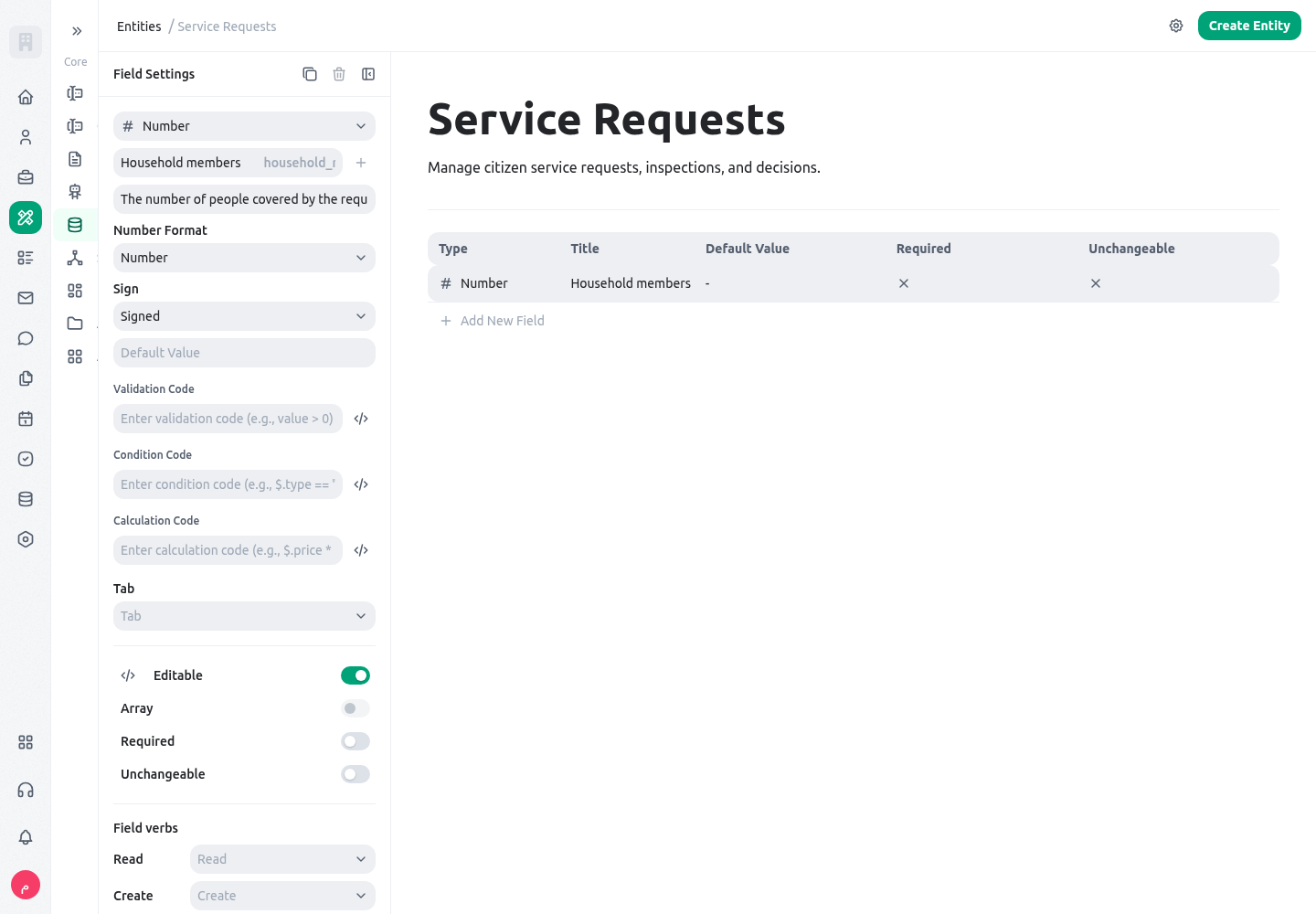
- Use it for quantity, area, number of attendees, score, amount, percentage, or workload hours.
- Do not use it for telephone numbers, postal codes, national IDs, or any identifier where formatting and leading zeroes matter.
- Decide the unit in the field title or description:
area_m2,estimated_hours, orrequested_amount_sypis clearer thanvalue. - Pair it with validation or a calculated field when a range, maximum, or derived result matters.
- For a stored derived result, use Calculated fields to choose a safe expression, relation context, refresh path, and test plan.
duration
Use Duration for an amount of time, not a point in time.
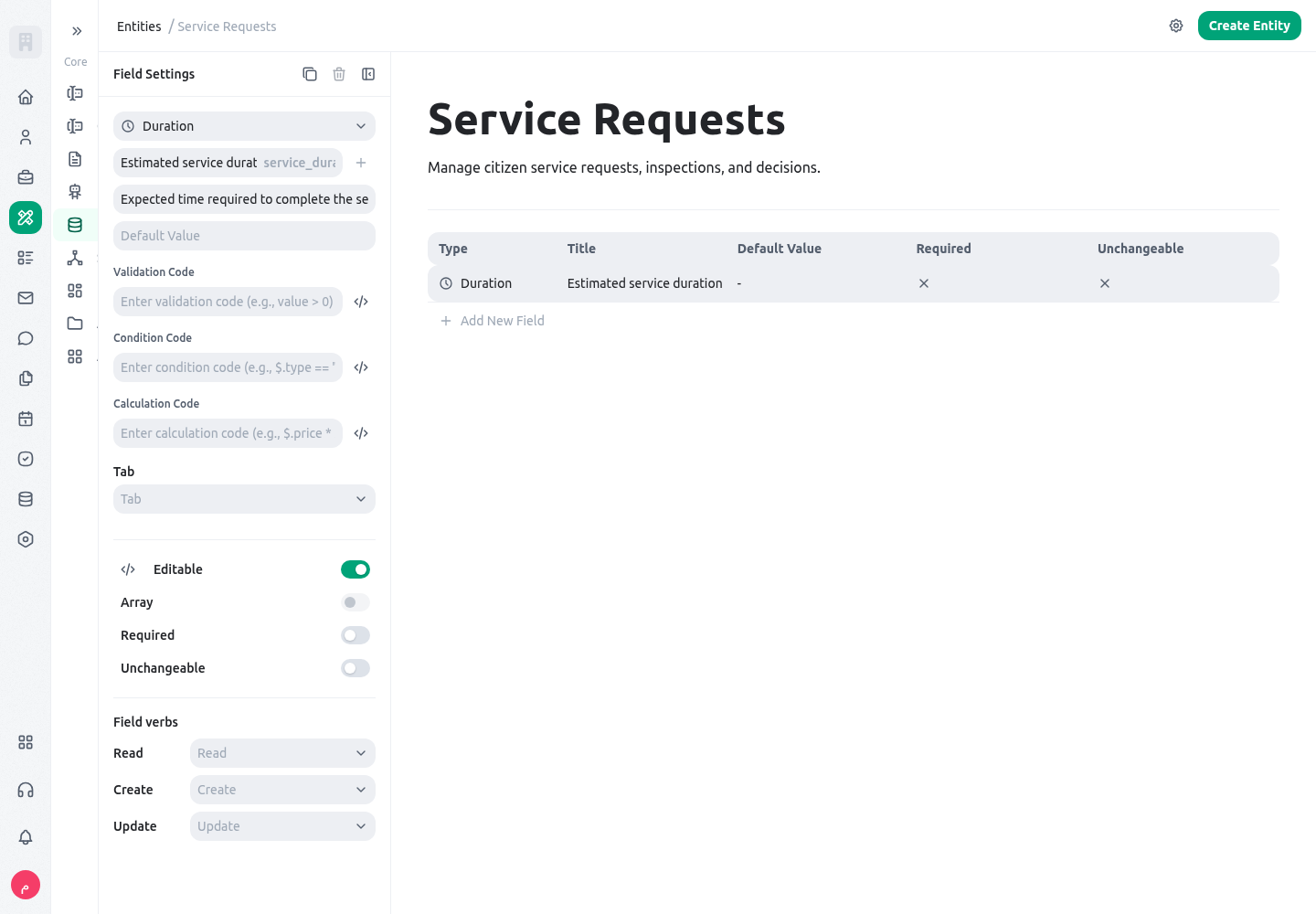
- Use it for expected inspection time, service-level allowance, travel duration, or training hours.
- Use Date, Time, or Date-time when you need to know when something occurs.
- State the business unit in the label and use consistent units across reports.
- A duration can drive workload planning; it should not be used to infer attendance without a separate time record.
boolean
Use Boolean for a clear yes/no fact.
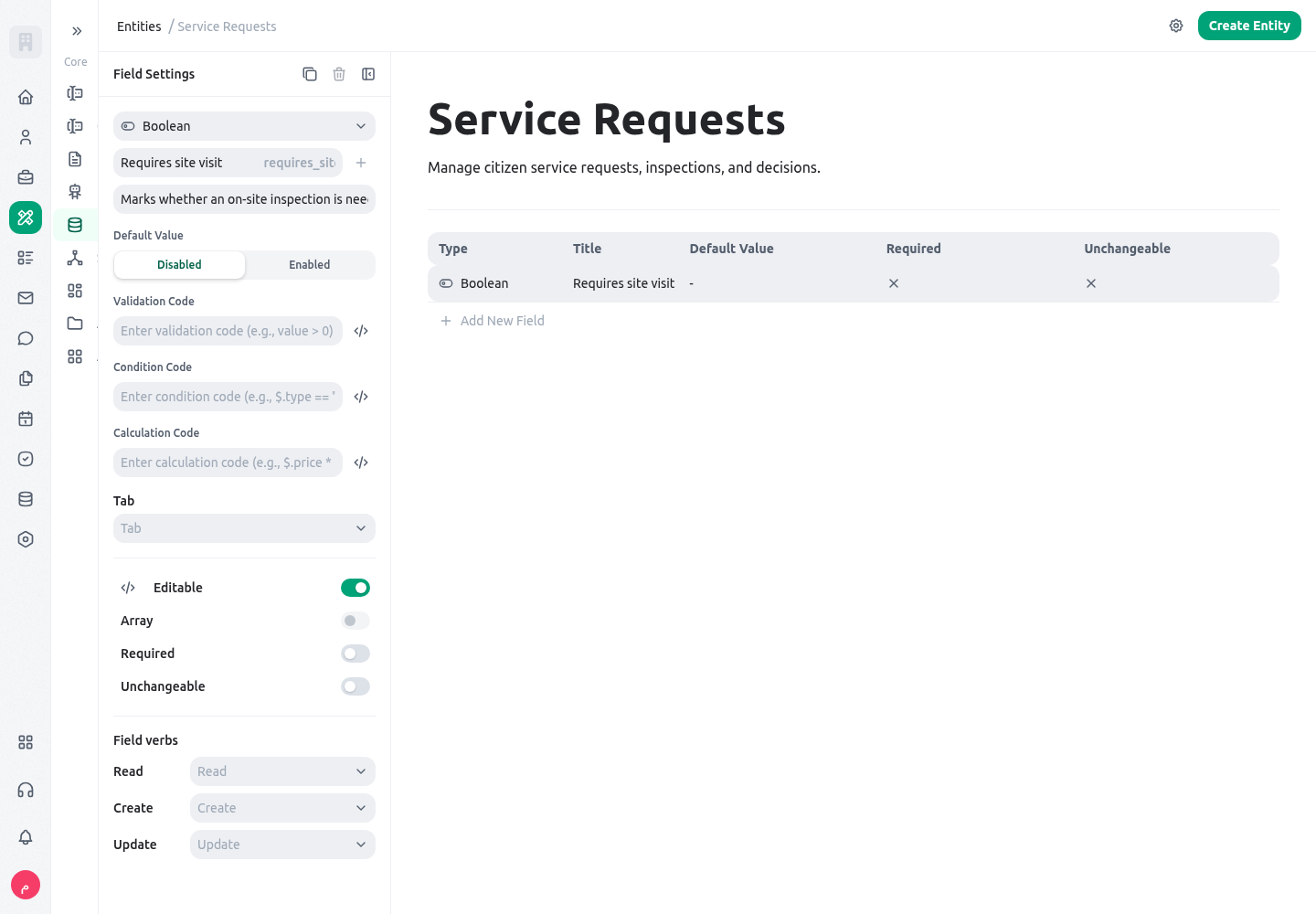
- Use it for “site accessible”, “consent received”, “requires supervisor review”, or “documents complete”.
- Make the meaning of both states explicit. A label such as “Documents complete” is less ambiguous than “Documents status”.
- Do not use Boolean when the real answer has more than two states; use Select or Status instead.
- Avoid making an optional Boolean carry three meanings such as yes/no/not assessed. Model “not assessed” explicitly if it matters.
date
Use Date for a calendar day with no time-of-day meaning.
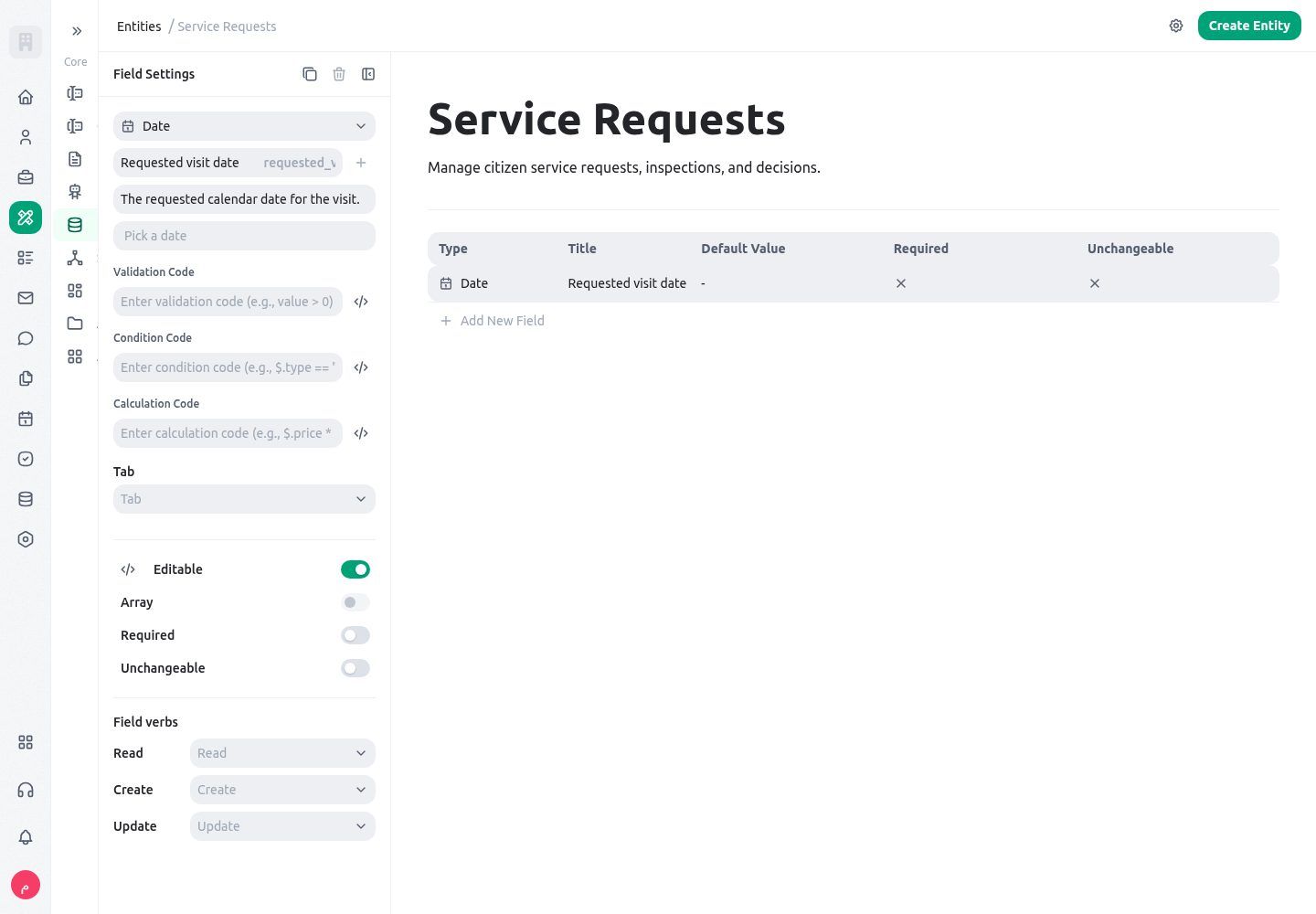
- Good uses include request date, expiry date, date of birth, leave date, or planned completion date.
- Use Date-time for appointments and events where the time zone or hour matters.
- Do not store a date in Text merely because it arrived from a spreadsheet that way.
- Use calculated expressions for deadline rules rather than asking users to calculate dates manually.
datetime
Use Date-time for an event that happens at a precise moment.
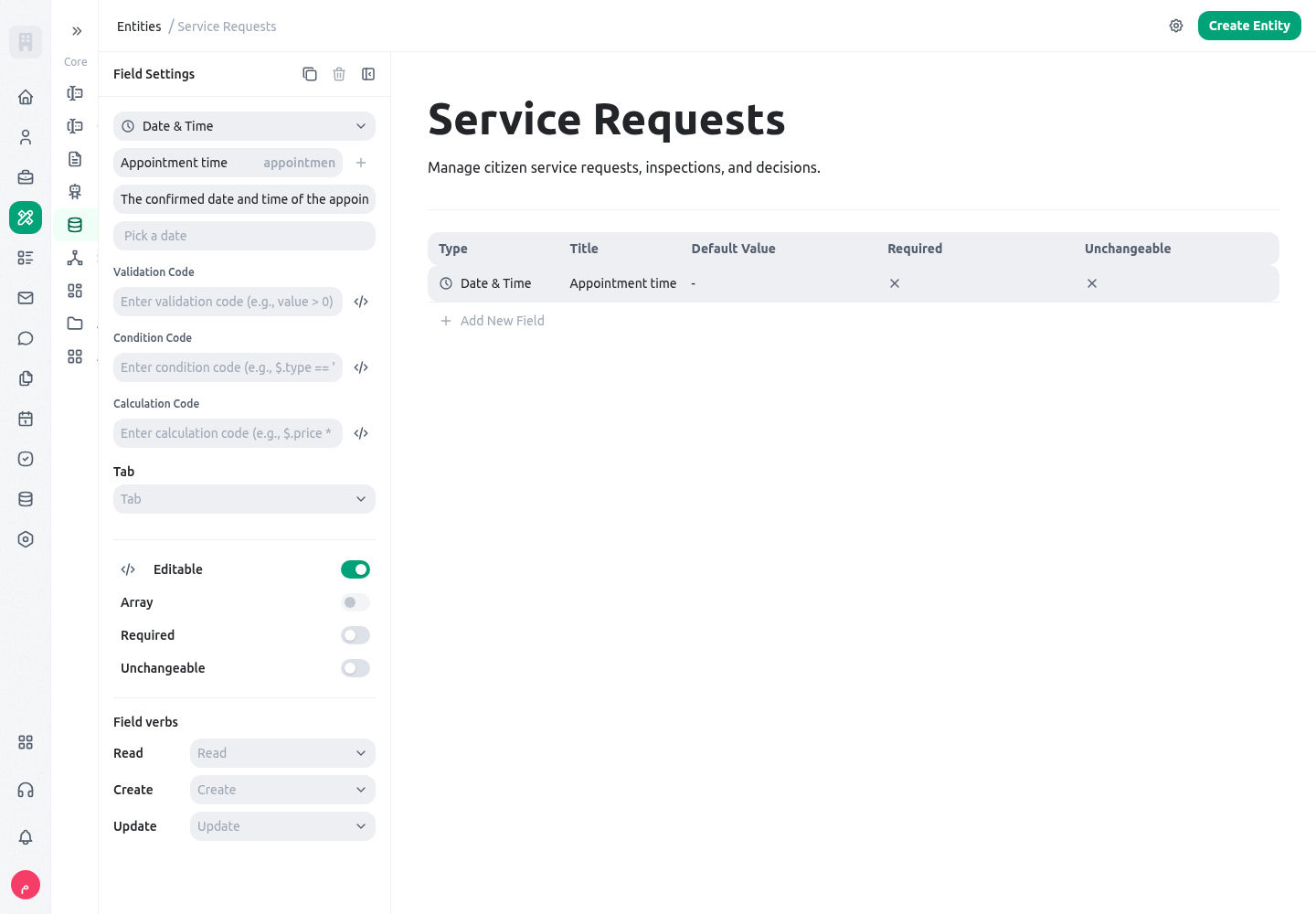
- Use it for submission timestamp, appointment start, approval time, incident occurrence, or message delivery time.
- Make the time-zone expectation clear for teams operating across locations.
- Use a Date range or Date-time range when the event has both a start and an end.
- Separate a system audit timestamp from a business timestamp such as “inspection completed at”.
time
Use Time for a recurring clock time without a specific day.
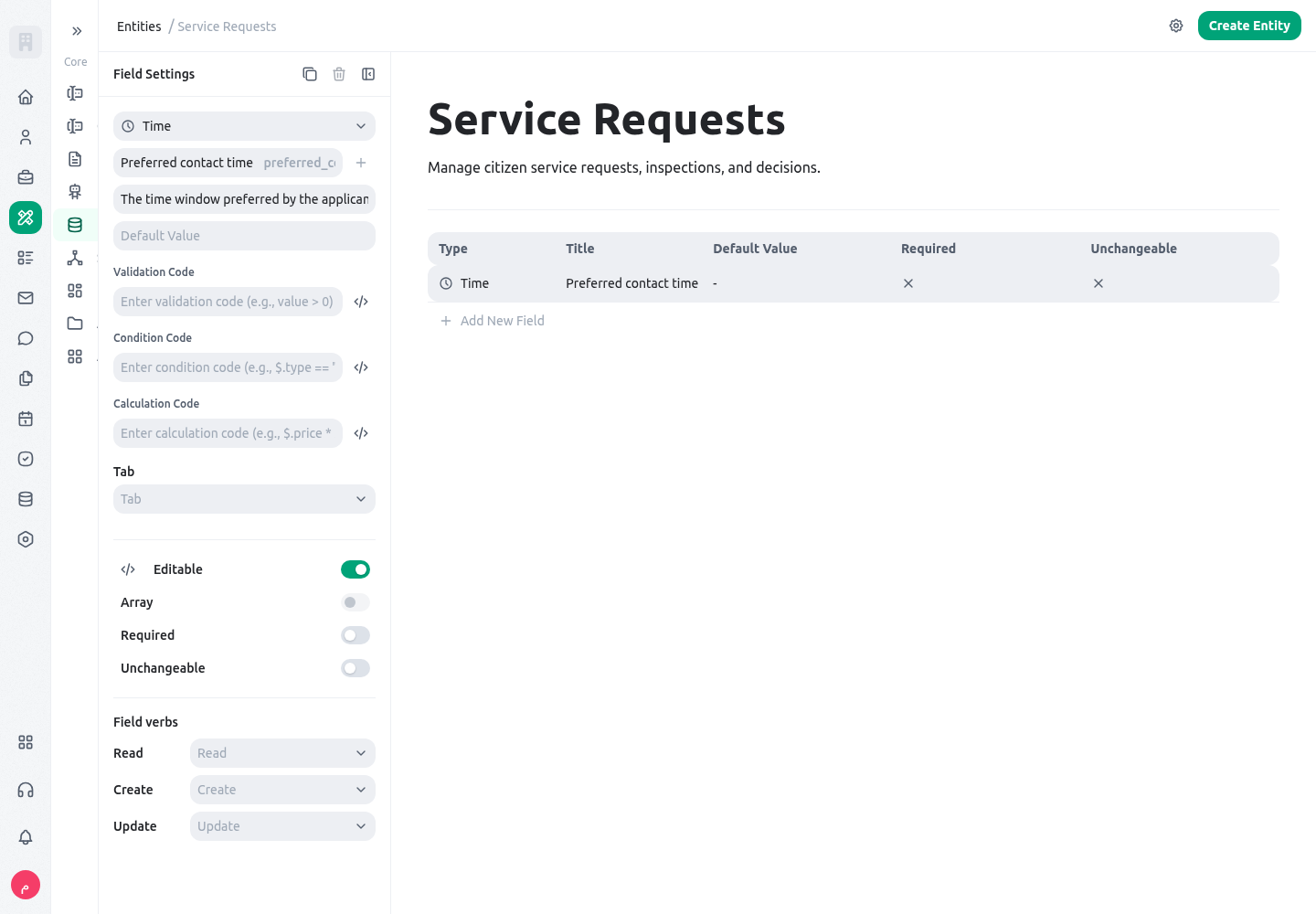
- Use it for opening time, shift start, daily cutoff, or a recurring service window.
- Do not use it for a one-off appointment; use Date-time instead.
- Combine Time with a Date only when the business process requires both values independently.
- Write the time-zone or local-office rule in the field description if people in several regions use the app.
date_range
Use Date range when a calendar period has a start and end date.
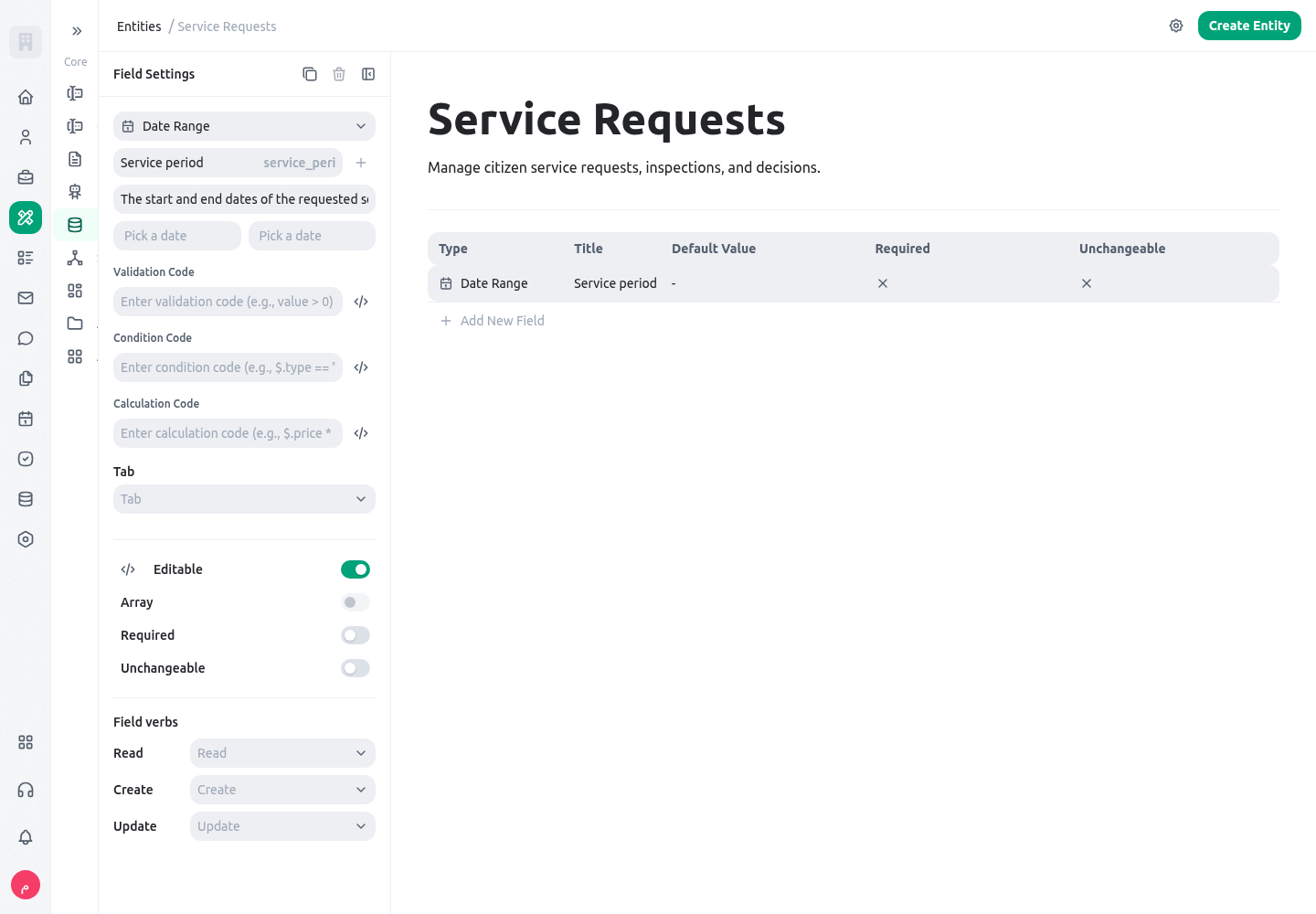
- Good uses include leave period, project phase, service suspension period, or funding window.
- Use it instead of two unrelated Date fields when the range is one business concept.
- Validate that the end does not precede the start.
- Use Date-time range for booked windows or any period where hours and minutes matter.
datetime_range
Use Date-time range for a precise window with a start and end moment.
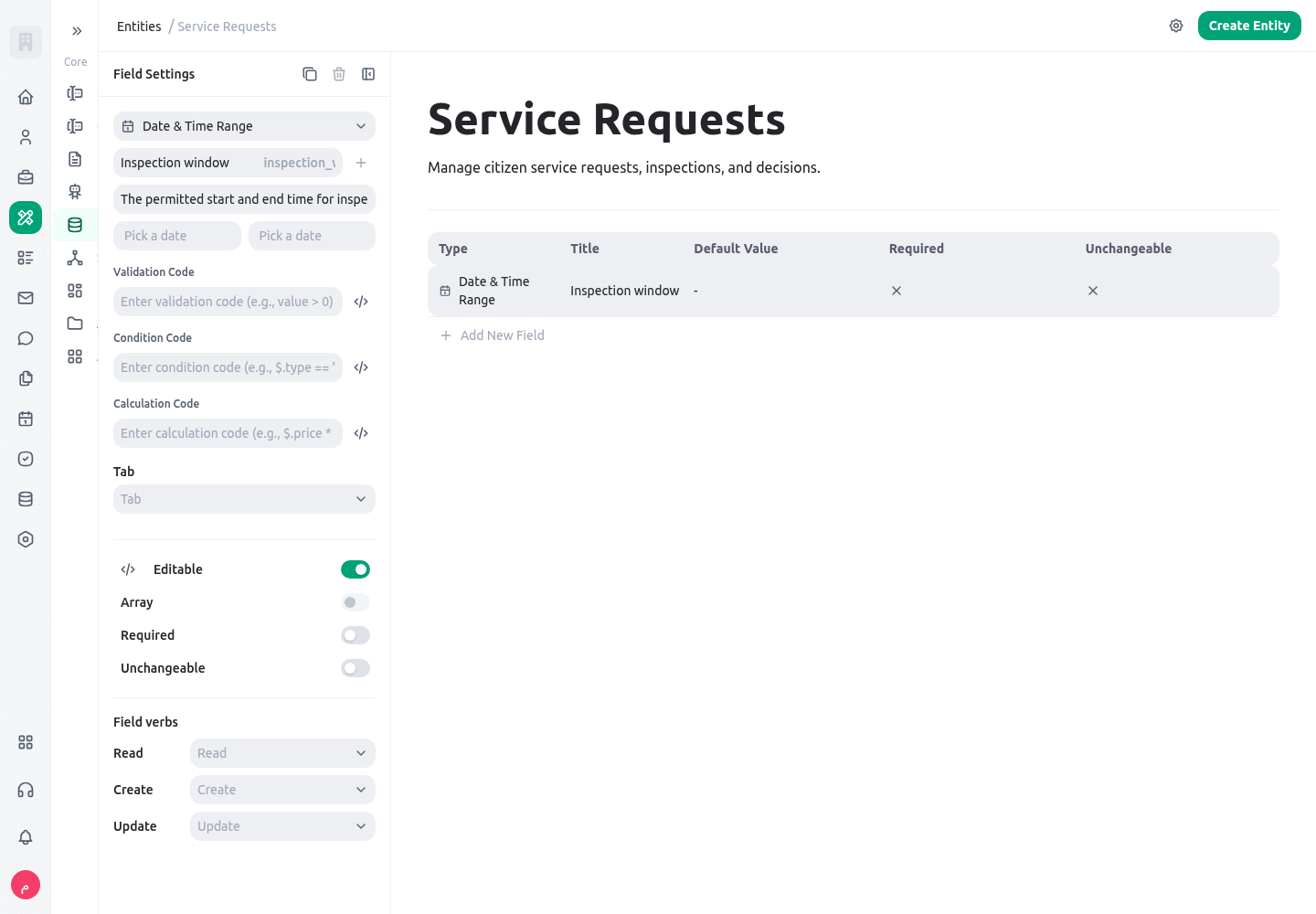
- Use it for an inspection appointment, maintenance outage, event slot, or staffed service window.
- It makes overlap checks and calendar views more reliable than storing a free-text schedule.
- Set a clear expectation for rescheduling and cancelled appointments; a range alone is not a workflow state.
- Use a separate Status field to distinguish proposed, confirmed, completed, and cancelled windows.
time_range
Use Time range for a recurring daily interval without a specific date.
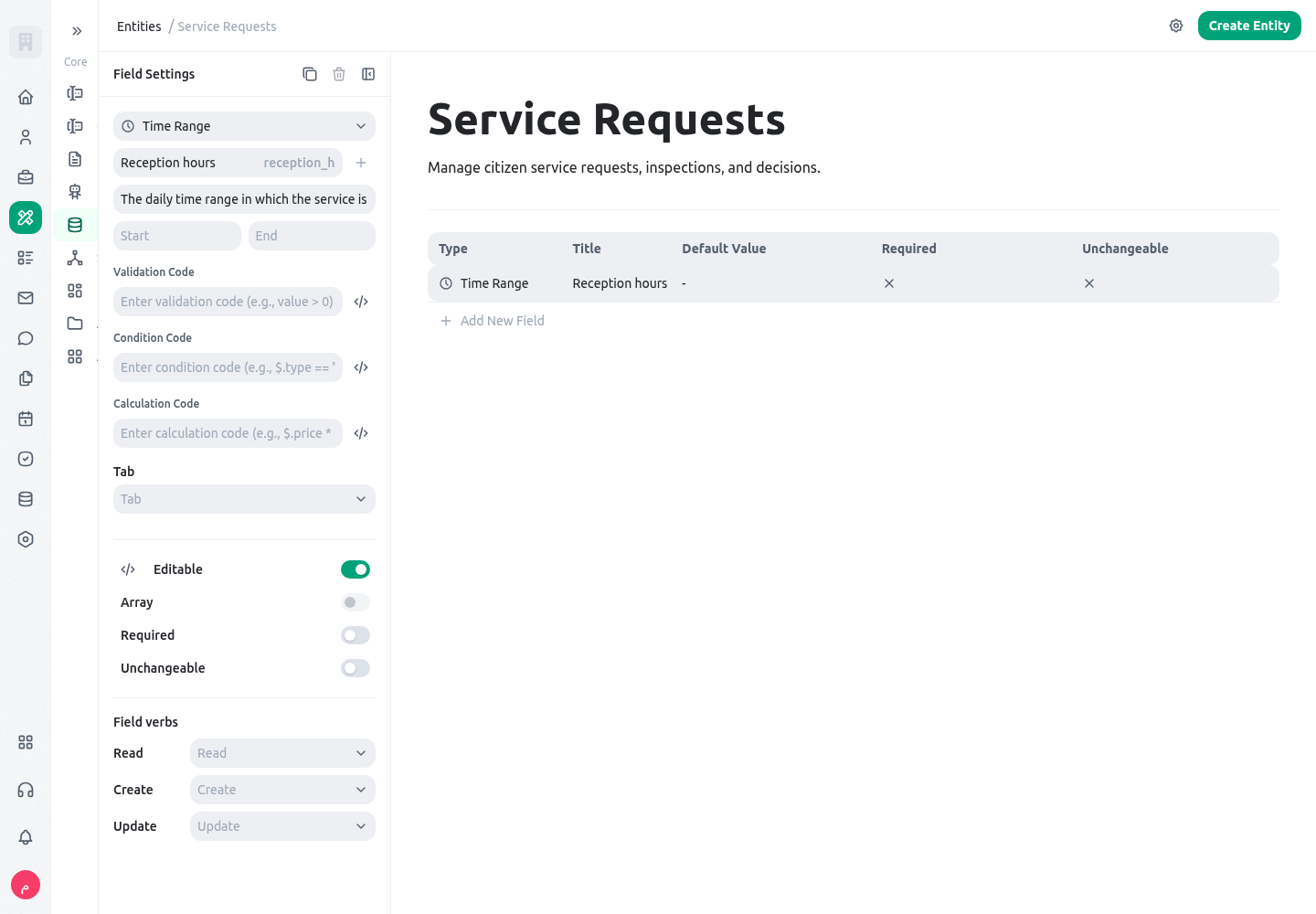
- Use it for counter opening hours, normal shift hours, or a daily call-centre window.
- It is not a substitute for staff attendance or a dated appointment.
- Name the field by purpose, for example “public service window”, not simply “time range”.
- Model exceptions such as holidays or special closures in their own records.
select
Use Select for a controlled list of values that staff must choose consistently.
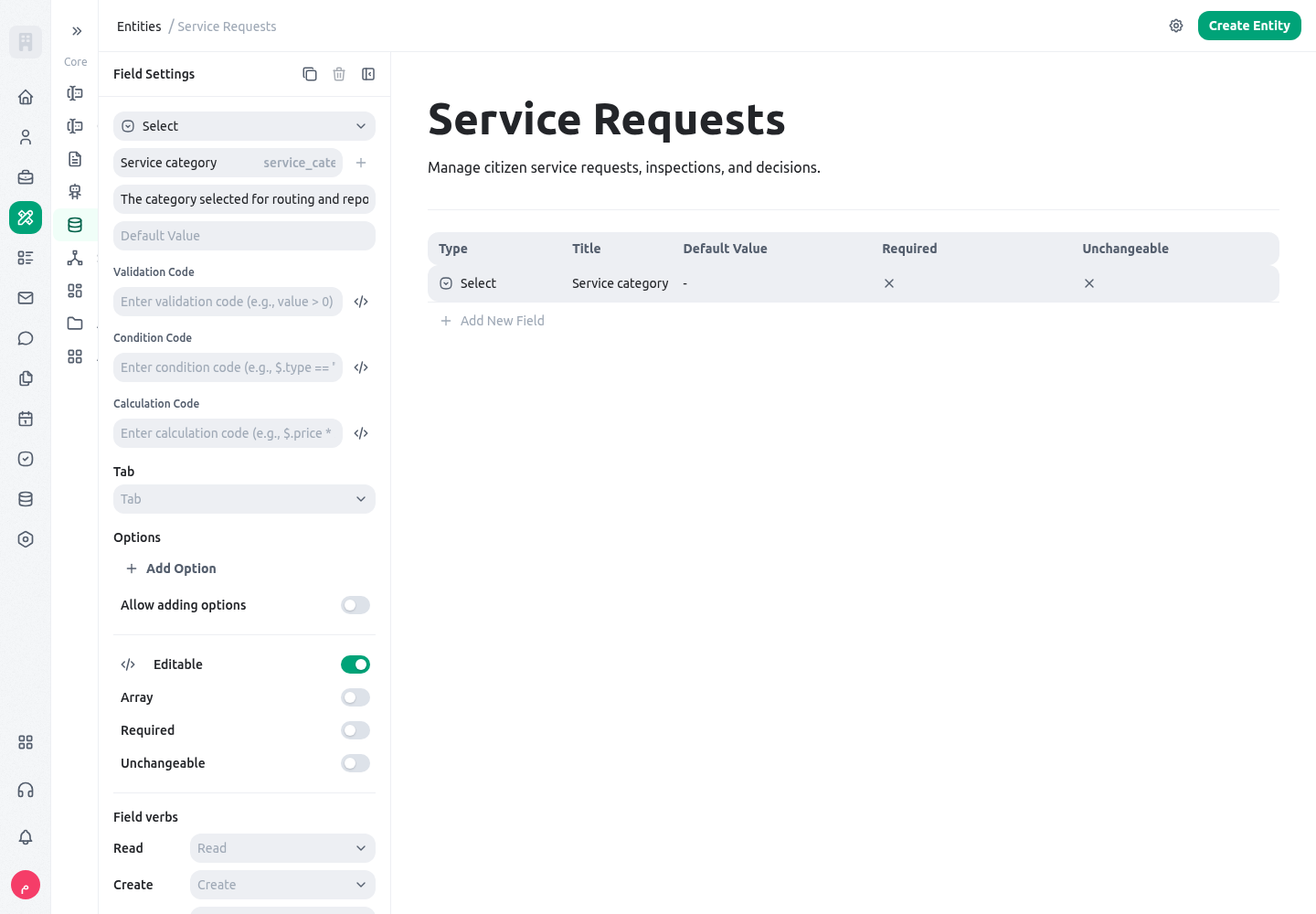
- Good uses include service category, priority, language, permit class, risk level, or reason code.
- Give every option a stable machine value and a clear, translated display label.
- Use a multi-value configuration only when selecting several values is truly meaningful; otherwise a relation is often clearer.
- Do not put a process lifecycle in a general Select when you need transitions, responsibilities, or reporting by stage. Use Status.
file
Use File for documents, photos, scans, or other attachments.
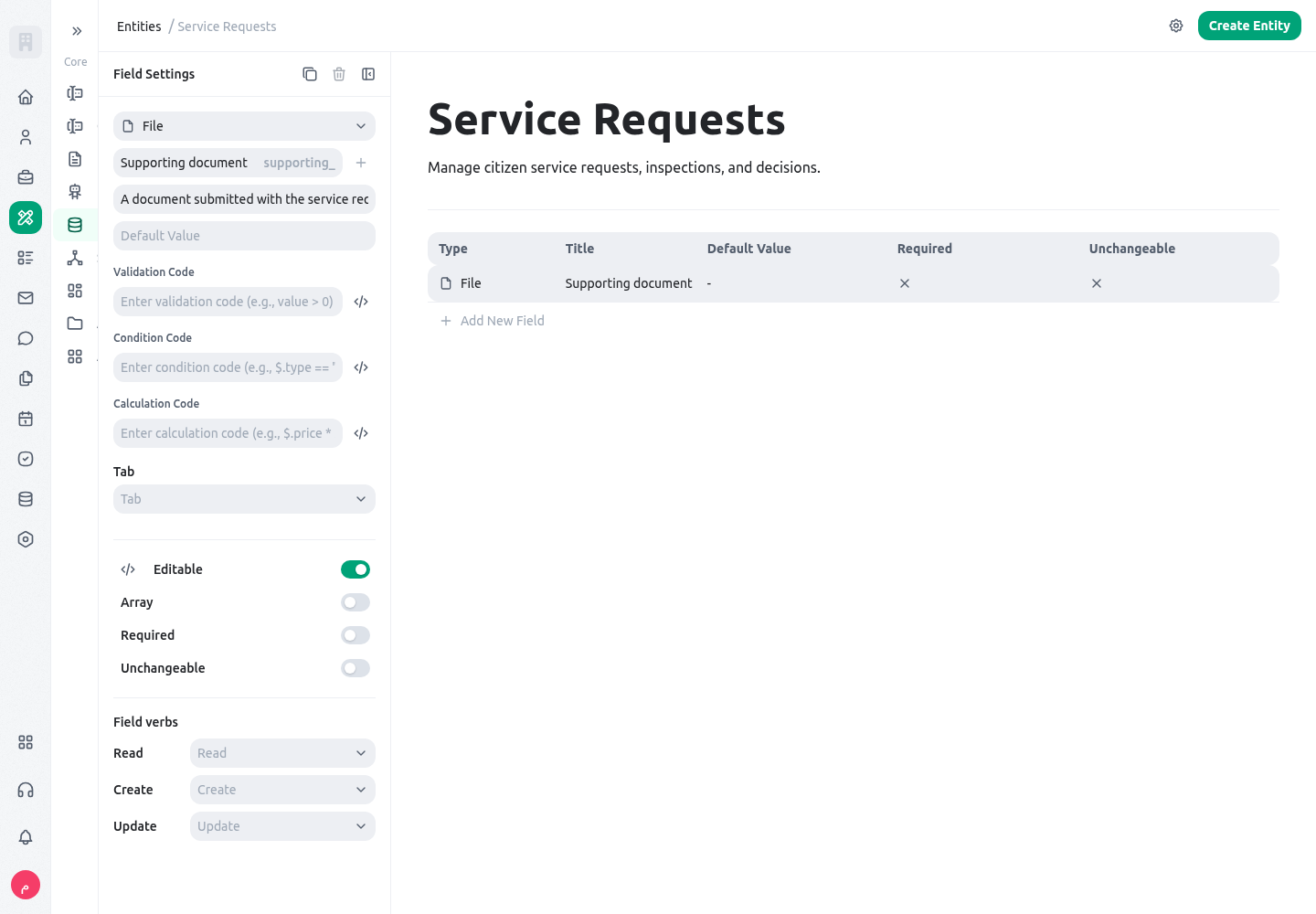
- Use it for identity evidence, inspection photos, a signed letter, a site plan, or a supporting spreadsheet.
- Keep the file purpose explicit: a separate “site photo” field is more useful than one unstructured “attachments” field when evidence types matter.
- Do not rely on a file name as a workflow state. Store approval, reviewer, and decision in their own fields.
- Confirm access and retention rules before exposing files through a public form or external integration.
relation
Use Relation to connect this record to another KayanOS entity.
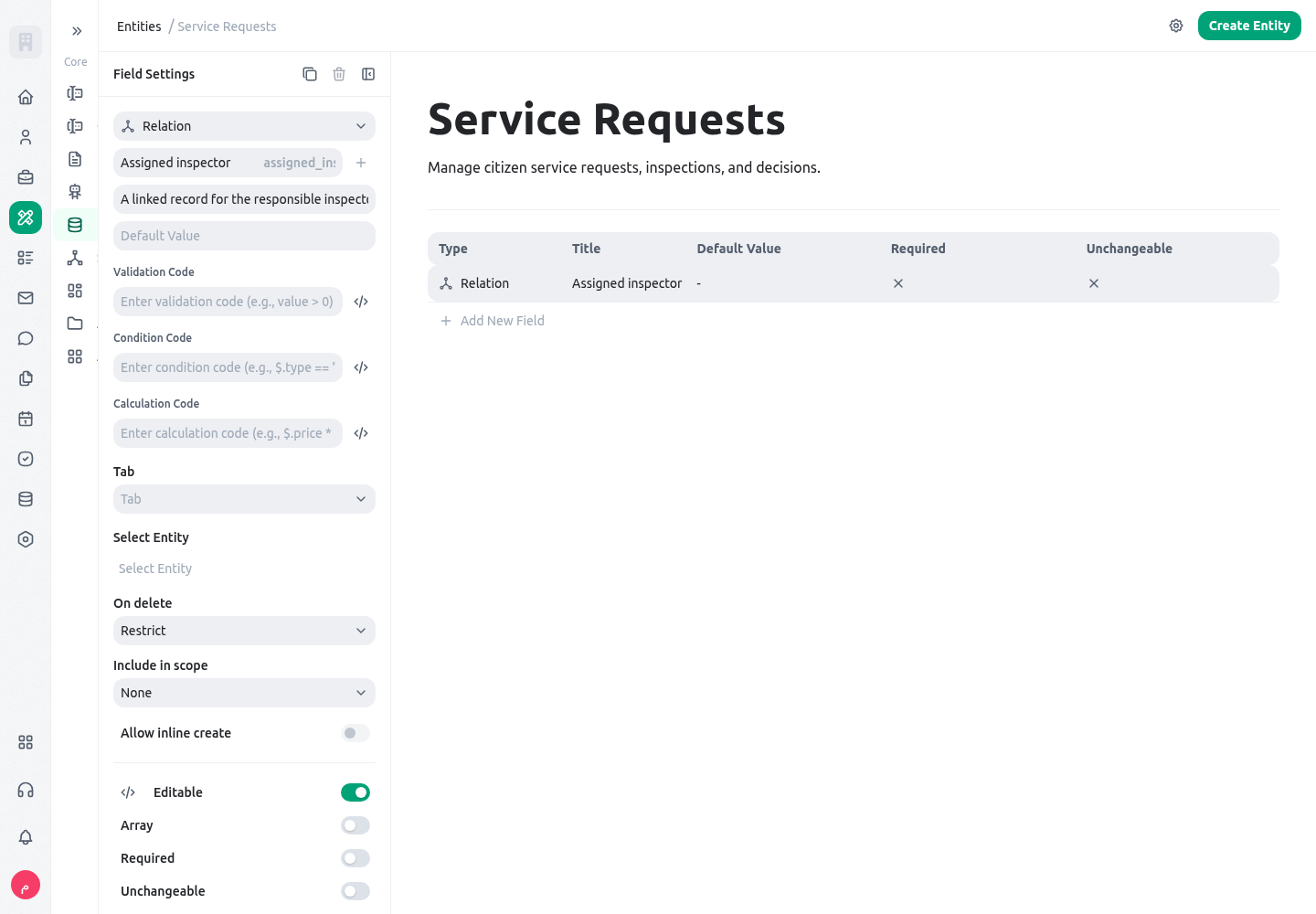
- Use it for request-to-case, case-to-inspection, inspection-to-location, project-to-budget, or employee-to-assignment links.
- Relations preserve one source of truth. Do not copy a related record’s name, status, and owner into multiple text fields unless you have a clear historical-reporting reason.
- Decide whether the relation is one-to-one, one-to-many, or many-to-many before building forms and dashboards.
- Review the deletion behavior and access model. A user who can see a request may not automatically be allowed to see every related record.
form_session
Use Form session when the entity must retain the originating form submission context.
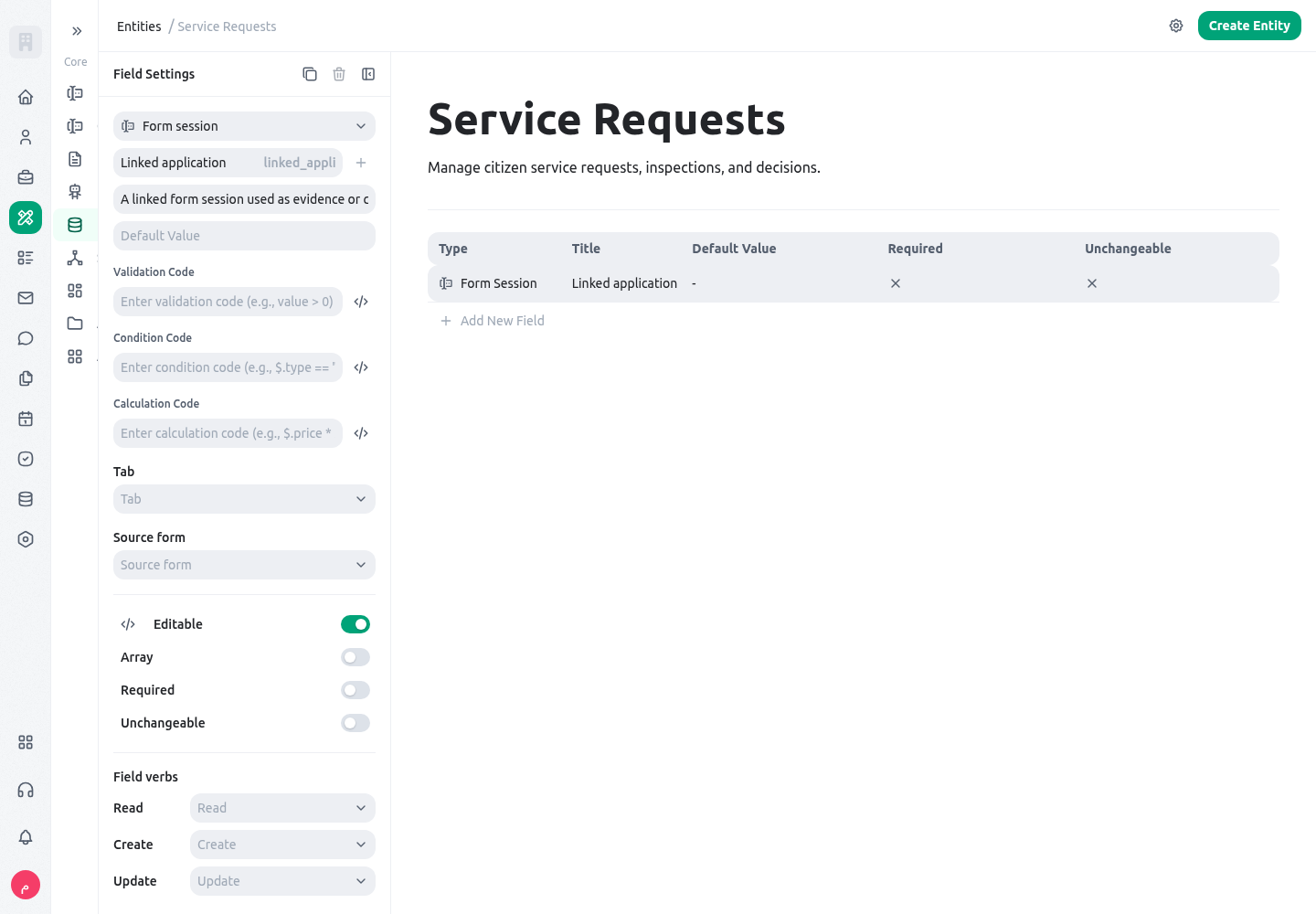
- It is useful for tracing a public or staff form submission back to the session that created or updated the record.
- Use Relation for a normal business relationship between two entities; Form session is specific to the form lifecycle.
- Keep the entity’s business fields readable on their own. A reviewer should not have to open a form session to understand the record’s status.
- Do not treat the form session as a substitute for an accountable owner or workflow status.
json
Use JSON for advanced, structured data whose shape is defined by an integration or a carefully controlled technical design.
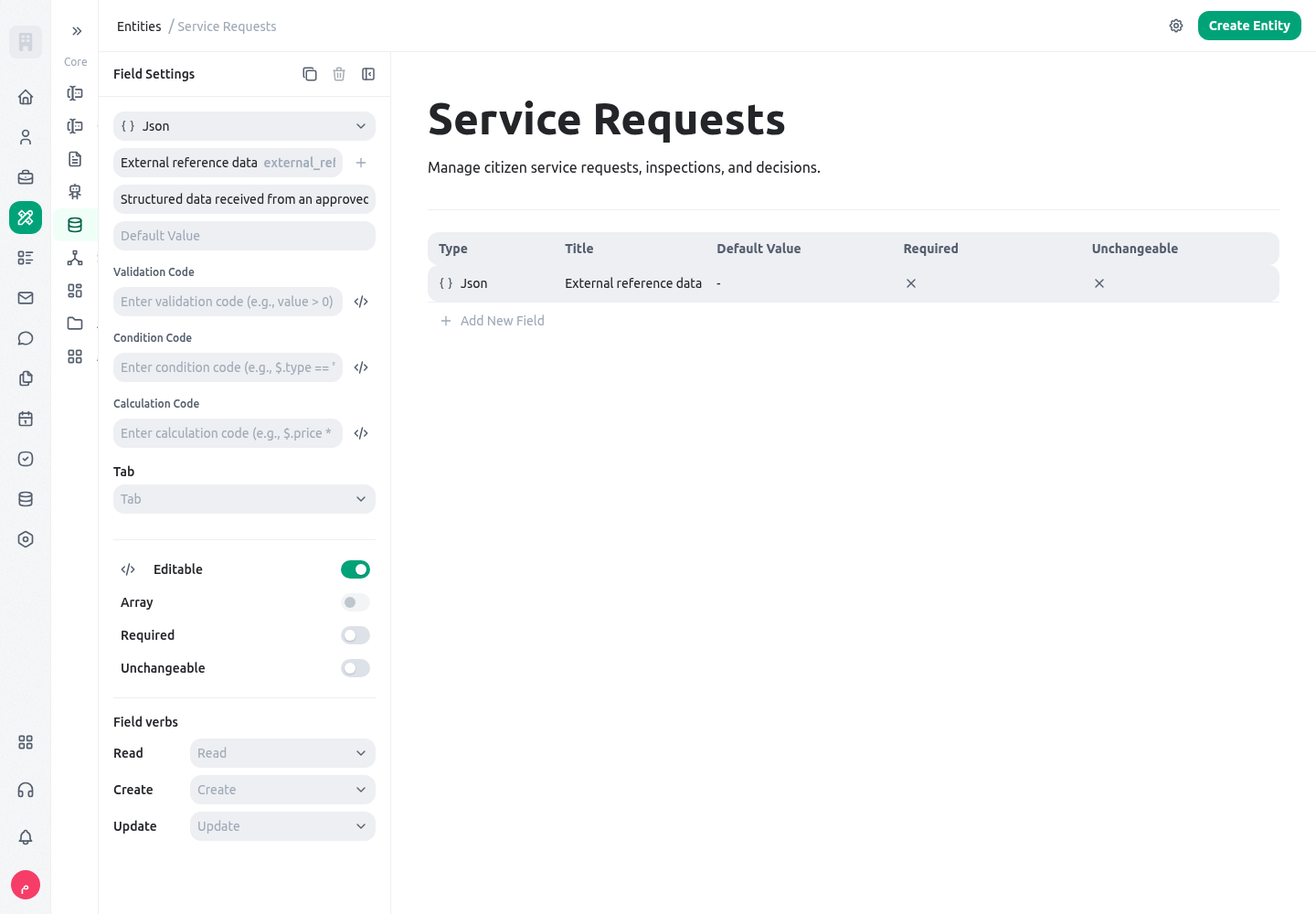
- Use it for a bounded external payload, a configuration object, or a dynamic structure that cannot be represented safely with normal fields.
- Do not use JSON for ordinary staff-entered business data. It is harder to validate, search, translate, and report on.
- Document the expected keys, value types, and versioning rule before any integration writes to it.
- Expose a calculated or normal field for values that people need to filter, review, or export routinely.
member_selector
Use Member selector for an accountable KayanOS member or members.
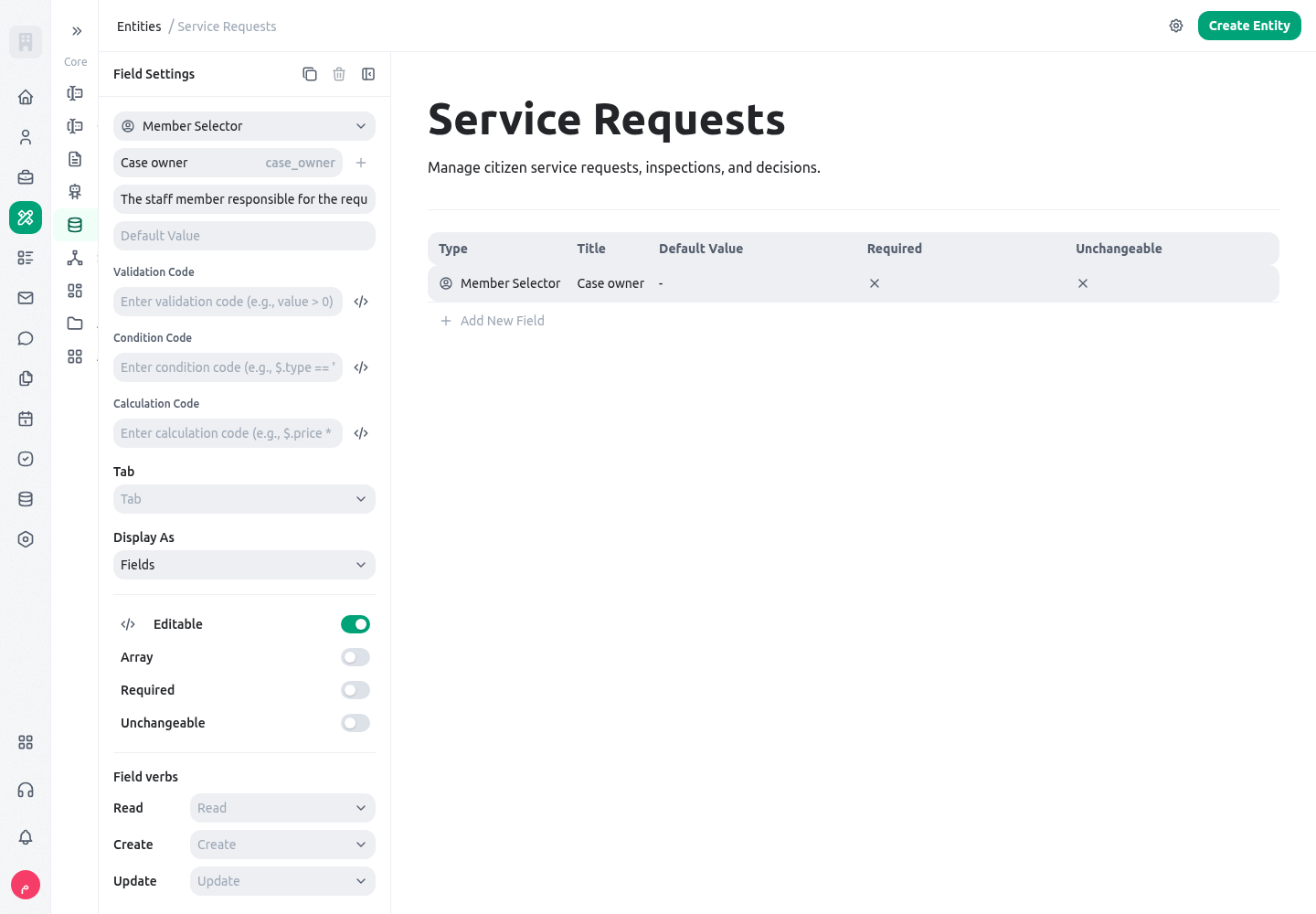
- Use it for case owner, approving manager, inspector, project lead, or follow-up assignee.
- Use Text or Relation for a person who is not a KayanOS member, such as an applicant or supplier contact.
- Keep responsibility distinct from hierarchy: a manager is not automatically the owner of every record in their unit.
- Pair an owner with a Status and due date when the record represents work that must move forward.
avatar
Use Avatar when the record needs a compact visual identity.
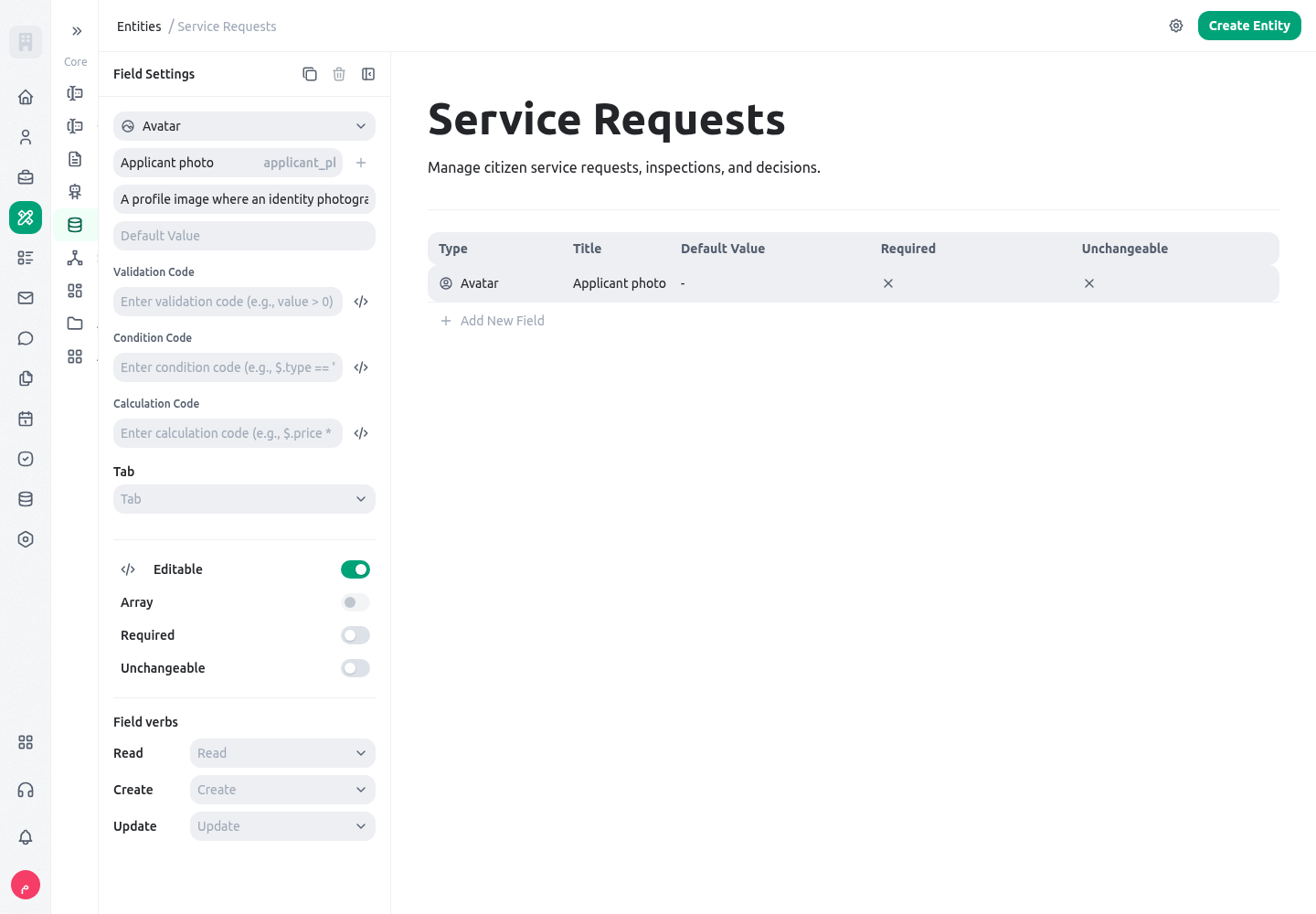
- It can support member, team, service, or location presentation where a small image improves recognition.
- Do not use it as the only evidence of identity; keep a text name and stable identifier as well.
- Use File for formal images or evidence that must be retained, reviewed, or downloaded.
- Confirm privacy expectations before storing a person’s photograph.
location
Use Location for a geographic place that may be displayed on a map or used for service routing.
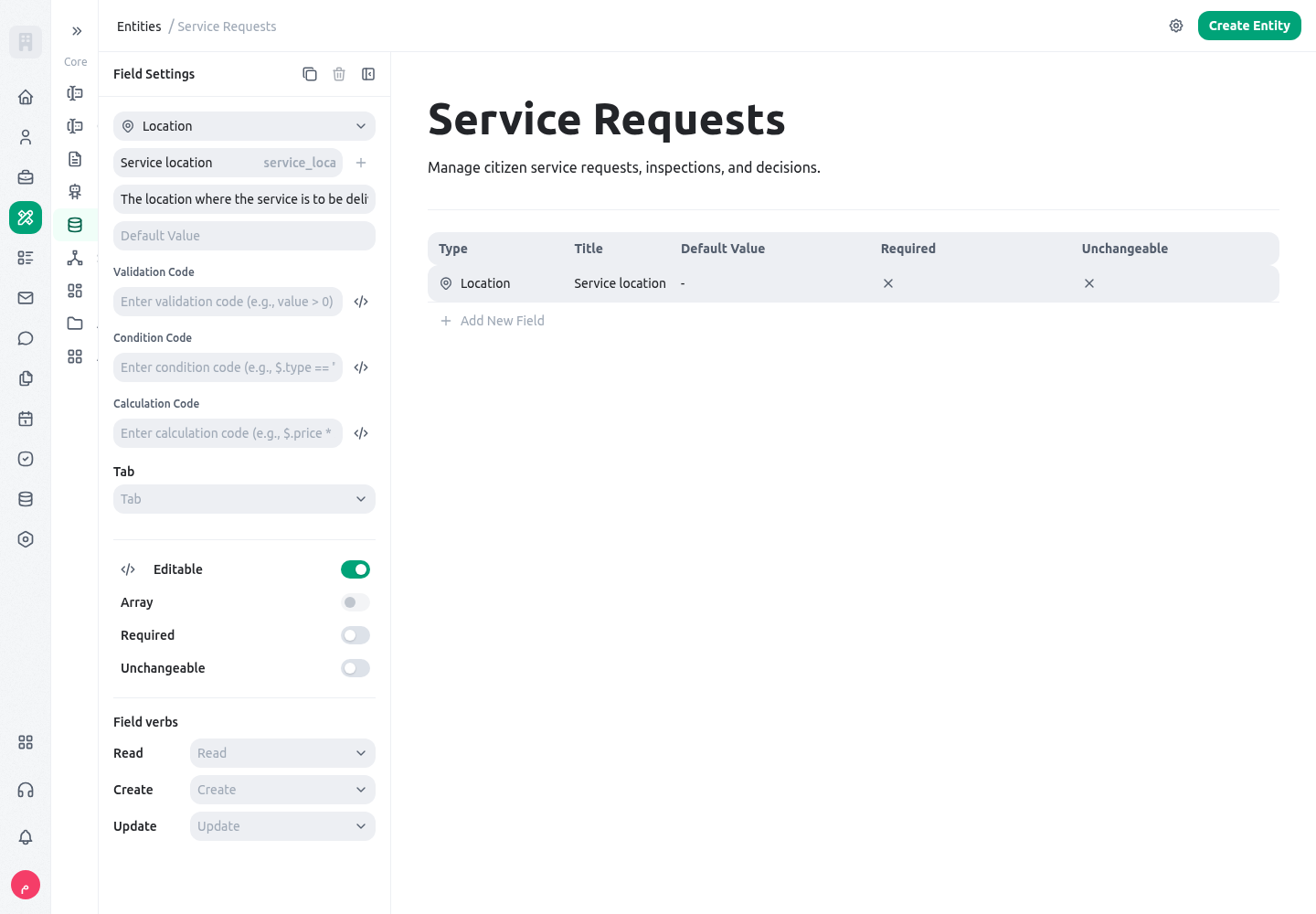
- Use it for an inspection site, facility, branch, project area, or service centre.
- Use Text for a simple descriptive place name when no geographic behavior is required.
- In the field settings, choose the coordinate format staff actually receive: decimal latitude/longitude, MGRS, or UTM. The record stores normalized WGS84 latitude and longitude, so changing the display format does not create a second location or change map behavior.
- MGRS accepts compact or spaced references and normalizes their case and spacing. UTM expects a zone and latitude band followed by easting and northing, such as
37S 248415 3712060. MGRS and UTM are available only between 80°S and 84°N; use decimal coordinates outside that range. - Keep address, coordinates, and service-area logic consistent with the organization’s mapping and privacy rules.
- Link recurring sites through a Relation rather than retyping the same location on every record.
- Test typed coordinates, map selection, search, and current location with the intended role. If a grid reference is rejected, check the zone or band, digit count, supported latitude, and whether the field was configured for the format being entered. Do not estimate or transform sensitive coordinates outside the approved mapping source.
action
Use Action for a controlled record-level operation that a user deliberately invokes.
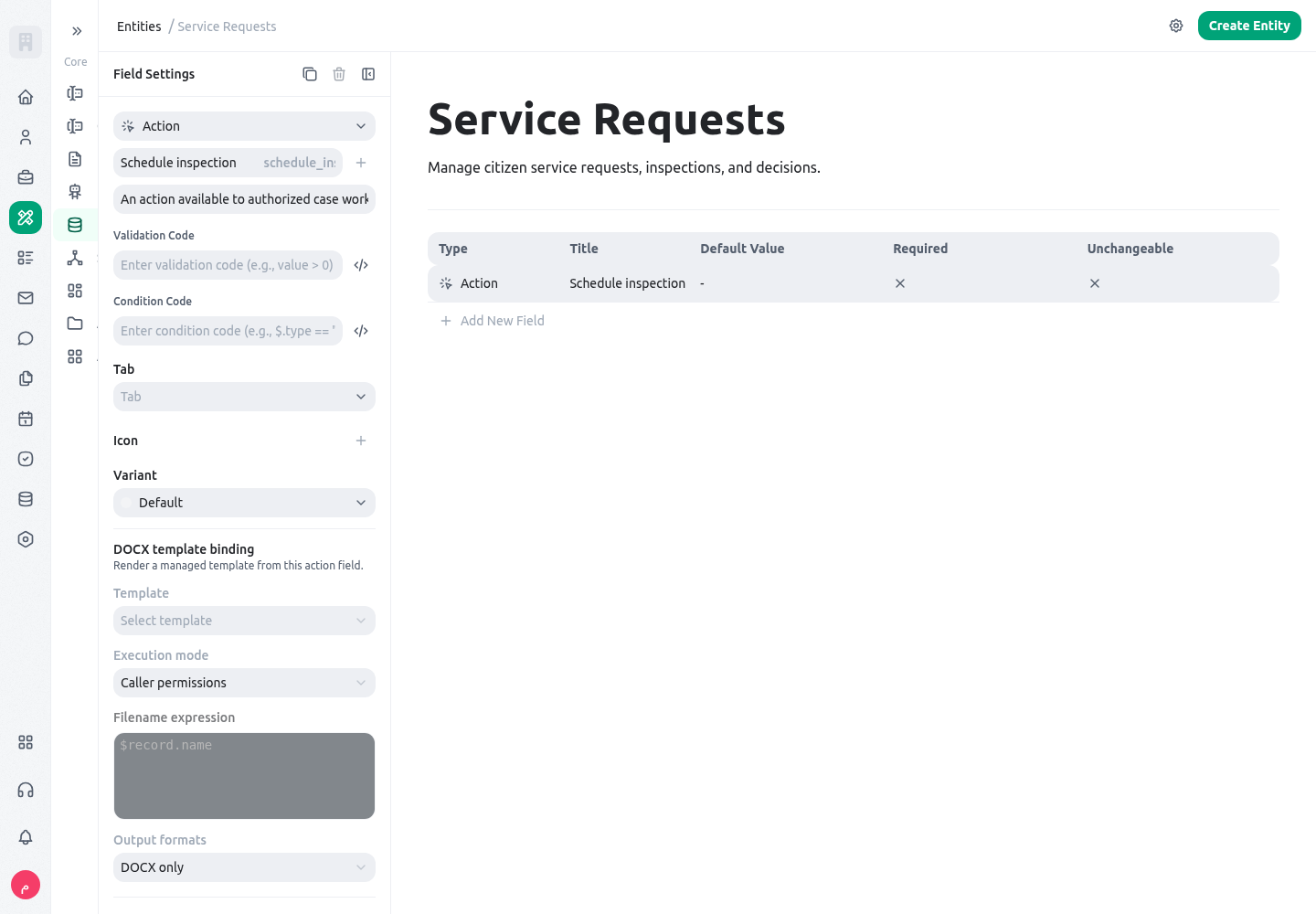
- Use it for a carefully designed next step such as creating a follow-up, producing a document, or starting an approved review action.
- The action label must explain its outcome; “Submit for review” is clearer than “Run”.
- Do not use Action to hide a workflow decision. Store the decision, actor, and resulting status in fields that can be reviewed later.
- Choose the action behavior deliberately: a generic action, a bound DOCX/XLSX template, or Open link. Legacy unbound actions retain their existing generic fallback behavior.
- For Open link, enter a reviewed literal destination or an expression that resolves from the saved record (
$) and readable relations ($relations), then choose the same tab or a new tab. KayanOS accepts HTTP(S),mailto:,tel:, and safe relative destinations and rejects an invalid protocol or non-string result. - An Action appears only on a saved record and only when the member has the configured execute verb, or scoped
updatewhen no separate verb was selected. Opening a link does not grant access at its destination. - Test with a non-production record and the intended role. Include a missing expression value, a disallowed URL, same-tab navigation, new-tab popup policy, and a destination that independently refuses access. Never place a token, private identifier, or unnecessary record value in a URL.
status
Use Status for the lifecycle state of a record.
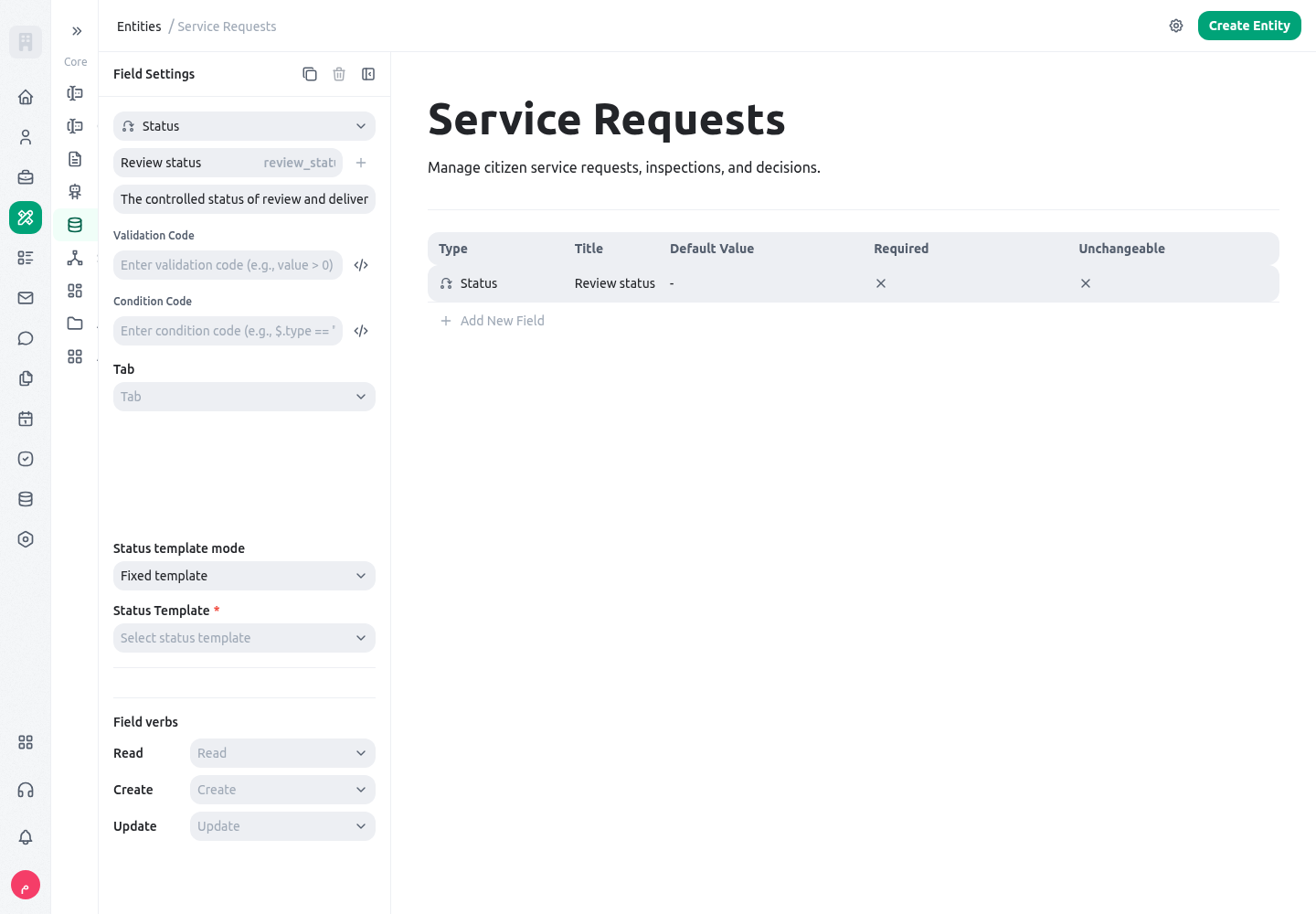
- Use it for draft, received, under review, awaiting evidence, approved, rejected, completed, or cancelled.
- Status is more than a label: it should reflect the point in the process and make the next responsible action understandable.
- Keep the state list small and mutually clear. If two statuses lead to the same work, combine them.
- Use a Select for a classification such as service category; use Status when the value changes how work progresses.
Build layouts that match the work
The same record is read differently by an intake officer, reviewer, manager, and auditor. A layout should reduce noise without hiding the facts needed for the next decision.Recommended structure for a service record
Use tabs when a record has distinct phases or a large amount of evidence. Use a single field layout when the record is small and staff must complete it quickly. Put the most important next decision near the top; do not make a reviewer scroll through historical detail to find the current status and owner.
Configure the record detail experience
Embed a governed page in a tab or section
A tab or section can contain an embedded page even when it has no normal fields. Configure either a reviewed literal HTTP(S) URL or an expression that resolves from the current record ($) and readable relation context ($relations). Set an inline height between 320 and 1,600 pixels when the default is unsuitable, and decide whether viewers may use the fullscreen control; the control is enabled by default.
The embedded destination keeps its own authentication, authorization, framing, and browser policy. KayanOS does not turn a private destination public or bypass a site’s frame restrictions. Do not put credentials or sensitive record values in the URL. Test an ordinary record, a missing/invalid expression result, a destination that refuses embedding, the intended restricted role, English and Arabic direction, the configured inline height, and entering/exiting fullscreen. If fullscreen is denied by the browser, the inline page remains the safe fallback.
Choose the entity primary photo
In the entity settings, Primary photo field can point to an eligibleavatar field on that entity. Select it when a stable photo or logo helps people distinguish records in entity lists and record headers; choose no field when the entity has no approved visual identity. The configured field controls presentation only. It does not make a private image public, replace the record name, or grant file/record access.
Test creation, update, removal, and a missing-image record. Confirm that the list falls back to a non-image identity without a broken URL, and that changing or deleting an avatar updates the displayed photo through the normal field lifecycle. Do not use a sensitive evidence attachment or an unrelated file field as the primary photo.
Open the entity settings to choose how saved records are presented. The Standard layout keeps the familiar field-and-section view. The Refined layout adds a stronger identity area, an overview, insight summaries, responsive tab navigation, and optional related-record and activity areas. Choose the presentation after the record model and access rules are stable; a refined layout cannot repair unclear fields or missing permissions.
Configure the detail view deliberately:
- choose compact, default, or comfortable density for the amount of information and the devices staff use;
- select and order tabs, then choose a valid default tab;
- choose primary and secondary hero fields that identify the record without exposing restricted data;
- decide whether to show the overview preview and section rail;
- enable activity or related-record presentation only when the intended role may access that information; and
- test the configured layout with empty, ordinary, and exception records in both interface directions.
A field-design review before publishing
- Create one non-production record for each normal and exceptional path.
- Confirm required fields prevent an incomplete decision without blocking legitimate drafts.
- Check list filters, search, exports, dashboards, and documents using the fields that need to support them.
- Verify that a restricted role cannot view or edit sensitive files, people, payroll, or decision data.
- Ask a person who did not build the app to enter a record from the field labels alone. Revise any field that needs explanation from the builder.
Next steps
- Learn how to create and relate records in Entities.
- Configure durable references in Serial IDs.
- Build and test derived values in Calculated fields.
- Use Expressions in the builder for calculated values and conditional rules.
- Build a clear capture experience in Forms.