

When to use it
Use an action when a person has completed the facts needed for one clear next step. A staff intake form can open a follow-up inspection form. A reviewer form can change a controlled value after the necessary inputs are valid. A service page can open an approved information link. A completed session can download an approved document template when the template and its output policy have already been configured, or export its visible form content as a PDF when a template is unnecessary. Use an action only if the screen can state its outcome in plain language. “Start inspection,” “Apply reviewed classification,” “Open service guidance,” and “Download acknowledgement” explain a result; a vague button called “Continue” often does not. An action is not a substitute for data validation, a reviewer’s authority, or a documented service policy. Select the fields and sections that must be valid before the action may run, then test an incomplete path and a complete path. Use a signature when an authorized member must attest to a defined subset of a saved form, with a deliberate readiness rule and signer policy. A signature is not a visual approval checkbox. It creates a prepared request based on a snapshot of scoped content and stores evidence about that snapshot. Use it only when the service owner can identify the signed parts, the people or roles eligible to sign, the allowed resolutions, the order of required signers, and what happens when signed content changes.Configuration
Configure an action around one outcome
Add an action, give it a stable key, localized title, and user-facing description, then choose the action type that matches the next step. Configure the style and icon only after the behavior is clear. The public builder-relevant action types are:Initiate form
Use this action to hand an eligible session to a published follow-up form. The target form must own its own validation and access decision; passing a variable is a convenience, not a permission grant.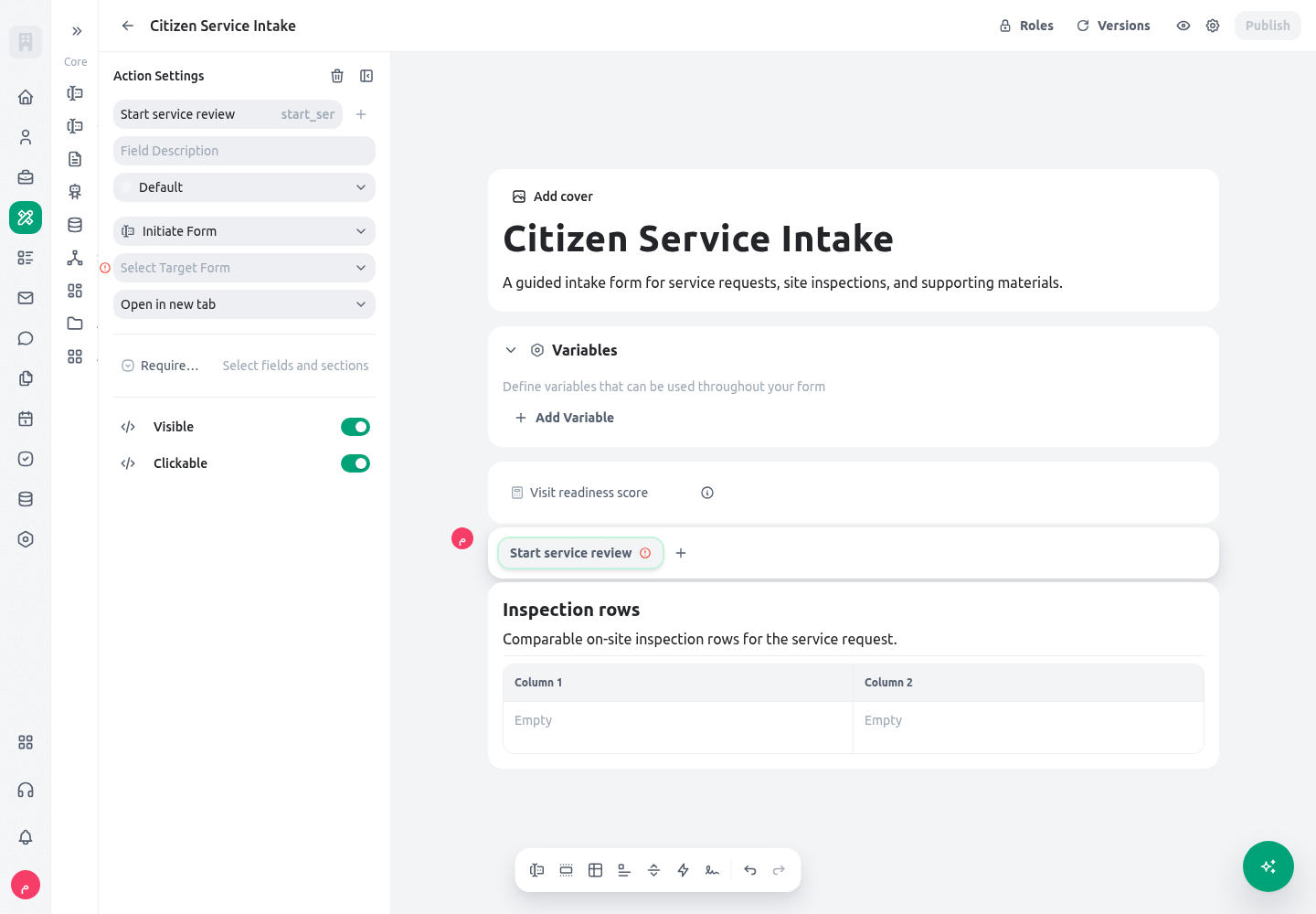
Change values
Use this action for a narrow, reviewable update such as marking an inspection ready after required facts are valid. Name the action after the business result and test the precise before/after values.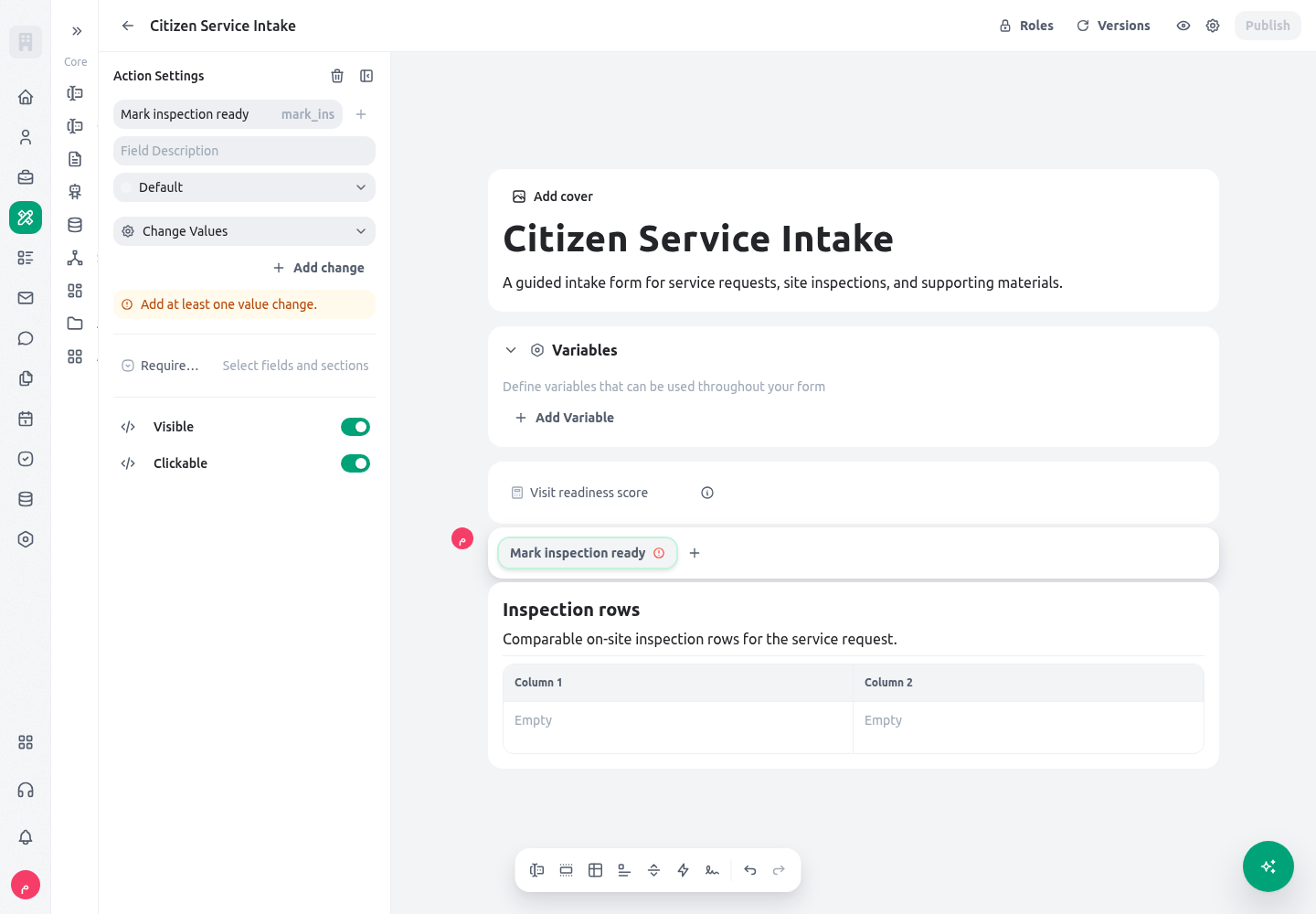
Open link
Use this action for an approved service-guidance destination. Prefer a literal reviewed URL; if an expression is needed, test every stored category and make sure no private answer is appended to the link.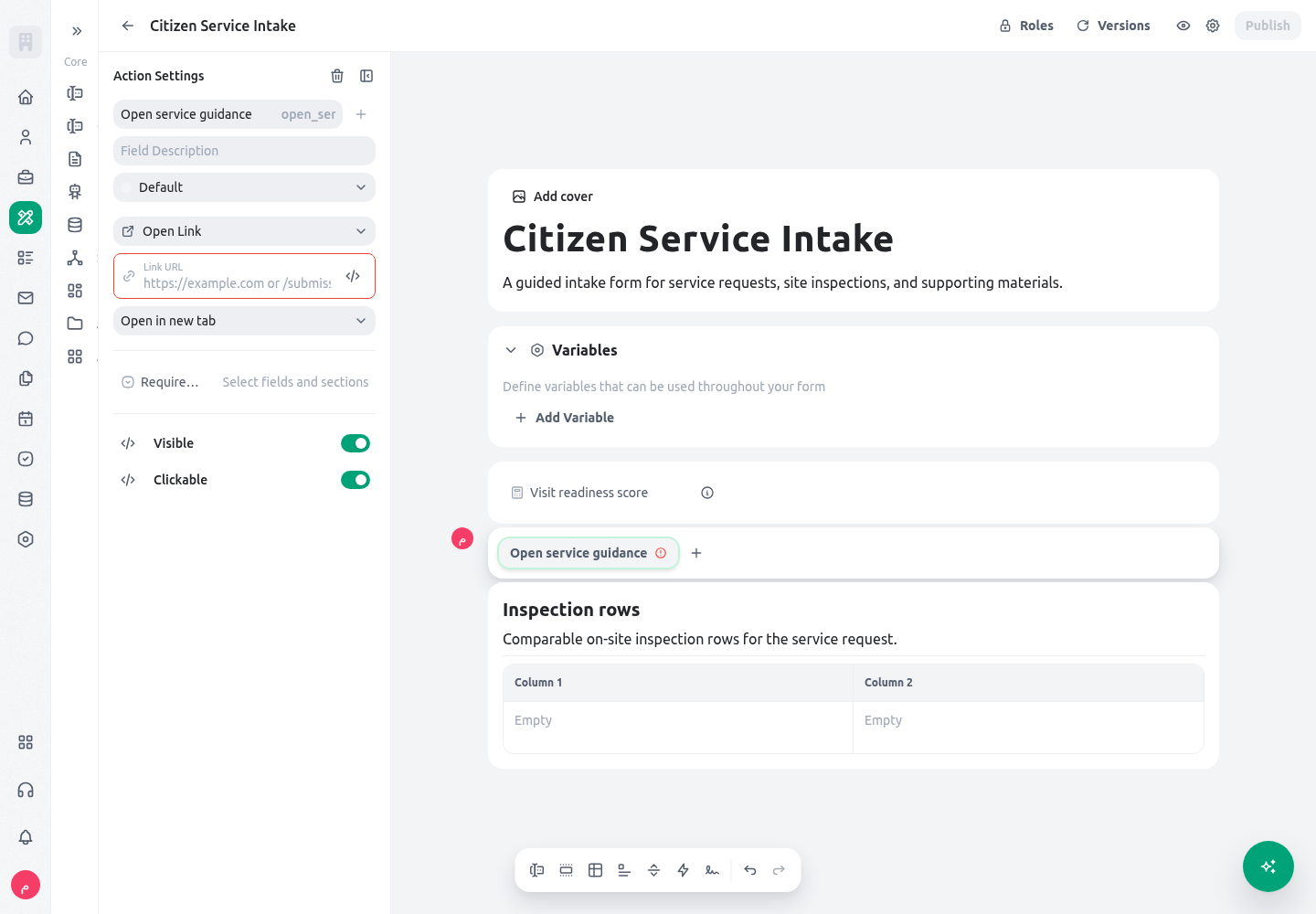
Document-template download
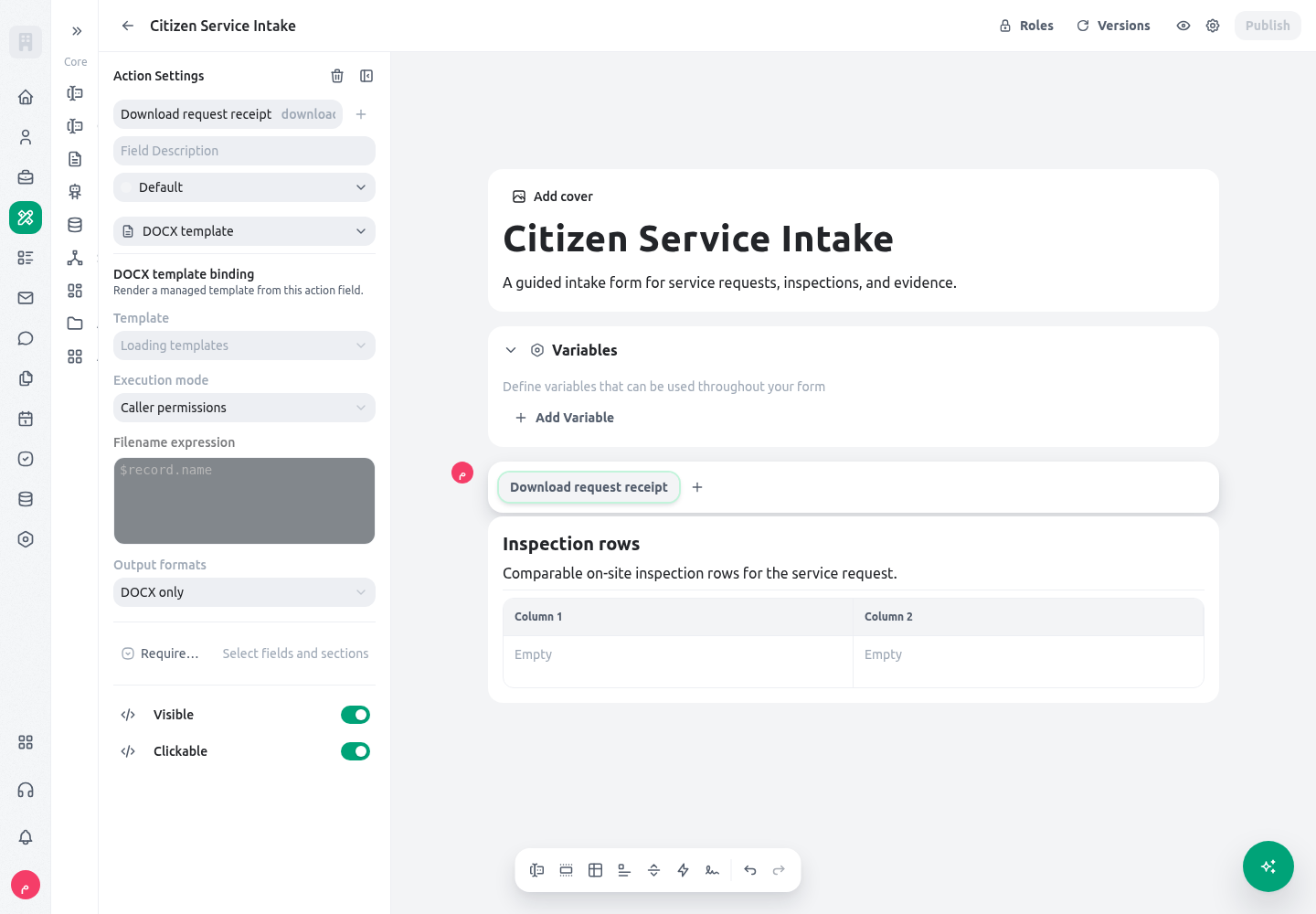
Use this action after the form-session document template has been configured and approved. Verify the template binding, execution mode, filename expression, and allowed output formats with a safe sample session.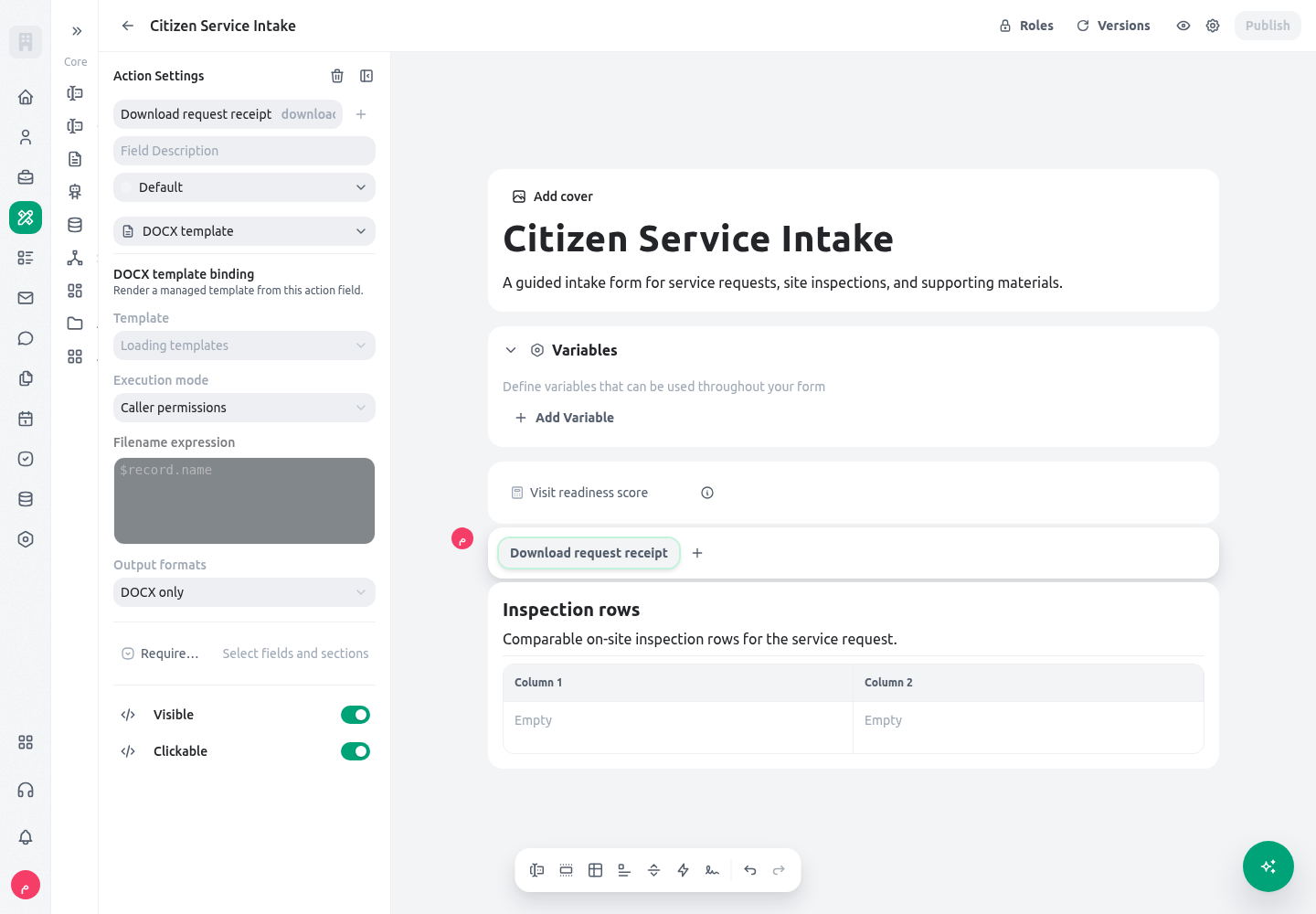
Export PDF
Use Export PDF when staff need a readable copy of the current form without maintaining a DOCX template. The action saves the current session first, then builds a document from the form items that are visible to that member. It includes the form title and reference, organization branding when available, localized direction, ordinary fields, rich text, file details, images, and repeated/table rows supported by the form document renderer. Actions, page breaks, and other non-record controls are not exported. Open PDF content scope on each Export PDF action and select the pages, sections, and fields that copy is allowed to contain. A newly configured action starts with the complete form selected; exclusions remove only the selected branch or item. Scope belongs to the action, so a short public receipt and a fuller internal case copy can use different actions without sharing a disclosure boundary. Required-valid-fields scope controls when the action may run and is separate from PDF content scope. When an older action has no saved PDF scope, KayanOS preserves its complete-visible-form behavior. A valid selection whose targets were all later removed stays empty rather than silently widening to the complete form. Review a duplicated action because its scope follows the duplicated pages and items. The browser still derives a safe filename from the form title and reference; use an approved document template when the service needs a precisely authored layout or controlled filename expression. The PDF is rendered and downloaded in the member’s browser; the export action does not upload that downloaded copy back to KayanOS. Treat the file as a new disclosure of the visible session data, store it only in an approved location, and do not assume it inherits later record-access changes. The rendered PDF can contain rasterized text that is not selectable.Configure the official PDF appearance
A builder can open Form settings > PDF document to configure the shared official appearance used by template-free exports and prepared signature snapshots. Choose Auto, Portrait, or Landscape orientation. Auto selects landscape only when a rendered table is wide enough to need it; otherwise it uses portrait. Choose Compact or Comfortable density, set the primary and secondary six-digit hex colors, and decide whether to show organization branding, a logo watermark, and a QR code. The footer accepts multilingual text, so review every released language rather than entering an English-only operational notice. These settings are saved with the form version. Existing form versions use the official compact Auto defaults when no configuration was saved. A prepared signature snapshot includes the normalized PDF configuration in its immutable evidence, so later builder changes do not restyle that prepared document. Save and release a changed form version only after exporting representative LTR and RTL sessions, including a wide table. Branding and the watermark depend on a usable organization logo; an optional decoration can be omitted when its source is unavailable, but broken Arabic rendering must be treated as an export failure. PDF appearance does not change document scope or authorization. Hiding branding, a watermark, or the QR code does not make an export anonymous, and adding them does not certify its legal status. Keep footer text free of secrets and personal data, and use a managed document template when the service needs a custom filename expression or independently authored legal layout. For every action, choose required valid fields deliberately. The builder presents fields and sections from the current form; the action is executable only when its selected prerequisites are valid. Selecting everything makes a useful action unreachable behind irrelevant questions. Selecting nothing can allow an irreversible next step before essential data has been checked. Select the narrow set whose validity proves that the action is ready. Actions also have visible and clickable conditions. Visible decides whether the action is rendered; clickable decides whether the visible action can be used. Keep the two messages coherent. For example, show an “Start inspection” action only when an inspection is required, and make it clickable only when the prerequisite details are complete. The following visibility condition is illustrative and assumes the form uses the stored Select valuesite_service.
inspection_ready is an actual form key:
guidance_url:
Configure approval requests and per-action proof
Use a form approval request when a saved form session needs a formal, reviewable decision. The request is separate from ordinary form buttons and from task completion. It captures an immutable subject snapshot, the ordered approval path, the actions available to reviewers, and every response recorded against that exact round. Configure the request in three layers:
Start with a small action set. A common pair is:
- Approve — outcome
approved, progressioncontinue, signature required, comment optional. - Request changes — outcome
needs_changes, progressioncomplete, no signature, comment required.
continue satisfies the current stage and opens the next ordered stage. On the last stage it completes the request. complete ends the request immediately with the selected action’s outcome. The preset supplies its defined outcome identifier, while a custom action receives a unique internal outcome identifier. The builder does not expose that identifier as a separate field. Action and outcome keys remain audit identifiers, so keep the visible action key stable after requests use it even when the visible label changes.
Every configured action appears directly in the reviewer’s action area. A signature-required action uses the member’s approved signing capacity, key file, PIN, and symbolic signature proof. An unsigned action records the same canonical response event without creating signature proof.
When scope invalidation is enabled and an initiator edits approval-relevant form data, KayanOS supersedes the active round. Existing responses remain attached to the old immutable snapshot and are never deleted or rewritten. When invalidation is disabled, scoped edits preserve the current approval. Use the disabled setting only when the service policy explicitly allows the existing decision to remain valid after those edits.
Configure the Approval block and signature evidence
In the form builder, add Approval and open Approval settings. This is the user-facing name for the existing compatible form item; saved forms and internalsignature item keys continue to load without migration. Use approval for the decision workflow and reserve Signature required for an action that needs cryptographic proof.
Each Approval item has its own Visible setting. Use a fixed value when the approval always belongs in the journey, or a reviewed expression when it applies only to a documented branch. Visibility is evaluated from the form context and controls whether the Approval item is rendered; it does not decide who may respond, make the request ready, or replace signer/precondition rules. Test the expression’s false, true, and missing-data paths and confirm that a hidden approval is absent from the participant journey rather than treated as completed evidence.
Existing saved items remain supported and are presented through Requests. For new work, model the decision with the Approval block and require a signature only on the actions that need formal proof. Add or retain a legacy item after the content it covers has a stable structure. The approval configuration has six connected decisions:
Use Show Prepare/Resubmit when to control whether the current initiator can see and invoke preparation controls. The expression is evaluated from the current user and form context and is enforced by the server, so it can encode a reviewed preparation permission or workflow condition. It does not hide approver response actions or signer controls. Keep it separate from the ready expression: visibility decides whether preparation is available, while readiness decides whether an available preparation control is enabled.
The builder validates signature expressions and publishing configuration. A signature without a signed scope is an unfinished configuration for publication. A signer-rule selector must resolve meaningfully; do not leave a blank selector expecting a reviewer to infer the eligible person. Capacity options in the builder distinguish personal signing from active-position signing. Choose the capacity that matches the service policy, and verify that the expected member/position can be resolved in the intended organization context.
The ready expression must be true before an organization member can prepare the request. A basic illustrative readiness condition might be:
true. The condition is evaluated when the signature request is prepared or refreshed and the result is frozen for that revision. A false rule is not hidden or delayed: it is absent from the request and is not required for completion. If an included rule depends on an excluded prerequisite, preparation stops so the form author can correct the chain.
For example, a later finance approver can be included only when the stored numeric amount is exactly 25:
Worked example
A citizen service request is received by a Syrian public-service directorate. Intake creates the request, a staff member determines whether a site visit is required, and a supervisor must attest to the reviewed service details before an acknowledgement document is downloaded. On the intake form, add an Initiate form action titled “Start site inspection.” Select the published staff inspection form as its target. Make the action visible only whenrequest_type has the site-service value and set its target variables to pass a low-risk request category if the inspection form needs it. Add the fields or sections that make the hand-off safe—location, citizen contact reference if approved for the target form, and service details—to required valid fields. Leave unrelated optional narrative out of the gate so it cannot block necessary inspection work.
On the review form, add a Change values action titled “Apply reviewed classification.” Select only the review fields that must be valid before it can run, and test the before/after record values with a non-production session. Add an Open link action only for an approved information page, with an unambiguous title such as “Open service guidance.” Resolve a dynamic link only when the source field is controlled and every possible result has been reviewed. If staff need a straightforward copy, add an Export PDF action titled “Download reviewed request,” then scope it to the approved receipt pages and fields. Test it as the intended staff role and inspect excluded content, visible fields, repeaters, direction, branding, and filename. Use the template action instead when the acknowledgement needs a formally authored layout.
Add a signature titled “Supervisor service review.” Scope it to the selected service details, inspection outcome, and decision section. Exclude a transient help text or an internal-only display field if it is not part of the attestation. Set ready expression to the actual review-complete Boolean. Add a signer rule that resolves the intended supervisor selector, choose the approved signing capacity, and select only the resolutions the service recognizes. If a second rule is required, make its prerequisite point to the first rule’s stable key and test the sequence.
Prepare the signature only as an organization member with the required membership and signing eligibility. Compare the snapshot preview with the visible scoped fields. Change one scoped test value after a response and verify the configured invalidation behavior: the reviewer should see the current request/revision and any stale result rather than assuming the old response covers new content. Finally, test the document-template download from the saved session and inspect the output for the exact approved record data.
Testing
Test with a small non-production set, named roles, and expected outcomes recorded before execution. Do not test a formal signature configuration only as the builder who created it; test the member who will prepare it and the members or positions expected to respond.
Test expression behavior with actual stored Select values, not translated labels. If a condition depends on a Boolean, explicitly test missing/false/true data according to the form’s intended default. A good test record includes an action that should be hidden, one that should show but remain blocked, and one that should be usable.
Troubleshooting
Permissions and data-quality limits
Configuring a form action or signature requires appropriate builder access. Executing an action still depends on the current session, its visibility and clickability conditions, the selected valid-field gate, and the action permission. An action that starts another form or downloads a document does not grant additional entity, template, or record access. PDF content scope narrows the eligible projection but never broadens what the current session member can render. The downloaded file is outside later KayanOS permission enforcement, so test the complete route with the same organization role and scope that will use it. Only organization members can prepare form signature requests. The form configuration does not itself grant signing authority or create a member/position relationship; signer resolution, capacity, and allowed resolutions must match the organization’s approved membership and signing policy. Keep signature scope to the accountable business content, avoid exposing private inputs in expressions or action labels, and retain snapshot/proof evidence according to the service’s records policy. Quality limits are as important as permissions. A condition must have a clear owner and documented expected values. A valid-field gate must be narrow enough to support the action’s purpose. A signature rule needs a named role, clear resolution meaning, and a tested prerequisite sequence. When any of these rules changes, review whether previously prepared or responded requests need a new revision rather than treating old evidence as current.Related guides
- Plan public and staff release paths in Forms.
- Configure field conditions, validation, and repeatable rows in Form fields and repeatables.
- Configure output content and access rules in Document templates.
- Learn the language used by action and signature conditions in Expression language syntax.