

A submission is a session, not just a button click
KayanOS records a form interaction as a form session. The session ties the values entered by a participant to the form, the form version, its initiator, status, scopes, saved state, actions, and reference/code where configured. This is why a reviewer should not treat a screenshot or an emailed field value as the authoritative submission: the session is the traceable record. Use Form submissions to review the Citizen Service Request lifecycle: start intake, save a draft, complete repeatable evidence, perform an allowed action/signature where required, submit, and let the right unit review the saved session.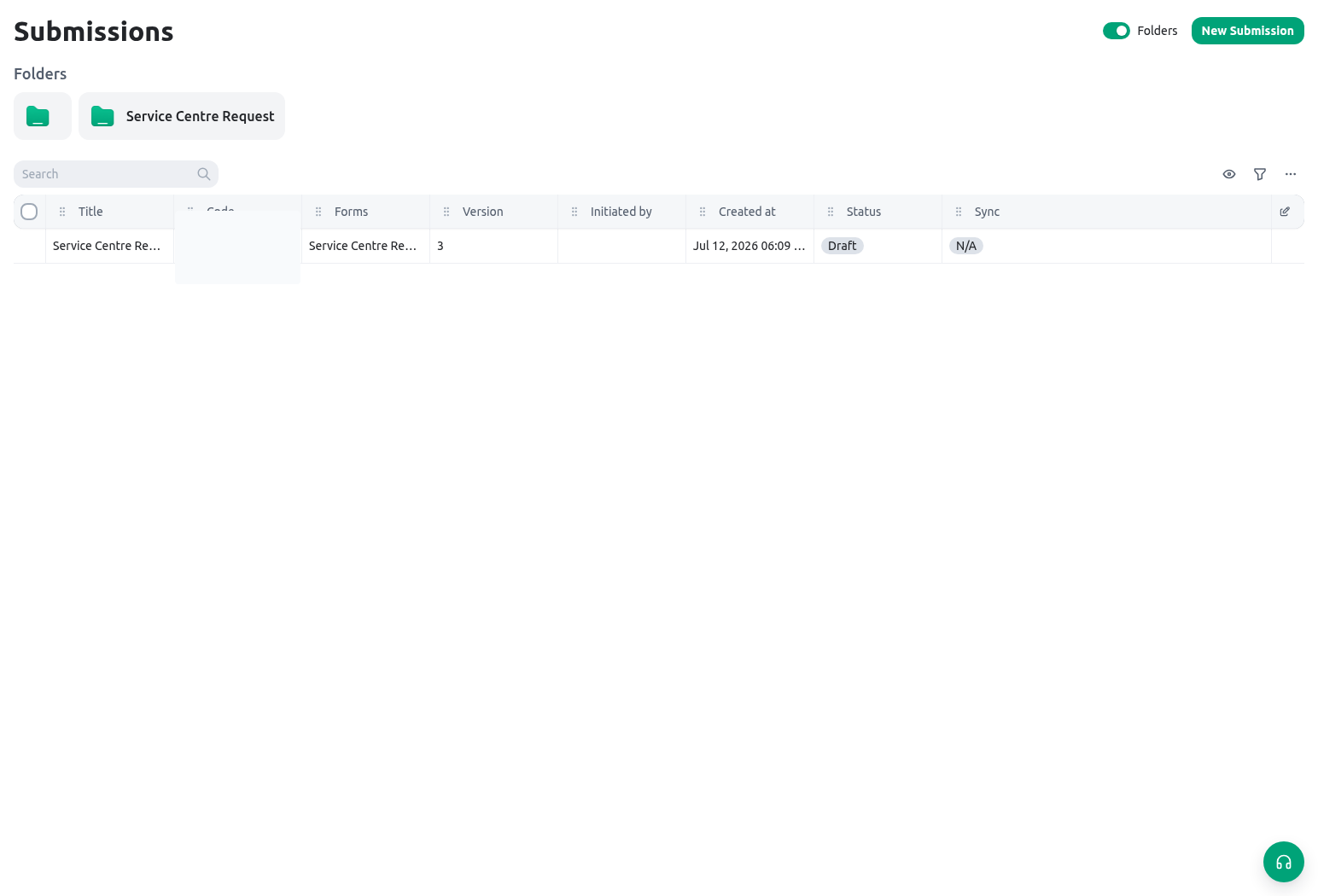
Core terms
The form ID, version ID, session ID, and reference/code serve different purposes. Use the human-facing code in operational communication where appropriate; retain technical IDs only in controlled support/audit records.
Who can start, open, and change a session
Session access follows the form’s audience and KayanOS permissions:- Authenticated members start a normal session only when they have the form’s
initiatepermission. The selected form/version must belong to the active organization. - Public participants use the public-session route for an eligible published form; they do not use the member session-start endpoint.
- Member reviewers open a session when they are explicitly shared on it or have an appropriate
openpermission whose scope intersects the session scopes. - Public participants are limited to their own public sessions. A public session does not make other public submissions browseable.
- Offline submissions follow their separate synchronization path. Once an offline session is submitted, a non-starter or unauthenticated client is read-only; only the starter can synchronize that offline submission.
Find the correct form before reviewing submissions
The top-level Form submissions page at/submissions is now a temporary directory, not an aggregate cross-form submissions table. It groups the forms available to the current member by application and section, shows form counts, and lets the member collapse those groups. The former aggregate New submission action is not available on this page.
The directory includes a form only when the member has a non-empty list, create, or initiate grant for it. A directory link does not grant permission to open every session: session sharing, open scope, ownership, field rules, and action permissions are still enforced at the destination. If no forms appear, confirm the active organization and the member’s form grants before changing access. If the directory fails to load, use its retry action and preserve the sanitized error for support.
Select a regular form to open its form-scoped submissions destination. An Offline card opens that form’s separate offline submissions path. Run table filters, row review, and Excel exports at the form-scoped destination rather than expecting an organization-wide queue on /submissions. Prefer the form’s application/section navigation for normal work: the temporary directory announces its retirement and should not become a bookmarked operating dependency.
Lifecycle: start, save, submit, review
1. Start the correct version
For a member-facing regular form, start from the released form/version selected for the service. A preview session is for authoring/verification and must not be used as evidence of a real request. For a public service, use the published public-form path and its configured account, date, and submission conditions. For field work, use the separate offline package/runtime rather than attempting to start an offline form through the normal online session endpoint.2. Save meaningful state
Saving preserves the session’s values so the participant can continue the request. Build forms so a partial draft is understandable: required evidence should be clearly marked, repeatable rows should keep their local meaning, and a resume path should not rely on someone remembering an unstructured note. Example: a Registry clerk startsCSR-2026-00042, saves the applicant’s service category and Service Centre, then the inspector later adds repeatable observation rows and supporting files in the same controlled process.
3. Complete actions and signatures deliberately
An action or signature can be part of a form’s required journey, but it is not an automatic approval. Before relying on one:- Confirm the action/signature belongs to the current form version.
- Confirm who can perform it and what server-side policy/status rule applies.
- Test its positive result and a denied member/session.
- Review the recorded action/session state after it completes.
4. Submit once, then review the session
Submission moves the session to the submitted state used by the form workflow. It may receive numbering according to the form’s configuration. The reviewer should open the server session and check:
When a saved Entity selection identifies a KayanOS record, use its open control to inspect that record in a read-only dialog without leaving the submission. This is a review aid, not copied submission evidence. The current member must still be allowed to open the selected entity record, and the dialog does not grant update access or change the form value. If the control is missing or opening is denied, verify the configured source entity, saved record identifier, current organization, and the member’s record scope. Do not replace a denied lookup with a screenshot or a broader form role.
5. Preserve the audit path
Do not “fix” a questionable submission by changing values through an unrelated record or copying data into a new form. Record the review decision and use the released correction/reopen/next-step procedure for that form. If the version or session boundary is wrong, stop and resolve it with the form owner before creating a duplicate case.Submission status and approval proof
A form can use a configured submission status template. Its statuses and permitted transitions describe the submission lifecycle—for example, received, under review, returned for correction, or completed. They do not replace the request action, signature, or response evidence required for a formal decision. A submission labelled Completed is not necessarily Approved unless the configured approval workflow recorded that outcome. When a form enters a formal approval round, KayanOS can expose a versioned PDF snapshot of the submitted state covered by that round. Use that document to review the exact labels, values, and evidence projection presented for the decision. The snapshot is immutable evidence for that version; it is not an editable working copy. If an in-scope value changes, the old PDF and its responses remain evidence of the old round. Resubmission creates a new proof boundary and, when configured, a new versioned PDF. Compare the round number and snapshot version before relying on a downloaded copy. Never treat an older PDF, signature, or status as authorization for changed content.A complete Citizen Service Request example
- A Registry member with the
initiatepermission starts the published Citizen Service Request form in the correct Service Centre scope. - The member saves a draft after recording non-sensitive intake values and receives the form/session reference according to the configured numbering policy.
- The form’s repeatable Supporting Document or Observation section is completed with the correct number of rows. Each row is checked independently; an empty row is removed or explicitly handled according to the form rule.
- If an inspection is required, the Field Inspection Team works through the approved form/session path. If connectivity is unreliable, it uses the offline form and waits for
syncedbefore the decision team treats evidence as received. - A required signature/action is performed by the appropriate role. The reviewer confirms the session record rather than relying on a verbal assertion.
- The Decision and Records Unit opens the submitted session through its scope/permission boundary, verifies the saved state and files, then performs the separate authorized decision/status transition.
- The service manager can report on the submitted session/reference without giving a public participant access to internal sessions or other citizens’ records.
Public, member, and offline sessions are different boundaries
Export a multilingual submissions workbook
From the submissions table, use More options → Export all for rows matching the active search and filters, or select rows and choose Export selected rows. The export follows the current member’s submission-list access and active organization; it does not expose another public participant’s session or grant permission to open or change a session. Treat the downloaded Excel file as a new controlled copy of the submission data, and verify its purpose, recipient, approved storage, and deletion date. Multilingual form fields and variables expand into one workbook column per configured organization language, identified by a language-code suffix such as(en) or (ar). Select fields export a stable (key) column plus a label column for each configured language. A missing translation remains blank rather than falling back to another language. Keep the key for reconciliation, and review every required language before using labels in a report or handoff.
Check one authorized test submission before distribution: compare its session reference, each language-specific value, and each Select key/label with the live session. The workbook is a table export, not a versioned approval PDF or signature snapshot, and does not replace the session audit trail. If a language column is missing, verify the organization’s configured languages and the form field’s multilingual setting; if a label is blank, correct the option translation rather than guessing from another language.
Repeatables, values, and files in review
Repeatables are not a single blob of “extra information.” Each instance contributes its own field values and validation outcomes. When reviewing a Citizen Service Request inspection:- Count the Observation instances against the required/allowed bounds.
- Confirm the row-specific safety status, note, date, and attachment line up with the right observation.
- Check conditional fields in both the condition-met and condition-not-met cases; a hidden field is not necessarily valid or meaningful.
- Verify that a file is attached to the intended field path/session and has not been copied from a different request.
- For a calculated or expression-derived value, compare inputs and expected result rather than accepting a surprising output.