Save records with conflicts and workflow rules
When another member updates a record while you are editing, use Show their changes to inspect the changed fields. Your unsaved edits stay in the editor. On save, changes to different fields can merge; if both people changed the same field, review Yours and the other value for each conflict before saving. Keep editing closes the dialog without discarding your edits. Conflict checking is enabled by default but can be disabled for the organization; do not treat it as a substitute for coordinating sensitive changes. A duplicate-combination refusal means the configured set of values already exists. Use Open it when offered and check the existing record before creating another. The link appears only when access permits it. Correct the values or ask the record owner to resolve the duplicate; changing a label alone may not change the fields in the rule. Use the named status transition when a status permits changes only through transitions. A transition can require a condition, a reason, an attachment, or a different person from the creator or an earlier decision maker. Read the refusal and satisfy the requirement before retrying. A lock bar explains whether all fields, only certain fields, or related child records are locked. An allowed status transition can still move a locked record forward. Deletion is governed separately. A status lock is a member-write control, not a guarantee that configured system automation cannot change the record.Read frozen record versions
When a configured status captures a version, the record header shows its version and the Versions tab lets you view or compare captures. These are snapshots taken on the configured status change, including configured related records. They are separate from builder definition history and do not provide a restore action for live data. Version reads still apply your current record and field permissions. A filtered comparison cannot prove that two complete snapshots are identical. If an approval includes a record-version card, review that captured version and its relation to the current record before responding. If a version is unavailable, ask the owner to check the capture setting and your access.Resolve draft conflicts and review assistant proposals
If someone else saved a newer builder draft, saving pauses and offers reload or overwrite. Reload replaces your local edits with the stored draft. Before overwriting, compare the changes and coordinate with the other editor; do not assume overwrite merges both versions. Saving a draft still does not publish it. The workspace assistant proposes changes for the current record type. Review and apply the intended proposals to the draft, then use the usual publication review. The assistant panel does not publish. Review per-change impact and references before accepting removals or changed fields. The Access view’s people counts and dependent-verb notices help review grants, but do not replace testing as a non-owner.Save list views
Shared saved views are configured in the builder’s Lists & views settings. Members can save personal views from the list. Tabs show the view names and counts; filters, sorting, grouping, and display mode help define the working queue. A personal view does not grant access to hidden records. If a tab appears empty, check its filters and your record scope before changing permissions.Edit a draft and review publication
The entity builder groups work into fields, record page, lists and views, rules, access, and advanced settings. Edits are kept in a draft; check the save indicator before leaving. Draft access requires both entity-update and field-update capabilities. Editing access grants also requires permission to update the affected roles; locked roles cannot be changed here. Open Review & publish to inspect additions, changes, removals, and access changes. Resolve blocking issues, review affected fields and records, and select the changes to publish. Excluded changes remain in the draft. Draft saving does not publish the entity. After publication, reopen the record and test it with the intended role. Version history can restore an earlier definition into a draft for review. This is not a recovery of deleted record values. Publication applies definition and role changes in separate steps, so a failure can leave part of the change applied. Check the live definition and roles before retrying. If version recording fails, verify the live result instead of assuming publication was rolled back.Review a policy draft before accepting it
In AI Findings → Policies, describe the condition, source, expected evidence, wording, and assignment. The AI author checks its proposed fields, expressions, routing, and sample results before returning a draft. A failed authoring attempt reports problems to correct; it does not activate a policy. Review the draft’s logic, wording, assignment, checks, and versions. Run a simulation, inspect its examples and comparison with the running version, and resolve or acknowledge the reported warnings as requested before accepting. Request an AI revision with a specific correction when needed. Acceptance is a separate authorized action; authoring and simulation do not replace it. Keep policy-management permission separate from evidence access and source-record scope. After acceptance, review findings and evaluation runs before relying on the policy.What deserves its own entity?
Create an entity when the thing has its own identity, fields, owner, lifecycle, evidence, or reporting need. A field answers a question about one record; an entity represents a thing that can be worked on independently.
For example, a permit request is an entity. Its requested category is a field. An inspection is another entity because it can be scheduled, assigned, completed, and reviewed independently.
A record map that scales
Start with a primary entity and add supporting entities only when their work is genuinely separate.
Do not create an entity simply to make the application look comprehensive. Every entity adds permissions, layouts, relations, reporting choices, and maintenance work.
Build an entity in a reliable order
1. Name the business noun
Use a clear plural name for the collection and a singular phrase for one record. “Inspections” is clearer than “Inspection data”. Use language that staff recognize; avoid implementation terms such as “table 3”.2. Define the record identity
Give the entity a stable serial reference or label strategy. A person should be able to identify a record in a conversation without opening it. Keep system IDs, human references, and external references separate. For a hierarchical entity, include Parent in the selection label only when staff need the path to distinguish otherwise similar records. KayanOS resolves the parent’s visible label and composes it with the child’s other selection fields, so a selector can show a path such as Clothing - Girls - Outerwear rather than an ambiguous Outerwear. Moving a record or renaming an ancestor refreshes descendant labels. This improves identification but does not grant access to the parent or child; test the selector with the intended role and both active languages.3. Assign the entity to an application section
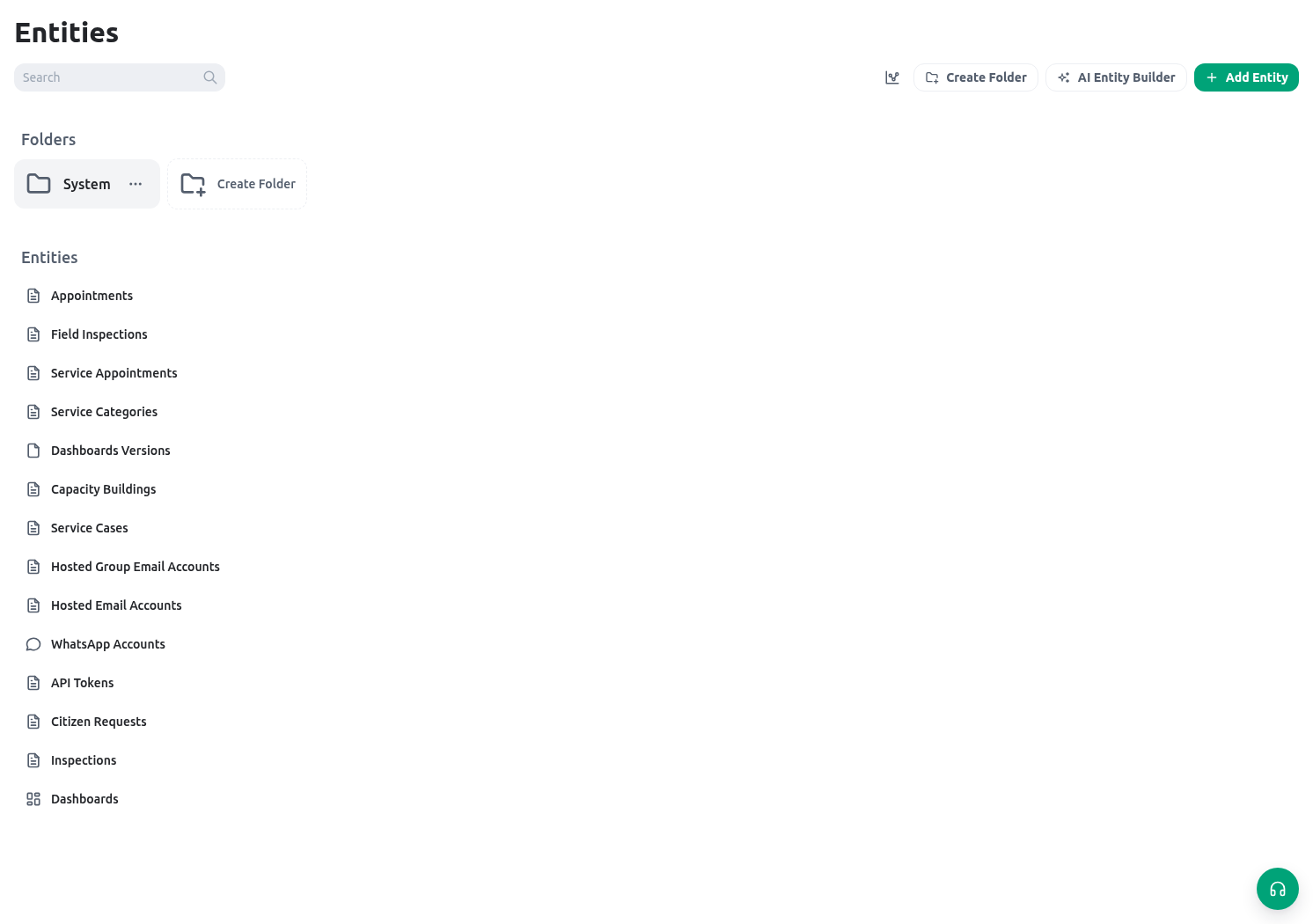
Choose the application and section that own the entity before publishing it. Ownership determines where builders manage the resource and where authorized members discover its list in the application workspace. It does not grant list, view, create, or update access; those actions still depend on the member’s verbs and record scope. Use a section whose purpose matches the work, such as Intake, Inspections, or Decisions. Entities and forms are organized by application sections rather than legacy folders, so do not create a folder-like section merely to preserve an old builder arrangement. The Entities catalog groups cards by application and section. Use its searchable application and section selectors to narrow a large workspace, or search by the entity’s technical key, localized title, or localized description. Application and section headings show resource counts and can be collapsed. Each entity card shows its icon, title, key, and available description; open the card to edit the entity. To change ownership, use the card’s move control or drag it to a section, then confirm the destination application and section. Moving an entity changes its builder/navigation ownership and ordering context; it does not grant entity verbs, change record scope, or move the records to another organization. Review automations, saved links, and role-facing navigation after any move. When creating or editing an entity, choose the application first; the section selector then offers sections owned by that application. If the approved application or section does not exist and your role can create it, use Create new from the selector. Provide a multilingual title and description, an appropriate icon, and an intentional order. KayanOS selects and refreshes the newly created owner. Do not create a near-duplicate section to work around a missing permission or a stale filter. A newly created entity starts hidden from application navigation. Keep it hidden while its fields, scopes, and test records are still being reviewed, then explicitly enable its navigation visibility when the approved workflow is ready for members to discover. Visibility changes discovery only: it does not grantlist or view, widen record scope, or make an unfinished entity safe to publish.
4. Add only essential fields
Start with the fields that answer:- What is this record?
- Who owns the next action?
- What is its current status?
- When is it due, scheduled, or completed?
- What evidence supports the decision?
Add a record file space when evidence belongs to the record
In Entity settings → Detail View → Record file spaces, add either a dedicated Files tab or a compact file list inside an existing section. You can place the same collection in both locations; they show the same record-bound folders and files. The record must be saved before its first upload, and the managed collection is created only when someone uploads. Removing a placement does not delete its files. Removing the collection configuration also retains existing files, but hides them from the record after the settings are saved. Opening or changing collection content requires both access to the entity record and the corresponding Library action permission; record access alone does not grant file access. Open in Library opens the managed location without adding it to the normal top-level spaces list. Each full-tab or compact-section placement can also require one of the entity’s configured verbs. KayanOS evaluates that verb against the current record’s scopes before rendering the placement. Leaving the requirement empty adds no placement-specific gate, but it still does not bypass record access or Library file permissions. Use the verb as a least-privilege visibility boundary, not as a file-access grant, and test the same record with one allowed and one denied role.5. Create relationships deliberately
Use a Relation when two records must stay connected without copying their facts. Before creating one, decide:- Is it one-to-one, one-to-many, or many-to-many?
- Which record can exist first?
- What should happen if the related record is removed?
- Which roles may see or edit each side of the relationship?
- Does the relation need to appear in a form, table, dashboard, document, or automation?
delete verb for each selected row. If only some otherwise-authorized rows are blocked by Restrict, the whole attempt stops without deleting the remainder and offers Deselect blocked items. That action changes the selection only: review what remains, then start and confirm deletion again. Never change a relation to cascade, broaden a role, or delete a related record merely to silence the warning.
6. Give the record a lifecycle
Most operational entities need a Status. Avoid generic stages such as “in progress” if they do not tell staff what to do. For an inspection, Scheduled, On site, Findings recorded, Awaiting review, and Completed are more useful than a single vague status.Review status changes in the activity log
In Entity settings → Detail view, enable Activity Log when record viewers need a chronological account of changes. For a Status field, the log shows the previous and new status, when the transition occurred, time spent in the previous status when it is known, the recorded source, and any required reason. The log retains the status and published-template labels captured at the time, so a later rename does not erase the meaning of an earlier transition. Activity tracking starts when the Activity Log is enabled. Existing records receive an unknown-history baseline; KayanOS does not invent earlier transition times or reconstruct changes that occurred before tracking. A member can read the activity only when that member can open the current record. An old access snapshot or activity entry never grants access to a record that is now outside the member’s scope. Test with a non-production record: enable the log, perform one allowed status transition, and confirm the actor, source, reason, and previous-status duration are sensible. Treat this history as operational audit context, not as a signature, formal approval, or complete account of events that occurred before tracking began. If a transition is missing, check that the Activity Log was enabled before the change and that the viewer can still open the record.7. Design access before publishing data
Decide who can create, view, update, decide, and export records. A relation does not grant access by itself. Sensitive fields, attached files, payroll-related values, or internal notes may need a narrower layout or a separate entity.Choose a record view that matches the work
Use the view control above an entity’s records to change how the current result set is presented. Table, Cards, and List are available for every normal entity. KayanOS adds other views only when the record model can supply their data:
The selected view is saved in the browser for that entity and appears as
view in the page URL, so a launcher shortcut or copied internal link can open it directly. If the field that enabled a saved view is removed, KayanOS returns to Table and explains why. On a small screen, open More views to switch modes.
Set the views members can use
In Builder → Entities, open the entity settings and choose List views. Enable only the compatible views the service needs, choose the default, and set the order and visibility of fields used in lists. At least one view and one visible field must remain. For Kanban and List, choose the Status or Select field that groups records; for Calendar, Gallery, and Map, choose the date, file, or location field that should drive the view. Leaving a binding on Automatic lets KayanOS use the compatible-field rules in the table above. The entity default applies when the member has no valid saved choice or directview link. A member’s saved choice remains in use while that view stays enabled. If a builder disables it or removes its required field, KayanOS falls back to an enabled view. These settings control presentation only: they do not change entity verbs, record scopes, field access, filters, or create rights. Test the saved settings as a limited member, not only as the builder.
Keep columns visible while scrolling
In Table view, open an eligible column’s header menu and choose the option to pin it to the start or end. Scroll horizontally to compare other fields while the pinned column stays visible. Start is the left edge in English and the right edge in Arabic. Use the same menu to unpin the column before dragging it to a different position. Selection and row-action columns stay pinned when present and cannot be unpinned through this menu. The entity table stores your pin choices in this browser; copying its URL does not share them. Pinning changes presentation only and grants no field, record, or action access. If pinned columns crowd the table, unpin some before continuing. If the option is missing, check that you are in Table view and have opened a data-column header. Confirm the record identity before using a row action, then review the saved record to verify any change.Group the current table result
In Table view, use Group by or an eligible column’s header menu to group rows by one field and optionally add a second level. Choose value or count ordering, show or hide numeric/date summaries, and start groups expanded or collapsed. The grouping is kept in the main entity page URL, so a copied internal link can reopen the same grouping. Use Expand all, Collapse all, or Clear to review or remove it. Grouping reorganizes the rows in the current table result. It does not load records outside the current page/query, change active filters, or widen record access. Check the table’s row and group counts before treating a group total as complete, especially on a paginated list. A column header can also apply its normal filter; grouping and filtering are separate controls. Current table filters, active figure filters, record scopes, and per-recordopen checks still apply. A view never grants access or turns a missing coordinate, date, photo, or parent into stored data. List groups by the first Status or Select field when one exists. Calendar creates a prefilled record from a selected day only when the member has create; the normal create validation still runs. Calendar, List, Gallery, and Map load at most 10,000 matching records. Kanban shows its current server page, while Tree loads the complete scoped hierarchy. Narrow a large queue and check the view’s record count before treating a visual count as complete.
Test the intended role with one ordinary record and one incomplete record. Confirm that Map omits invalid coordinates, Gallery shows a safe placeholder for an unreadable image, Calendar uses the intended date field and inclusive date range, Tree keeps each child under its parent, and a record without open cannot be opened from any view. If Calendar chose the wrong fields, review field keys and translated titles for a clear start/end pair. If a view is absent, add the correct business field only when the service actually needs that data; do not add dummy fields just to expose a visual mode.
When a saved record is open in view mode, KayanOS folds empty ordinary fields into an Empty fields summary at the end of their section. Select Show to reveal them. Status, action, avatar, and JSON fields remain visible, and edit mode shows the fields needed for editing. Folding is a reading aid only; it does not delete values, bypass required-field rules, or hide a field from someone who is editing with permission.
Export scoped table data
Use More options → Export all on an entity table, or select rows and choose Export selected rows. KayanOS builds the workbook on the server with the table’s filters, sorting, and search. A client-filtered search can export the on-screen matched rows; check the report information to distinguish that set from a server search. Selected or on-screen matched sets are limited to 5,000 IDs. Export follows list access unless the builder enabled Require permission to export for this record type. When enabled, both list and export scopes restrict rows. Field-read permissions restrict columns. A file with no exportable columns is refused. Choose readable columns or ask the role owner to review the intended permission; do not broaden access just to obtain a workbook. The workbook uses the application language, falling back to the organization default and then English. Review its Data and Report info sheets, including applied filters/search, time zone, omitted columns, row count, truncation, and checksum. Where configured, a frozen-version column identifies the latest capture; the data rows still represent the export’s current record read. Exports above 5,000 matching rows run in the background and notify you when ready. The background export is capped at 100,000 rows, so narrow the query if the report says it was truncated. Very long cell text is also cut to Excel’s 32,767-character limit. Stored export files expire after 15 days; individual download links last five minutes. Open the ready notification again for a fresh eligible download, or create a new export after file expiry. Export access is checked again when downloading. A busy response means the active-export limit has been reached; wait for existing jobs. Dashboard widgets with an export action use the same scoped service and retain their configured sorting. Review one authorized row before distribution. Downloaded files leave KayanOS access controls, so confirm the recipient, storage location, and retention period.Review governed AI findings
AI Findings is available through its role capabilities. Record finding tabs appear when the record has open findings or an applicable policy. Opening the app does not grant access to source evidence. When the organization enables a reviewed finding policy for authorized members, KayanOS evaluates eligible records asynchronously and stores the result as an auditable finding. Open AI Findings to search findings, filter by state or severity, sort by recent update, severity, or due date, and inspect one finding’s evidence and audit history. A refined entity-record view can also show its unresolved findings; selecting one opens the same central review record. Treat a finding as a review item, not as a source-record change or final decision. Check the finding revision, source availability, evidence, and audit history before acting. Depending on the assigned capability and current state, a reviewer can confirm, assign, dismiss, resolve, or reopen a finding. Dismissal and resolution reasons become part of the history. If a linked task exists, use it for the assigned work, but verify the current source record before completing that work. AI-findings permissions are deliberately separate:
An administrator should accept a proposed field meaning only when its entity, field key, type, and current schema checksum match the reviewed schema. Create policies with the smallest necessary field scope and keep new policies in collect-only, review-required operation during calibration. Simulate the exact draft revision before activation. Pause a questionable active policy instead of deleting its findings: pausing stops new policy work while preserving findings, events, and action receipts for audit.
Validated evidence, policy approval, and current source version are required before a governed policy can create an alert or task. A confidence percentage alone is not proof. Policies never update the source entity record, and a provider or worker failure must not be interpreted as “no finding.”
Avoid common modeling mistakes
Test the record model before adding automation
Create one normal record and one exception record in a non-production workspace. For each, confirm:- the right person can create and find it;
- the required data can be entered without unnecessary questions;
- relations lead to the correct record;
- the status makes the next action obvious;
- a manager can answer the intended dashboard or report question;
- the catalog finds the entity by key, title, and description under the intended application/section;
- a new test entity stays out of application navigation until visibility is explicitly enabled, and enabling it still does not change a limited user’s record access;
- a test move refreshes the catalog and application navigation without changing that access;
- a restricted relation blocks both single and bulk deletion, while a permitted hierarchy cleanup succeeds only when the complete intended subtree is selected;
- each record-file placement appears only for the intended scoped verb while underlying Library access remains independently enforced; and
- an Activity Log enabled before a test status move shows the transition to a viewer who can open the record, while a viewer outside record scope cannot use activity history to bypass access.
Next steps
- Choose detailed types and layouts in Entity fields and layouts.
- Build a staff or public entry experience in Forms.
- Use Expressions in the builder only after source fields and relations are stable.
- Grant the smallest findings capabilities needed in Roles and scopes.