

Enable request handling deliberately
In the form’s Settings → Service, use the request-handling switch to enable the review workspace and applicant updates. It is off until enabled, and changing the switch saves immediately. Linking a form to a service does not replace checking this setting. Confirm the saved state, publication, lifecycle, and staff permissions with a sample request before inviting applicants. If saving fails, the switch returns to its previous value.Capture audio, photos, and video
Add Audio recording, Take picture, or Take video fields when the form needs captured evidence. Configure recording duration, photo count and size, camera preference, video quality, and whether video includes sound. An upload alternative appears only when the builder enables it. Audio and video accept one recording; multiple photos must be enabled and are capped at twenty. Ask the filler to allow the required camera or microphone access, record, then review playback or the photo before continuing. Recording stops at the configured duration. A permission denial, unsupported browser, or failed upload needs correction or an enabled upload alternative; do not treat an unfinished upload as submitted evidence. Speech transcription is optional and off by default for audio and video. Video must include sound. Authorized signed-in users can receive a transcript beside the recording; signed-out applicants do not receive automatic transcription. Review the recording for accuracy. A transcript failure can offer retry and does not mean the recording itself failed to upload. Test capture and upload in the intended browser before publishing the form.Configure lifecycle and stage timing
In form settings, configure Lifecycle to map stored status values to business categories, public labels, submission behavior, applicant editing, and withdrawal where supported. Keep stable stored values when changing labels. Review existing status usage before removing or remapping a status; a label change alone does not migrate an existing request. Configure Stages separately to define ordered steps, completion conditions, and SLA timing. Conditions can use statuses, lifecycle categories, and approvals. Review working-time and holiday settings before interpreting deadlines. A displayed stage is not permission to approve or edit the submission. Use Test form with a permitted and a restricted member and check the tested version label. Test sessions require form-editor access and isolate simulated effects, including approval snapshots, from real submissions. Check status changes, locked fields, stage completion, and the applicant view before publishing. If an expected stage does not advance, inspect its condition and the stored status rather than changing the public label.When to use it
Use a form when the service needs a repeatable, reviewable sequence of data capture. A staff form is appropriate for controlled intake, inspection notes, internal correction, and a hand-off between authorized members. A public form is appropriate when the directorate deliberately accepts requests from citizens and can state what information is collected, who can access it, when the form closes, and how submissions will be reviewed. Start with one form when every request follows the same service journey and has one accountable outcome. Split the journey into separate forms when the second stage has a different audience, requires different permissions, or needs a separate review boundary. For example, a citizen request can collect service details and attachments, while a staff inspection form may be initiated only after an eligible request is received. Do not make a public form a shortcut around staff permissions or an entity’s normal record-quality controls. Before building, write a one-sentence outcome: “A citizen submits the minimum information needed for the directorate to assess a local service request.” Then identify the audience, initiating role, decision owner, expected volume, deadline, fields that are legally or operationally necessary, and information that must not be requested. This short plan exposes whether a question belongs in the form, in a later staff review, or nowhere. Use Form fields and repeatables when one request needs repeatable material, inspection, or attachment rows. Use Form actions, logic, and signatures when completion requires a controlled next step or formal evidence. Keep collection, decision, and publication boundaries clear rather than adding every available feature to the first version.Configuration
Plan the capture path
Create the form with a clear title, description, and small first version. Add fields in the order a person understands the service, not in the order a database was designed. Give each field a stable key and a localized title. Expressions use keys and stored Select values, not translated titles; changing a label is therefore not a safe way to change business logic. Use sections to group questions by purpose: requester contact reference, service details, requested location, evidence, and staff assessment. Choose the smallest correct type for each value. A Select is better than free text for a service category that drives a rule; a Date is clearer than a text field for a visit date; a File field should say exactly which evidence is expected. For a full field catalogue, validation behavior, and repeatable rows, follow Form fields and repeatables. The builder supports defaults, required, visible, editable, and validation settings as deliberate switches or expressions. Use a condition only when the service owner can explain it in plain language and a tester can exercise both paths. This illustrative visibility expression assumes thatrequest_type is an actual form key with the stored Select value site_service:
Place the form in an application section
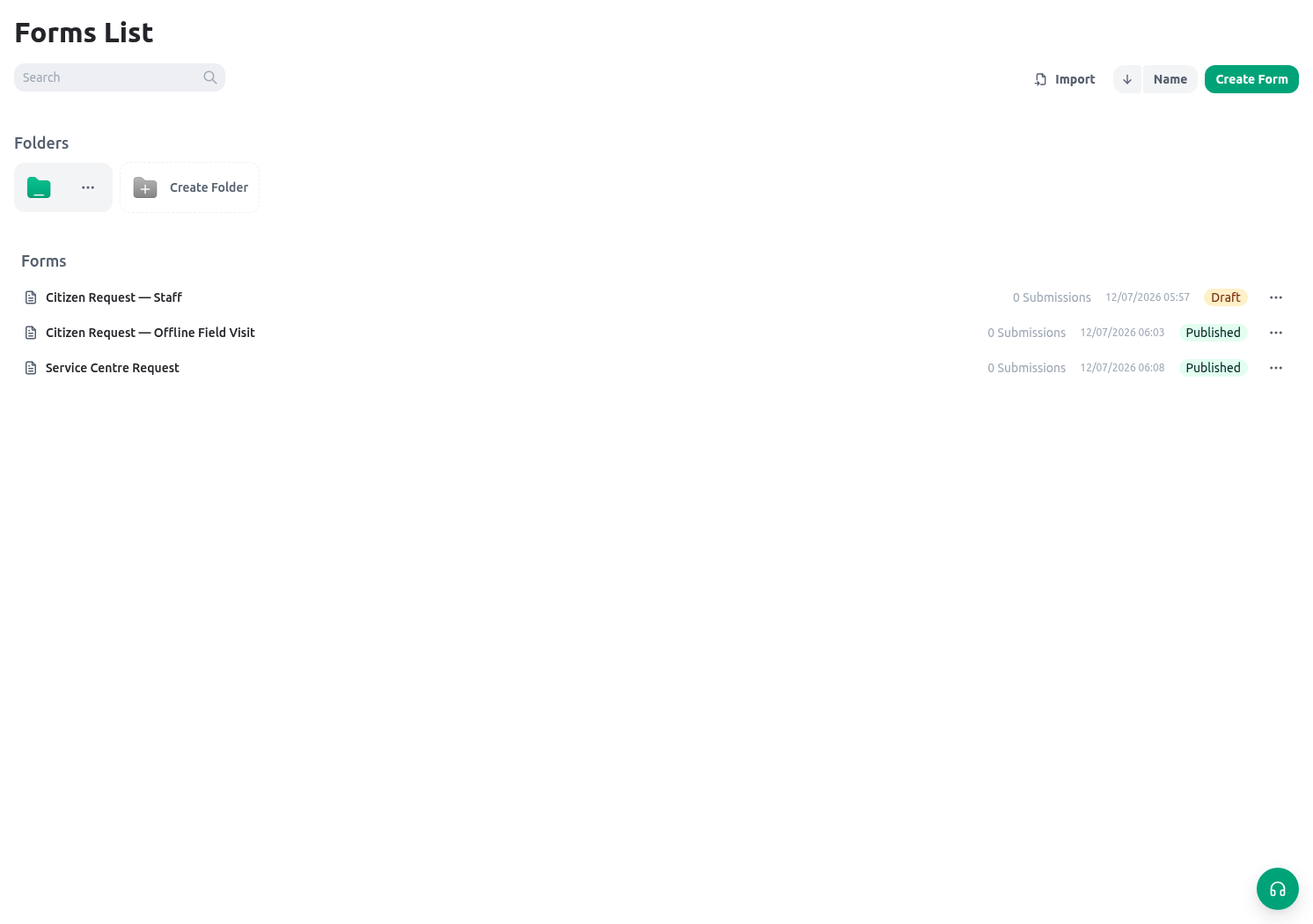
Every form needs an owning application and section. Choose the application first; the section selector then shows sections belonging to that application. If an approved owner does not exist and your role can create it, use Create new in the application or section selector. Supply a multilingual title and description, an appropriate icon, and an intentional order. The new owner is selected and the available choices refresh without closing the form-creation flow. Creating an application or section is an information-architecture change, so do not create a duplicate merely because a selector is filtered or your role lacks access. The Forms catalog groups form cards by application and section. Search by form ID, localized name, or localized description; use the searchable application and section filters to narrow the catalog. Application and section headers show counts and can be collapsed. A card shows its icon, name, stable ID, and available description, and opens the form’s current builder workflow. Use the move control or drag a card to a section, then confirm the destination application and section. This changes ownership and navigation placement, not who may edit, publish, start, or review the form. After a move, verify staff navigation, saved form shortcuts, public/prefilled links, and downstream hand-offs before relying on the new placement. Every existing and new form is now required to have a navigation placement; there is no form-level switch for hiding it from navigation. KayanOS still filters what each member can discover: a form appears only when that member has a non-emptylist, create, or initiate grant for it. Application and section placement control where an eligible form is grouped, not who gains access. To retire a form, follow the approved form lifecycle and access change rather than trying to hide it from the menu.
Build a multi-page journey
Use pages when a form has distinct steps that are easier to understand separately, such as request details, location, and evidence. The page tabs in the builder are the authoring order. Add a page from the end of the tab row, give it a clear title and optional description, and drag its tab to reorder it. Duplicate a page when the new step should start with the same content and settings. To move a top-level field, section, action, text block, or signature, select it and use Move to page. Deleting a page always asks what should happen to its content. Move the content to another page when it remains part of the journey, or deliberately delete the page and its contents. A form must retain at least one page. Each page can validate all fields on that page or an explicit selection of fields on that page. Validation runs only when the user moves forward from the current page; Back remains available. Use selected-field mode when a later field may remain incomplete until a different workflow step. A page cannot validate fields owned by another page. Page visibility is different from page validation. A visibility condition may read any field in the form, including a field on an earlier or later page. For example, an evidence page can appear only for site visits:Let readers fold long sections
Select a section in the builder and leave Collapsible on when readers should be able to hide its description and fields temporarily. Sections start expanded. The setting is on for existing sections that do not have an explicit value, so review important forms after this change. Turn it off to pin a section open when its instructions or context must remain visible while the page is used. Collapsing changes only what is displayed in that browser session. It does not clear answers, change conditional visibility, relax validation or required rules, make a read-only field editable, or submit the form. Test the section expanded and collapsed in English and Arabic, then expand it before checking validation messages and the saved submission.Choose staff, public, and prefilled entry paths
Configure staff access first and test with the roles that will actually initiate and review sessions. Then make a separate decision about public publication. Publishing makes a public URL available; it does not remove the need to design the form for an untrusted audience. These public and prefilled release paths apply only to regular forms. Offline forms cannot use public URLs or prefilled links; the builder disables those settings and the service rejects them. Plan an offline form around its staff/offline workflow and read Offline forms before choosing its entry path. The public settings for a regular form provide these release controls:
Set a password, account requirement, cap, or end date only when it fits the service policy. A password does not make a broad public URL safe to share carelessly. A cap or end date must not silently strand an urgent service without an announced alternative. Recheck the live public URL after publication with a non-production test session and a non-privileged browser context where available.
Prefilled links are available for regular forms that use variables. A saved link record has a name and a list of variable inputs. For each input, the builder can store a preset default or mark it as a value the user must provide. This is useful for a controlled referral link that carries an approved service category while asking the citizen for their own contact reference. Do not prefill national identifiers, internal member identifiers, access tokens, or other values that should not travel in a shareable link. Do not attempt this release pattern for an offline form; use its staff/offline process instead.
Use one link per approved channel or campaign so staff can tell why it exists. Review links periodically. The builder supports editing and deleting saved links; when a link should no longer be used, create and test its replacement if needed, then delete the old saved link rather than leaving an unreviewed distribution path. Treat prefilled values as initial context, not as proof that the recipient is authorized or that the value remains accurate.
An illustrative default expression can pass an existing form value into a later action or a controlled field. It assumes the real form has a key named
service_category:
Test the form as an organization member
Open Test form from the builder and choose an organization member whose real role and scope represent a path you need to check. KayanOS saves the current draft before opening its test workspace. If you open a historical version, the workspace tests that selected snapshot without copying it into the current draft. The form then runs with the selected member’s roles, permissions, visibility, editability, assignments, and approval access. Selecting another member starts a fresh test session so values and creator-dependent rules do not carry over. Use Test helpers to inspect the form’s configured roles, reset the session to its defaults, re-enter input variables, and review the simulated-effect timeline. The workspace simulates external actions, linked forms, generated documents, notifications, and approval requests. A Change values action may still change values inside the isolated test session. Nothing in the workspace becomes a real submission, but the draft save that happens before testing is real builder work. Test at least one permitted member and one member who should see a restricted path. Hidden fields must stay hidden, read-only fields must stay locked, and blocked actions must remain blocked. Do not use a high-privilege member as proof that a limited role works. After the workspace passes, exercise the published or staff entry path with approved test data and inspect the saved submission. The isolated workspace does not prove public publication controls, downstream delivery, generated output, or a real approval hand-off.Publish deliberately
Before publishing, review the form as a service contract. Check every field title, helper text, validation message, file policy, public setting, action, and signature setting. Publish a usable version only when the service can receive and review the resulting submission. A form title or URL should not imply approval, eligibility, or a guaranteed response time unless the service policy says so. Keep a short release record: version or date, service owner, intended audience, change summary, tested roles, open/close date, and the person responsible for reviewing submissions. When a material change affects already-started work, communicate the transition rather than assuming a new builder screen changes a saved session retrospectively.Worked example
A Syrian public-service directorate opens a citizen service-request form for a defined local service window. The form must capture the request category, a contact reference, the service location, a preferred date, an explanation, and up to three supporting files. It must not ask the citizen to choose an internal reviewer or disclose internal routing information. Create a staff draft first. Addrequest_type as a Select with approved stored values, contact_reference as Text, service_location as Location, preferred_date as Date, request_details as Text area, and supporting_files as a File field. Turn on its Multiple setting when several files share one evidence rule. Use a bounded repeatable section instead only when each attachment is differently described or needs its own category, date, validation, or review outcome. Add a Boolean requires_supporting_file only if a real policy decides when evidence is needed. Configure the supporting-file field’s visible and required conditions from that Boolean, and test both paths.
Add a description explaining what the citizen should provide and what should be omitted. For a location, state whether a full point, neighborhood, or service-area detail is needed. For a file, name acceptable evidence and the maximum appropriate size/type policy. Avoid collecting more than the reviewer can use to decide the next step.
Test the staff draft in the isolated workspace as two representative members: an intake member who starts a session and a reviewer who receives it. Switch members rather than reusing one session, then reset and test one ordinary request and one request that triggers the evidence condition. Verify that the second request cannot complete without the expected file and that the first does not show an irrelevant upload requirement. Then use the real staff path with approved test data and confirm that the saved session tells the reviewer which category and location were chosen.
When public release is approved, publish the form and copy the public URL only into the directorate’s approved service channel. Set an end date if the window is limited. If account access is required, check that the public instructions say so before the citizen begins. If a controlled partner needs a referral link, create a named prefilled link that presets only a low-risk service variable and marks the citizen-provided inputs as “ask.” Test that link in a clean browser session, confirm the expected preset is present, and confirm no unnecessary private data is in the URL or initial screen.
Finally, submit an approved test request through the public path. Have the reviewer check the resulting submission, not just the form screen: labels, files, repeatable instances, visibility conditions, and follow-up actions must all be understandable after save. Record the result and only then extend the form to a wider audience.
Testing
Use a named non-production test set and a simple release checklist. Test from the perspective of every intended audience, including staff with restricted scope and a public visitor where the form is public.
Use a basic condition test that makes the expected context explicit. The following example assumes a Select field with the real stored value
urgent; it is illustrative and must be adapted to actual keys and option values.
Troubleshooting
Permissions and data-quality limits
Form builder and publication access are controlled by the application and organization permissions available to the member. Application-section ownership organizes the form; it does not grant builder, publication, start, or submission-review access. An authorized builder may select another member from the same organization for an isolated form test, but this does not grant either person a production role or create a real submission. Publication is a separate operational decision from editing a draft. A public URL, password, or prefilled link does not grant a user permission to see staff-only entity data; selectors and later staff review still operate within their configured access and scope. Collect the minimum data needed for the service. Put a purpose and acceptable format next to each sensitive field, location, or upload. Do not place personal information in field keys, expression text, Select option values, referral-link defaults, screenshots, or examples. Field and page visibility settings control the rendered interface; navigation placement only supports discovery. Neither is a replacement for access control, encryption, retention, incident handling, or review policy. Review caps, end dates, and public share channels as data-quality controls as well as service controls. A form that accepts too many unsupported submissions creates unreviewed personal data. A form that accepts too little data produces repeated clarification work. Revisit the design after real, authorized operational feedback and document material changes.Related guides
- Choose field types, conditions, table layouts, and repeaters in Form fields and repeatables.
- Add controlled actions and signature evidence in Form actions, logic, and signatures.
- Review submitted sessions in Form submissions.
- Use staff/offline initiation and sync guidance in Offline forms.
- Understand the expression language before adding conditions in Expression language syntax.