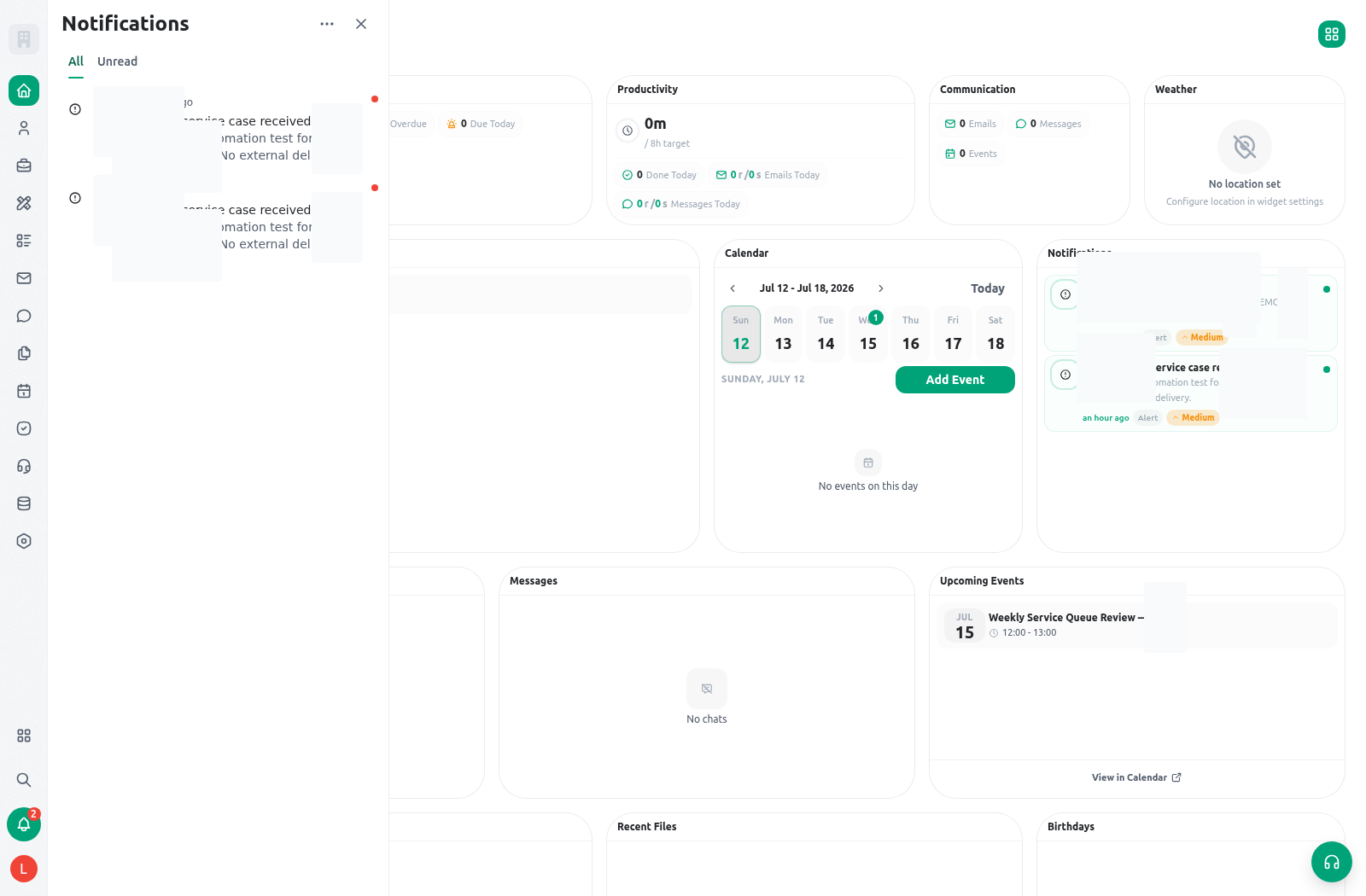
CSR-2026-00042, a scheduled inspection, unread work alerts, a quick service form, and a dashboard shortcut. The officer follows each item to its record before changing status or ownership.
Goal
Create a focused Home layout, understand what a notification does and does not prove, and diagnose why a widget or delivery channel is unavailable.What Home can show
Home is a configurable grid. A member can enter edit mode, reposition widgets, add or remove supported widgets, adjust widget settings where available, save the layout, or reset it to the organization’s default layout. The product can filter visible widgets according to the member’s seat type, organization configuration, and available data, so not every member will see the same choices. Common widget categories include:
Do not build a Home layout around a total count alone. A useful layout makes the next responsible action obvious: urgent work, today’s schedule, unread decision-critical notifications, and the fastest approved path to the underlying record.
Distinguish Home from an application workspace
Home assembles your personal cross-organization work picture: assigned tasks, upcoming events, notifications, communication, and configured shortcuts. An application workspace is one level deeper. It organizes that application’s available pages by section and can show recently opened destinations plus live indicators that link to the relevant task, calendar, email, or chat view. Use Home to decide what needs attention and an application workspace to choose the correct service destination. A live indicator, metric, or recent item is a navigation aid, not the authoritative count, status, or decision. Open its target, review the current filters and record state, and make the accountable change there. The current Home experience is launcher-first. Search remains visible in the global header, while Home can combine the task summary, inline application browser, recent destinations, and personal starred shortcuts. The header also provides the currently available account, support, notification, language, and light/dark/system-theme controls. Changing language or theme changes the current member experience; it does not change organization content, permissions, or another member’s preference. To manage shortcuts, open the application/launcher view and star an application, one of its pages, or an available utility. The Home shortcuts area updates from that personal list. Unstar an item to remove it. A missing shortcut usually means the destination was retired, the member changed organization, or current availability no longer permits it—not that the underlying permission should be broadened.Configure a focused Home layout
- Open Home and identify the decisions you personally make during a normal service day.
- Select the customize control to enter layout-editing mode.
- Keep the essential widgets first: assigned/overdue tasks, the calendar preview, notifications, and any service-specific shortcuts you actually use.
- Add a dashboard shortcut only when the dashboard leads to a defined review action. Do not use a dashboard card as the place to edit a citizen request.
- Arrange widgets so high-priority work is visible without scrolling on the device used by the role.
- Open widget settings where available and choose only approved data sources, filters, or shortcuts.
- Save the layout. Use reset when the personal arrangement no longer supports the workday.
- Test the layout as another role if that role has a different seat, scope, or daily responsibility.
Work from a notification
Notifications are prompts, not evidence. The production panel organizes them into two lanes: Needs You for personally directed or urgent work, and Activity for updates that normally do not require an immediate action. Repeated deliveries about the same underlying item are grouped into one thread, while All and Unread continue to control which loaded threads appear. Header and bell counts come from the full account totals rather than only the rows currently loaded. The Home notifications widget uses the same classification. It shows Needs You threads within the widget’s configured count and type filters, then reports how many Activity deliveries remain. Activity normally updates the badge without interrupting the member with a toast; Needs You events can still produce an in-app toast. A lane, badge, thread count, or toast is a triage signal—not a severity judgment or proof that the underlying work is still open. Use this procedure for a service notification:- Open the notification panel and start with Needs You. Choose Unread when you are triaging only unseen work.
- Read the thread title, actors, update count, and time. Select the row body to open its newest available target, or use the caret to expand the original deliveries without marking them read.
- Check the record’s current status, owner, and scope. A notification can be older than the current state.
- Perform the change on the underlying resource and leave an understandable activity/status update.
- Confirm the notification read state. Opening a grouped row marks the delivery it opens, not every delivery in a long thread; reading never means the operational work is complete.
- Mark all as read only after you have either acted, delegated, or deliberately recorded the next step for every item.
Understand the AI-assisted summary
When the panel opens, deterministic lanes and threads remain usable while KayanOS may prepare a permission-scoped AI digest. If available, the digest can summarize the inbox, rewrite a Needs You title, or combine related Activity threads. AI-authored rows carry a visible marker, and the original deterministic notification titles remain shown beneath them; expand a row when you need the individual deliveries. The summary never grants access, changes read state, completes work, or replaces the source record. If generation is pending, unavailable, or safely discarded by validation, the deterministic lanes remain the complete operating view and no AI banner is required. Do not wait for a digest before handling urgent work, and do not infer that a missing digest means there are no notifications.Triage support-ticket notifications
In ticket tables that show an Organization column, use Group by and choose that column to review tickets by organization. Groups use organization identity, so two organizations with the same displayed name remain separate. Pending organization details remain separate from linked organizations. Grouping does not change which tickets you may access. If a group looks duplicated, check the organization link or pending details before changing a ticket. Task-assignment notifications linked to support tickets open the ticket’s current internal or escalated queue; if routing has changed, verify access in the current queue. Support notifications lead to the ticket queue appropriate to the recipient. A requester who is an active organization member receives creation and requester-update events in My tickets. Members with organization support list/manage permissions can receive new-ticket and unassigned-reply events for their queue. Assigned support agents can receive assignment, assignment-change, customer-reply, and internal-note events. Handoffs notify the target assignee or eligible support team, while Kayan support SLA at-risk and breach events go to the responsible Kayan support scope. Opening the notification uses a role-aware ticket link—for example, My tickets, the organization’s internal/escalated queue, or the Kayan support queue—and the server checks current membership and ticket access again. The notification does not grant support-console access or expose a ticket outside the active organization. If an assignment or role changed after delivery, open the current queue and verify the assignee, routing state, status, priority, and latest conversation before replying. The ticket queue keeps read state separately for each signed-in member who can access the ticket. A ticket with no viewing history appears Unread. Opening its preview or full conversation marks it read for you; visible activity added after your last read appears as New update. Use Mark as unread in the preview or full view when you need to return the ticket to your personal triage. These indicators use only activity visible in your authorized ticket view. They do not grant access, change status, assignment, routing, or SLA state, or change another member’s read state. When the ticket opener or linked requester replies from My tickets, KayanOS records a customer reply. A verified customer reply moves a ticket from Waiting for customer, Resolved, or Closed back to In progress and recalculates its support timing. This remains true when that requester also has organization support permissions. A reply from an organization or Kayan support console remains an agent reply, and an internal note never reopens the ticket. The server rejects customer reply context from anyone who is not the opener or linked requester; using My tickets does not grant access to another person’s ticket. Use Backlog for feature requests and feedback worth keeping that nobody is working on yet. A backlog ticket stays open but leaves Needs attention; find it under the Backlog view. Backlog pauses the resolution SLA, shows Paused in the SLA column, and raises no SLA at-risk or breach events. A customer reply does not move a ticket out of the backlog; it appears as New update for agents. To pick the request up, change the status to In progress; the SLA clock resumes from where it paused. A linked internal support task shows the same Backlog status. Treat handoff and SLA-breach notifications as urgent routing signals. Handoffs keep their catalog-configured delivery and can bypass quiet hours. SLA at-risk and breach events are deliberately limited to in-app and eligible push delivery; KayanOS does not send these two event types by email or WhatsApp even when a member has enabled those channels. In-app delivery is not delayed by quiet hours, an SLA breach can bypass quiet hours for push, and an at-risk push can follow the normal delay; device readiness and current ticket access still apply. Do not mark a breach complete from the notification. Open the ticket, confirm whether the deadline is for first response or resolution, record the responsible action, and use the support workflow’s current state as the source of truth.Delivery readiness and preferences
The presence of a notification preference does not guarantee delivery through every channel. The notification catalog first decides which channels an event type is allowed to use; organization policy and a member-specific override can narrow those eligible channels but cannot add an excluded one. Delivery also depends on the channel being ready.
Quiet hours are a member setting with timezone, start, and end time. For channels other than in-app, an enabled quiet-hours policy can delay delivery until the next allowed time unless the organization defines a bypass for the notification’s priority. Explain this as a delivery policy, not as a reason to ignore urgent work already visible in Home.
Availability and permissions
Any signed-in member can have a Home route, but individual widgets and their linked actions depend on configuration, seat, data availability, and access. A Home card does not override the list/open/update/share/delete verbs of the record it points to. Before escalating an “empty Home” issue, check:- Is the member in the correct organization?
- Does the member have assigned work, events, notifications, forms, dashboards, or files that the widget can show?
- Is the widget allowed for the member’s seat and organization configuration?
- Does the member have access to the target resource, not only the Home shortcut?
- Is a notification channel ready and enabled at catalog, organization, and member levels?
Safe testing
Use one controlled request and two different roles. Give the Registry Officer one action-required event plus several Activity updates on the same synthetic item. Confirm that the panel separates the lanes, groups the repeated updates, expands to the originals, and keeps Activity arrivals silent while updating the badge. If an AI digest appears, confirm that every rewritten or clustered row still shows its original titles and opens only a target the member may access. With a synthetic support ticket, verify that the requester link opens My tickets, an eligible support member reaches only the appropriate queue, and a non-recipient gains no access from the copied route. Open it as each eligible member, add a visible update, and use Mark as unread to confirm that unread state is independent per member and never changes the workflow state. Resolve the synthetic ticket, reply as its requester from My tickets, and confirm it returns to In progress; then confirm an agent reply and internal note from the support console do not reopen it. In an approved Kayan support test scope, trigger synthetic SLA at-risk and breach events and confirm in-app delivery; test push only on a registered test device, and confirm that neither event creates email or WhatsApp delivery. Change one member notification preference and verify the in-app behavior without relying on a real citizen or external delivery. Test quiet hours only with approved non-production timing and record the observed result.Troubleshooting
Related guides
- Manage accountable follow-up in Tasks and approvals.
- Schedule the next service action in Calendar.
- Configure personal notification and language settings in Profile, language, and signatures.
- Understand access boundaries in Roles and access and Permissions and availability.