CSR-2026-00042, the Service Manager owns the request. The Registry Officer is assigned the completeness task, the Field Inspector contributes inspection evidence, and the Records Officer is informed when the evidence packet is ready. The final reviewer uses the configured record and signature workflow to decide the request.
Select board tasks and find related tasks
Select multiple cards on the board to use the actions shared by the selection or move them together. Review the selected count and available transition before confirming. A group move uses the chosen status transition and is atomic: an invalid task prevents the group move. Bulk actions still require the relevant task permissions; selection does not make otherwise unavailable actions valid. Related tasks appear in the task’s content tabs. The relation picker starts in the current collection when available. Switch collections or broaden the search to all accessible tasks when the intended task is elsewhere. The picker shows only collections you can see, and existing relation constraints still apply. A cross-collection relation can be saved when permitted; broadening the search does not grant access.Goal
Use Tasks to assign and track work clearly while preserving the request record as the source of truth for service status and formal decisions.Understand task roles
Task roles answer different questions. Assign only the roles that create a real responsibility.
Do not add everyone as an assignee. One clearly named next owner is more useful than a long list of people who assume somebody else will act.
Collections, views, and grouping
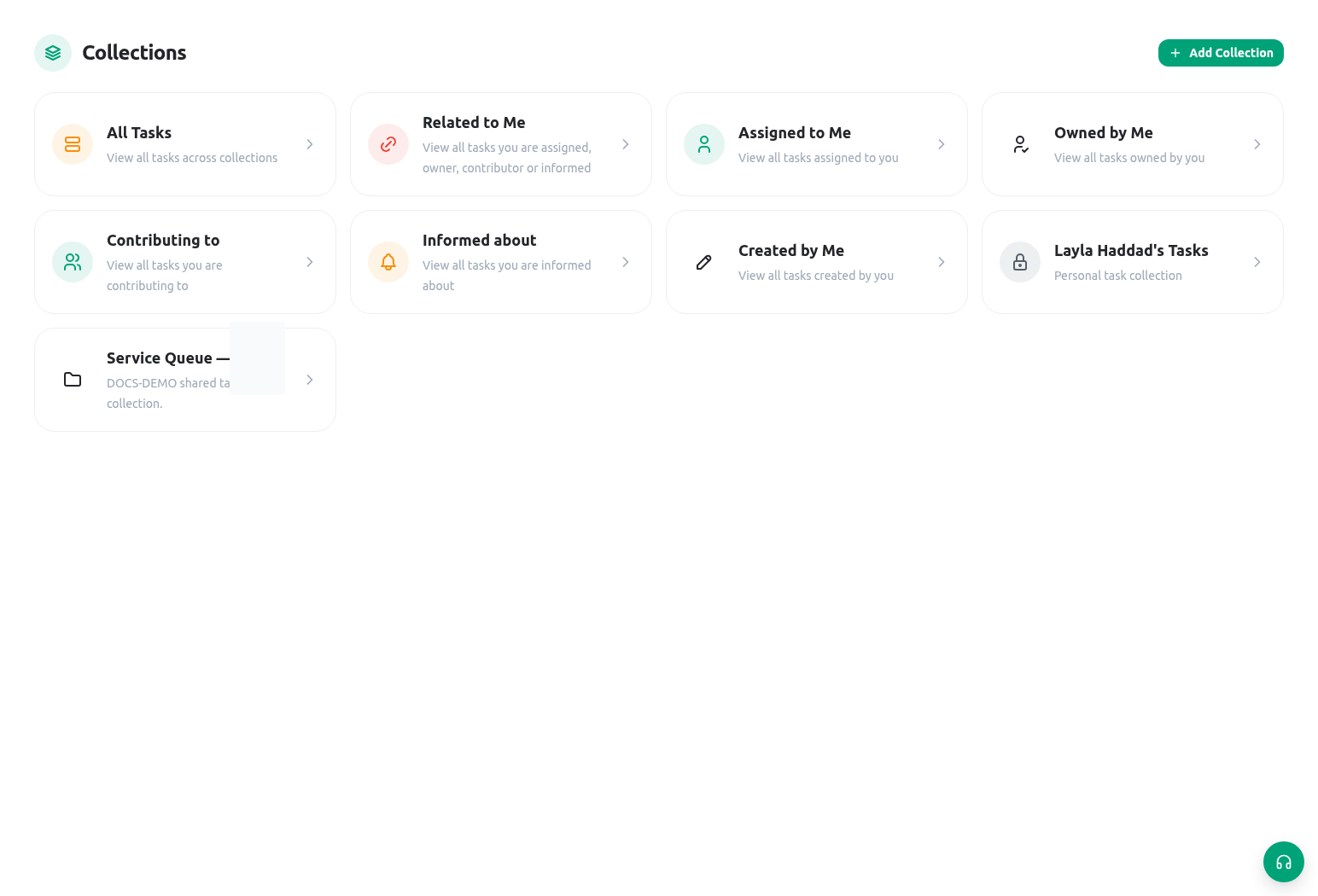
Tasks can be organized in personal or shared collections. Personal collections help a member organize their own work; shared collections support a team queue. The Tasks landing page also provides common views such as all work, assigned to me, owned by me, contributing to, informed about, created by me, and related to me. Inside the workspace, use the view and grouping that answers the operational question:
Filters help a person find work; they do not change the task’s access rules. A missing task may be filtered out, belong to another collection, be outside the member’s scope, or not involve that member in the selected role.
On a board, collapse one column or use Collapse all when you need to scan headings without rendering every card. The collapsed state is a view preference, not a task-status change, and a board with no compatible columns can leave collapse unavailable. Expand the relevant column before concluding that work is missing. Built-in task boards can also show eligible AI suggestions in their dedicated suggestion column; those cards remain proposals until an authorized reviewer accepts them.
Create an accountable task
- Open the request or task collection that owns the work.
- Write a title that names the outcome, not only an activity. For example: Verify address evidence for CSR-2026-00042 rather than Check request.
- Link the task to the service request, inspection, project, or other approved context.
- Assign one accountable person for the next action and add an owner if the service policy distinguishes ownership from execution.
- Add contributors and informed members only when they have a real duty.
- Set a due date and priority that match the service target. A task without a due date can still be legitimate, but it should not hide an urgent obligation.
- Select the approved task status/template and record enough context for a colleague to understand the request without guessing.
- Save, then test how the task appears in the assignee’s Home and task list.
Delete a task
In a saved task’s details, choose Delete only when the task should be removed. This action requires delete permission for the task’s scope and opens a confirmation dialog. Cancel keeps the task; confirm Delete to proceed. If the action is unavailable, ask the responsible task administrator to check your scoped permission. Use the normal completion status when the work is finished and its record should remain.Link tasks to records deliberately
A task can carry typed links such as About, Evidence, Blocked by, or Produces. The organization can use different localized labels and can constrain a task type to approved entity types and record counts. In the record picker, choose the relationship first, select an allowed entity type, then search by the record’s stable label or identifier. Add a short note only when it explains why the link exists; do not copy sensitive record content into the note. The picker and both sides of the relationship remain permission-filtered:- for a saved task, opening its relationship list requires task open access; every target-record search requires record open access;
- adding or removing a link on a saved task also requires scoped
tasks:updateaccess; - the record’s Tasks tab lists only linked tasks the member may open; and
- a link does not grant task access, record access, or permission to change either item.
done status, and may set a maximum. Creation fails atomically when its required links are missing; completion remains blocked when a completion rule is unsatisfied. Review the named relationship, allowed entity type, and count instead of linking an unrelated record. If a needed record is absent from search, verify its stable identifier and your existing record scope; do not recreate or broaden-share it as a workaround.
Relate tasks to each other
Use Related tasks on a saved task when one piece of work depends on another. Choose Add relation, pick how the tasks relate, then search for the other task. Every relation reads correctly from both sides: if the inspection task is Blocked by the document request, the document request shows that it Blocks the inspection.
Your organization can rename these relations, change what they enforce, and add its own. The chips under the task title and on board cards show open blockers in red, earlier open work in amber, and cleared blockers in green. On the task board, Blocked shows only tasks that cannot be completed yet and Ready to start shows open tasks that are not waiting on anything.
Relations stay permission-filtered. You see only related tasks you may open, and a relation to a task you can’t open appears as a count without its title. Adding a relation needs update access to the waiting task: to mark another team’s task as blocked by yours, ask someone who can edit that task. A loop is refused, so a task cannot end up waiting on itself through other tasks.
Review task suggestions extracted from email
KayanOS can turn a clear action item in an analyzed email into a Pending task suggestion. This is automatic extraction, not automatic approval: pending suggestions stay out of normal task lists and workflows until an authorized member accepts them. Open AI suggestions under Tasks to review Pending work. Rejected suggestions remain in Rejected so permitted reviewers can inspect the history and restore a suggestion when appropriate. Each suggestion is tied to the exact message that supplied the action. Role routing is limited to normalized From, To, and Cc addresses on that message; participants from other messages in the thread, Bcc recipients, and addresses invented by analysis are outside the boundary. AI proposals win only when they stay inside that set. If a role has no valid proposal, KayanOS uses From for owner, To for assignees, and Cc for informed. Addresses that match active organization members become internal member participants. Addresses that match an active hosted group address or alias become internal group principals, so the group’s configured selector and access rules govern which group members can see or act on the task. Only source-message addresses with no internal member or hosted-group mapping are shown as External contacts. An external contact is not a member or group assignment, receives no KayanOS access, and receives no task notification. Before accepting, confirm the title, due date, source excerpt, proposed participants, and routing reason. The Accept dialog asks only for:- a task type; and
- one or more collections.
Ask another member for work or review
KayanOS supports task requests to another member. Use this when a colleague must provide an action, clarification, or review that deserves a visible request rather than an informal message.- Open the relevant task.
- Choose the member who must respond. You cannot create a request to yourself.
- State the exact requested action, the request reference, due expectation, and what evidence or response is needed.
- Send the request and confirm that the recipient is appropriate for the task’s scope.
- When the response arrives, record the resulting fact or decision on the task and related request.
Create a task from chat without losing context
An eligible nonempty text chat message can seed a task. This is useful after the Service Manager confirms, “Please obtain the corrected location document by tomorrow.”- Open the message action and create the task.
- Check the generated title/body and add the correct request or inspection relationship.
- Set owner, assignee, due date, priority, and status explicitly.
- Save the task, then return to the request record to record the authoritative service outcome once work is complete.
Completion, review, and formal decisions
Use a task status to show that an action is pending, in progress, blocked, returned, or complete according to the configured task lifecycle. Before marking a task complete, check the evidence and the related record:- Is the required evidence attached in the approved location?
- Did the assignee record the finding on the request or inspection?
- Does the request status now need to change?
- Is a reviewer decision or signature required separately?
- Does the citizen communication still need a drafted or sent outcome?
Availability and permissions
Task visibility and mutation follow the organization’s role/scope design. A member may see a task in a shared collection yet be unable to update a related request, or may update an assigned task but not change the status of a request outside their service scope. Test access at the task and related-record level. When work is missing, check in this order:- selected collection and active filters;
- assigned/owned/contributing/informed/related role;
- task status and due-date grouping;
- member access to the task and its linked record; and
- whether a different team owns the next action.
Safe testing
Create one controlled task forCSR-2026-00042. Assign it to a Registry Officer, make the Field Inspector a contributor, and make the Records Officer informed. Link the request with the approved relationship, verify it appears from both the task and record for an authorized role, and confirm a member without record access cannot discover it through the task. Test one required-at-creation or required-at-completion rule and its refusal path without attaching unrelated data. Then test a request to another member and use a synthetic message to create a task from Chat. Finally, confirm that closing the task does not change the request’s formal decision unless the authorized reviewer performs the required workflow.
Troubleshooting
Related guides
- Review formal decisions and signatures in Requests and approvals.
- Start the day from Home and notifications.
- Coordinate time in Calendar and discussion in Chat and contacts.
- Follow the complete request path in Explore an example workspace.
- Build formal decision controls in Form actions, logic, and signatures.
- Review role boundaries in Roles and access.