

Review official copies, attachment signatures, and archives
After correspondence is issued, its official PDF is prepared in the background. Check its preparation state before downloading. Open a fresh link from the letter if a download expires. Protected correspondence uses a copy watermarked for its viewer; access to an archive row does not grant access to protected letter content. A public QR verification page shows document content only for eligible confidentiality levels 0–1 below the configured protection threshold. From level 2, it withholds the subject, recipient, and document content. Treat a QR link as a verification route, not a general sharing permission. When the letter offers attachment signing, choose a PDF, place the mark on the intended page, review the prepared copy, and sign through your authorized action. The original remains; the signed copy and signature history are separate evidence. A prepared copy expires after 15 minutes. If it expires or changes, prepare and review it again. Split an overly complex PDF when the application refuses it rather than retrying the same file. Pending or rejected signature images cannot be used as approved marks. An authorized sender before issue, or an eligible open-action holder, can request attachment signatures from selected positions. This route is unavailable for confidentiality level 3 or above. A pending, rejected, cancelled, or expired request is not a completed signed attachment. Review the returned copy and each signer’s result before continuing. For archiving, review the prefilled metadata and tags, then submit if approval is required. Archive work requires the archive capability; approval requires the archive-approval capability, and a submitter cannot approve their own submission. Return and rejection require a comment. The archive number is assigned when final. An explicitly approved archive is final; records finalized automatically without approval retain only the configured reopen window. A rejected archive does not reopen the completed letter automatically. Check the archive state and contact the authorized archivist before attempting correction or refiling.Work in the correspondence registry office
Registry clerks use their office’s arrival, dispatch, and register queues. Review the source channel, receipt date, confidentiality, required register fields, and distribution before registering an arrival. Paper intake follows the office’s registration path. A transferred arrival keeps its original channel. Put an arrival on hold with a reason and a working follow-up day within thirty days, or transfer it to the correct active office when appropriate. Bulk registration, dispatch, or refusal reports each item’s result. Review failures before retrying; a successful item must not be registered again. Registration uses each arrival’s receipt day in the organization time zone, and a closed-day arrival needs the required late reason. Registration must not reduce confidentiality. The registering clerk may undo registration only within the offered ten-second window and before recipient activity or notices close that window. Undo voids the number rather than reusing it. Later corrections need a reason; changing the subject is restricted once the letter has been opened. Voiding after someone acted requires an administrator. Use the action offered for the entry and preserve its audit history. Review the daily totals and gaps before closing the day. Closing freezes that day’s totals; later entries are marked late. Administrators may review the closing report, but closing requires the office’s clerk access. Register exports preserve the same content masking as the screen and reject more than 10,000 rows instead of silently truncating; narrow the period if needed. Dry-run a legacy import and resolve row errors before importing completed historical letters with their original numbers. Registry access can expose metadata without exposing the letter body, confidential subject, attachments, or private notes. Audit access does not remove those limits. Use office settings for permitted deadline policies, stamps, external bodies, register fields, and auto-forwarding rules, then test the resulting route with the intended roles.Review correspondence actions and delegation changes
Use the reader and tray actions available to your position or active delegation for notes, follow-up, replies, copies, and original-document handling. Check recipients and confidentiality before sending. Only the grantor can edit a delegation: narrowing takes effect immediately, while widening requires the delegate to acknowledge it again. If an action disappears after a change, review the delegation’s powers, dates, and confidentiality limit instead of forwarding protected content outside the workflow.Handle official correspondence
Use Official Correspondence for numbered letters, internal referrals, and circulars. A mailbox follows an active position or an acknowledged delegation. Registry work and correspondence settings require their own capabilities; seeing the app does not authorize every letter. Registry-only access can expose metadata without granting the letter body.- Open the tray and select the correct personal or delegated mailbox.
- Compose a letter with its type, recipients, confidentiality, language, and approval chain. Review the rich-text body, attachments, and paper preview.
- Choose an available letterhead. Defaults follow letter type, then the nearest sending-unit default, then the organization default. Template availability follows its audience. Administrators maintain multilingual headers and footers in correspondence settings.
- Save the draft, then submit it through the required approval and signing steps. Where the type requires a member-key signature, use your own authorized signing credential. A returned letter needs correction and a new review round.
- Verify the issued number and delivery or registry outcome in the letter’s route and history. Issue freezes the chosen template and language content; later template edits do not rewrite the issued paper.
Review service requests and ask for corrections
Service-request handling is opt-in for each form. A service manager enables the form’s request features in Services. Without this setting, the staff review workspace, automatic applicant messages, and request updates, messages, and rating are not enabled merely because a form is public. For an enabled request, open the staff review workspace with session-open permission. Actions that change it also require session-update permission in the request’s scope. Review the applicant data and documents, then choose the configured decision or correction action. For a correction request, select the items to reopen, write an applicant-facing explanation, and set the allowed deadline. Only the selected items are reopened for correction. Review the resubmitted values and history before making the next decision. Automatic applicant messages use configured templates and channels. Check the send log and actual outcome; a status update is not proof of delivery. If a decision is unavailable, check the lifecycle mapping, request-feature setting, and your session permissions. Keep these service-request actions distinct from signature-based approval requests described below.Understand the four views and urgency
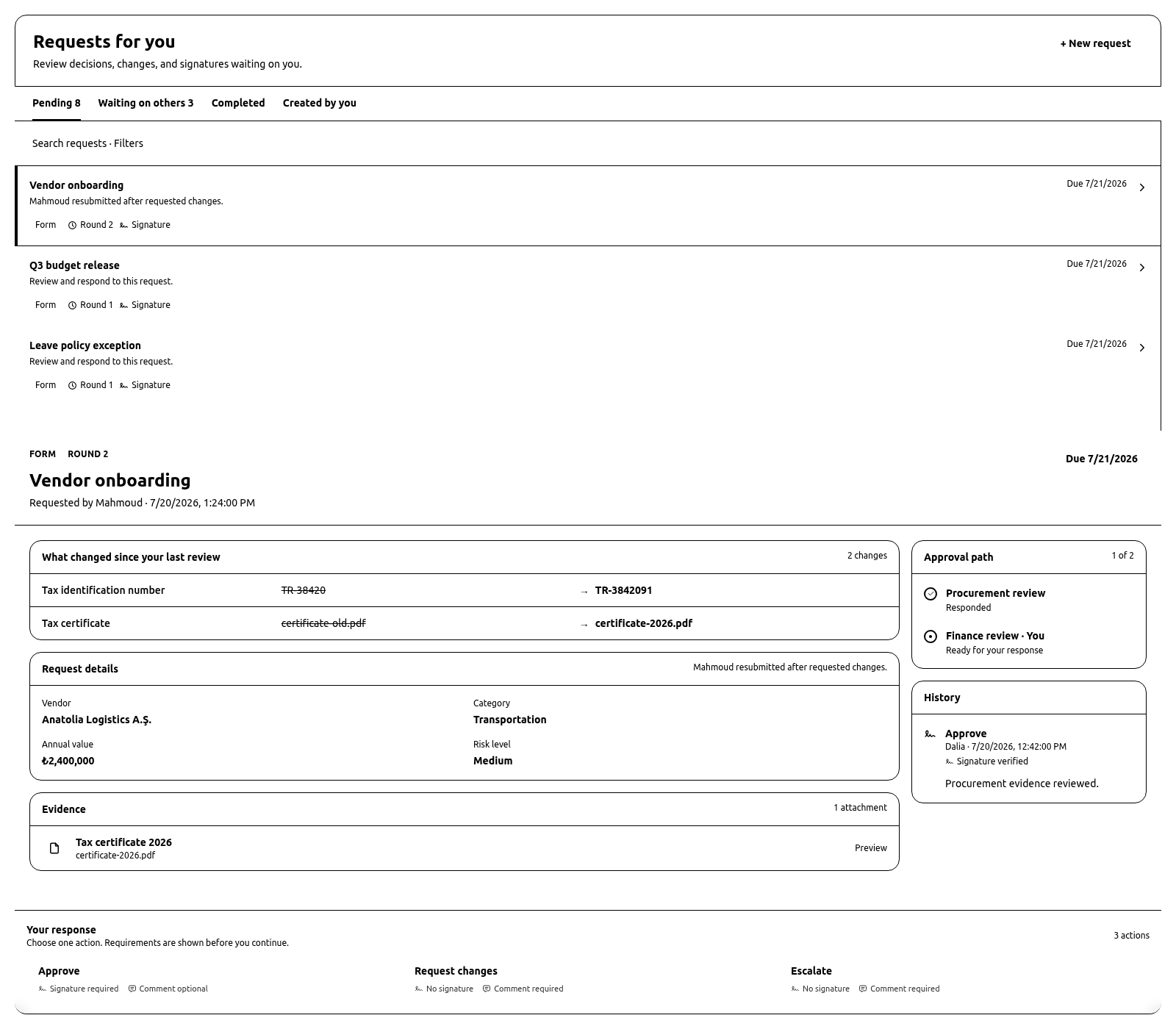
Open Requests from the navigation. The queue keeps the selected request and its review evidence together.
Needs you groups its rows as Overdue, Due today, Due soon (within seven days), and No pressing due date. Each row shows its source, later-round badge, signature requirement, stage dots, and whose turn it is. The tab count is highlighted when any loaded request is overdue. Other views remain flat lists.
Search and filters narrow the loaded view by text, source, due state, requester, and whether an action requires a signature. Filtering does not change eligibility or access. If a request is absent, first confirm the selected view and filters, then check whether its current stage is assigned to you.
Follow a request you created
In Created by you, the progress bar shows completed stages and the blocking line names the unresponded members in the current available stage. It is progress information, not authority to respond for them. The request creator can use Send reminder on an active request. KayanOS sends it only to unresponded members of the current available stage and enforces one manual reminder per request every 24 hours. A reminder does not change the due date, stage, eligibility, or outcome. The creator can also cancel an active request; use that only when the request itself should end, not as a substitute for correcting and resubmitting a form round.Review before responding
Select a queue row to open the review workspace. Read the header, due state, source, requester, and round. For Round 2 and later, begin with What changed since your last review. It compares approval-relevant values from the previous immutable snapshot with the current one. Continue through:- Request details — the canonical subject snapshot covered by this round.
- Evidence — attachments supplied for the decision.
- Approval path — ordered stages, completed stages, and the current stage.
- History — recorded actions, comments, signing capacity, response time, and signature proof where required.
Complete the evidence gate
Response actions stay locked until the current evidence is reviewed. Scroll the inline form snapshot to the end. Open or mark every additional attachment as reviewed. If the snapshot cannot be previewed inline, use Open in new tab; opening it counts as reviewing that snapshot. A load failure stays locked until the snapshot loads successfully. A request with no documents unlocks from its inline details. Review progress is local to the current browser session, but the server still checks the attachment acknowledgement submitted with the response. Unlocking buttons is not proof that the content is correct, and it does not grant access to an attachment’s source record.Review the versioned PDF snapshot
For a form-backed round, the evidence area can provide a versioned PDF snapshot of the exact submitted state covered by the request. Open it from the current round, confirm the request family, round, and document version, and compare it with the visible change summary before responding. The PDF is immutable review evidence; downloading it does not make it the live form or grant access to its source files. If the initiator corrects an approval-relevant value, the prior PDF and responses remain attached to the prior round. The corrected submission must create a new round and proof version before it can receive a new decision. Do not approve changed content from an older download, even when the title and request reference look the same.Choose an action
Every action configured for the request is visible in the sticky response area after the evidence gate is complete. Each button states whether a signature and comment are required. The confirmation dialog then contains the reviewed-evidence summary, comment, signing capacity when needed, and confirmation control; it does not repeat the evidence viewer. Labels can be organization-specific; the underlying action key and outcome key remain stable audit identifiers. An action has two independent effects:continuesatisfies the current stage and opens the next ordered stage. At the last stage it completes the request.completeends the request immediately with that action’s outcome.
Respond without a signature
For an unsigned action, enter a comment when required and confirm the action. Optional comments are still useful when the reason will help a later reviewer. The response is recorded against the exact request family, round, stage, action, outcome, subject hash, evidence list, and signing capacity value. No member-key signature is created. If the request changed or another eligible reviewer completed the stage first, KayanOS rejects the stale response. Refresh the request and review its current state before trying another action.Respond with a signature
A signature-required action clearly shows Signature required before you open it.- Review and acknowledge each attachment presented by the signing flow.
- Choose the signing capacity allowed for the current stage. This can be personal or an active position capacity.
- Select the approved member key file for this browser tab.
- Enter the six-digit member-key PIN.
- Confirm the action.
Request changes and resubmit
Suppose a form request offers Approve and Request changes. A reviewer chooses Request changes with a required explanation. That action completes the current round with theneeds_changes outcome.
The initiator then edits the form. When the form’s scope-invalidation setting is enabled, changes inside the configured approval scope make an active round outdated immediately. Old responses remain visible and unchanged because they describe the old snapshot. When the setting is disabled, those edits preserve the current approval and no resubmit action appears.
After corrections, the initiator chooses Resubmit for approval. Resubmission is explicit:
- KayanOS compares the new approval snapshot with the prior snapshot.
- If there are no approval-relevant changes, resubmission is rejected.
- If there are relevant changes, KayanOS creates Round N+1 in the same request family.
- The new round links to the previous round and stores a deterministic change summary.
- Current stage selectors are resolved again, then approval restarts from Stage 1.
Create a direct request
Authorized members can choose New request. The creation page keeps all configuration sections visible:- describe the request and timing;
- capture the subject and optional evidence;
- add ordered approval stages; and
- define response actions.
continue or complete, signature requirement, and comment requirement. KayanOS assigns the action’s stable outcome identifier from the chosen preset or custom-action slot; there is no separate outcome-key field to complete. Keep the action and outcome identifiers stable after requests use them, even when a visible label needs correction. Keep the set small enough that reviewers can understand every option at once. Attachments are optional. Before creation, the summary shows the number of stages, actions, and signature-required actions.
Compatibility and permissions
Existing signing-request links continue to open the Requests experience. Legacy signing rules retain their allowed decisions and signature proof. Existing SOP approval records retain their compatibility detail while new SOP approval actions can create unified requests. The technical permission identity remainssigning_requests during rollout, even though navigation says Requests.
Creating, viewing, responding to, signing, and managing requests still require the assigned organization verbs and scope. Being named in an old round does not grant access to a new round unless the current stage resolves to you again.
Safe testing
Create a non-production request with two stages, a snapshot plus one extra attachment, and two actions: signed Approve withcontinue, and unsigned Request changes with complete and a required comment. Confirm that one response completes each stage, all actions remain disabled until the snapshot and attachment are reviewed, and the second stage opens only after the first.
Then request a change, edit one in-scope value, and resubmit. Verify that Round 2 shows the exact change, starts from the first stage, and retains Round 1 responses. Finally, test an out-of-scope presentation change and confirm it does not create an approval-relevant resubmission.
Repeat the scoped edit with invalidation disabled and confirm the current approval remains active without an outdated warning or resubmit action. Change signer rules and confirm ordinary saves still preserve the request; explicitly prepare again to apply the current signer rules.
Set the preparation-visibility expression false for the initiator and confirm Prepare and Resubmit/Reprepare are absent while reviewer response and signer controls remain available to their eligible users. Attempt the prepare action directly and confirm the server rejects it. Set the expression true again and confirm an existing outdated round returns to the reprepare path.
As the creator, confirm Created by you shows the blocking stage and member, then send one reminder. A second reminder inside 24 hours must be throttled. Confirm a non-creator cannot use the reminder endpoint and that no completed or cancelled request can be reminded.
Troubleshooting
Related guides
- Separate operational work from formal decisions in Tasks and approvals.
- Configure form scope, actions, stages, and signatures in Form actions, logic, and signatures.
- Enroll and protect signing credentials in Member keys and signatures.
- Review access boundaries in Roles and access.