Control AI availability by place
Authorized AI settings administrators can set each AI place to on, off, or member choice for the organization, and set exceptions for selected members. A member-specific rule wins over the organization rule. Removing a rule returns control to the next applicable layer, including the member’s saved choice. These controls cover the listed AI places; they are separate from usage limits and ordinary feature permissions. Ask the member to reopen their AI settings to confirm the effective state before troubleshooting a disabled assistant.Set session and sign-in policy
Authorized administrators can configure session lifetimes for web and mobile, idle timeout, device limits, new-device alerts, and the fresh-verification window in session policy settings. Review two-step requirements and allowed methods before applying them to members. Save only after checking the effect on people currently signed in. Organization-wide session reset requires confirmation and fresh identity verification. It ends the administrator’s own affected session too. For one member, use the authorized member-session controls and record the required reason instead of resetting the whole organization. A missing control or refusal requires the relevant administrative permission; ordinary profile access is insufficient. After saving, review the stored policy and use a controlled test account to check the intended sign-in path. See Profile, language, and signatures for personal security controls.Goal
Set an accurate organization identity and safe regional defaults, then test the result with a controlled staff workflow before relying on it in a published service.What each setting controls
The default language list is built from the organization’s active language records. Activate and quality-check a language before setting it as the organization default. Likewise, a default timezone is a shared starting value; service fields and event records can still carry their own approved timezone where the applicable feature supports it.
Before you change a setting
- Confirm that you are the organization owner or have the organization-settings authority assigned by your role and scope.
- Write down the current value, why it is changing, the approving owner, and a safe reversal path.
- For a language change, confirm that required Arabic and English titles, statuses, templates, and public text are ready. A default language does not translate unlocalized custom data.
- For a timezone or work-week change, identify the services affected by dates, deadline rules, calendar views, or reports.
- For a logo or theme change, prepare an approved asset and test it in both light and dark interface modes.
- For a subdomain change, notify support owners in advance: staff bookmarks, saved links, portal links, and any approved integrations may need review after the redirect.
Configure identity and regional defaults
Open Administration → Organization settings. Review the whole form before saving because its values form one organization-level profile.- Set the localized display name and short description. Enter a clear Directorate name in each active language that needs it; avoid a temporary project name or a citizen’s name.
- Select the country and employee-size band that describe the organization. These are organization metadata, not staffing entitlements.
- Choose the first day of the operational week. Confirm the choice with the team that uses attendance, schedules, and workload views.
- Choose the approved default timezone. For a Syrian public-service directorate, select the approved local time-zone option, such as
Asia/Damascuswhere that is the organization’s policy. Do not change it merely to make a single report look different. - Select a default language from the active language list. If Arabic is selected, verify right-to-left navigation, dates, numerals, custom entity titles, and public text after saving.
- Upload or remove the organization logo only when the replacement has been approved. Confirm that it remains legible at the compact size used in navigation.
- Save, then reopen the settings page and confirm that the persisted values are the values you intended.
Configure the brand theme
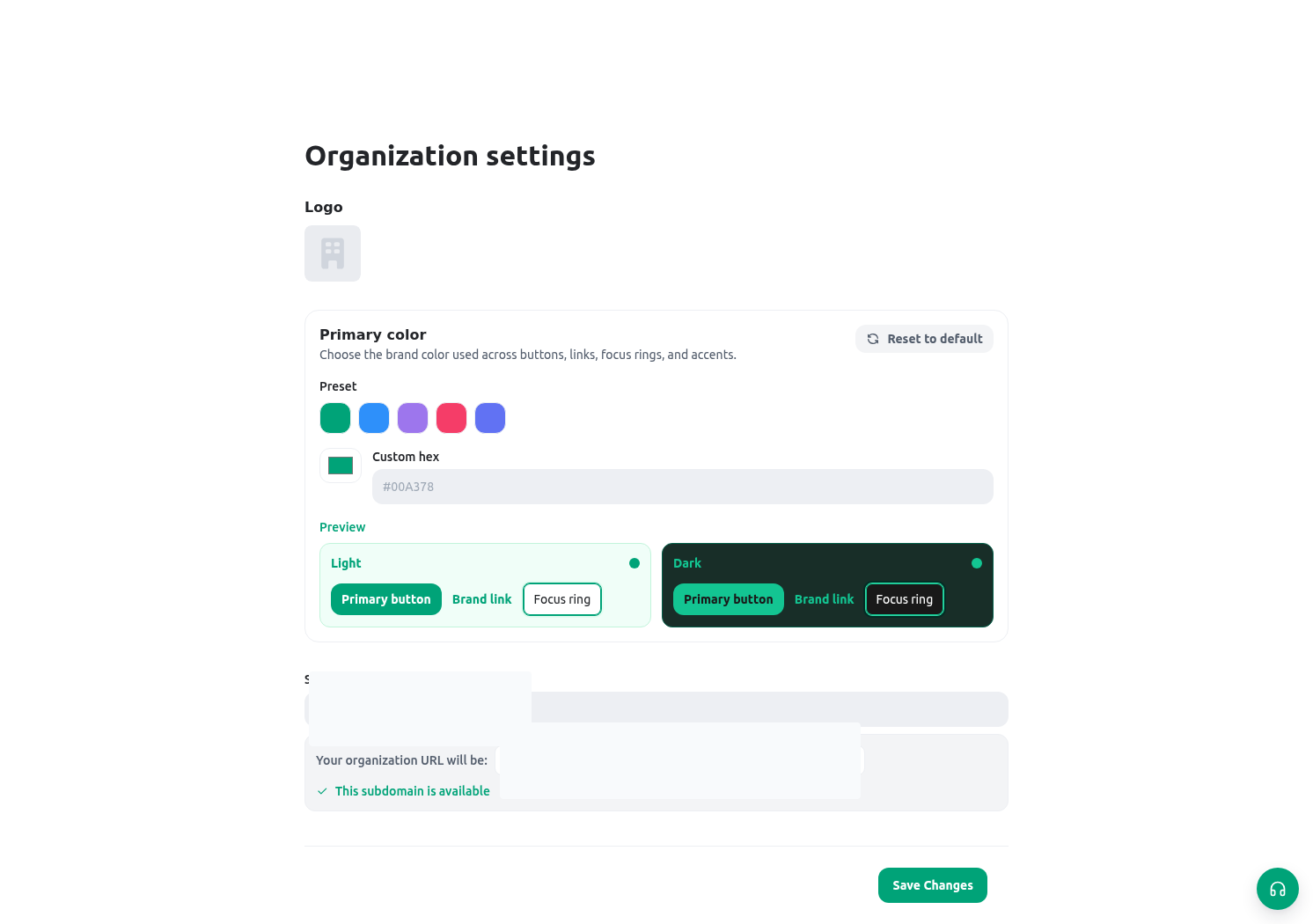
The organization theme is for recognizable, accessible presentation. Configure it separately from business content:- Use the approved organization color or a valid custom hexadecimal color when your branding policy permits it.
- Review contrast in light and dark modes. A color that looks acceptable on a white background can make a button, chart, or focus state difficult to read elsewhere.
- Use a logo and visual identity that staff can recognize without exposing a citizen, service reference, or internal contact detail.
- Save one theme change at a time, then test Home, the sidebar, a form, and a public-facing page that the organization has explicitly published.
Set Homepage hero images
The Homepage hero images control belongs to Organization settings. Upload separate light and dark images, then choose their position and size. Save, remove one theme’s image, or reset both only while the intended organization is active. These images brand the launcher-first Home; they do not define member shortcuts or a shared widget layout. Follow Homepage for the complete upload and validation procedure.Choose the organization interface style
Interface style changes the navigation and Home experience for everyone in the organization:- Modern uses a launcher-first Home with global top navigation and is the safe default when no recognized style is saved.
- Classic keeps the previous Home experience with sidebar navigation.
Change the organization subdomain carefully
The subdomain is the organization’s KayanOS address. It has stricter consequences than a display-name edit because the browser redirects to the new origin after a successful save. The form accepts a lower-case subdomain of 3–63 characters using letters, digits, and hyphens, with no leading or trailing hyphen. KayanOS checks availability before a changed value can be saved. Follow this sequence:- Choose a stable, approved short name. For example, use an organization-wide Directorate address rather than the name of one temporary service centre.
- Enter the proposed value and wait for the availability result. Do not treat an untested name as reserved.
- Ask a second administrator to verify spelling, ownership, and the intended address before saving.
- Save the change. The current browser session redirects to the new organization address.
- At the new address, sign in again if required, open a controlled request such as
CSR-2026-00042, and verify that the organization context, language, and navigation are correct. - Update approved bookmarks and portal/integration configuration only after the new address works. Do not circulate an unverified address to citizens or staff.
Directorate scenario
The Directorate of Citizen Services prepares a bilingual launch for its Citizen Service Request service. The administrator sets the Arabic and English display names, activates Arabic before selecting it as a default option, selects the approved local timezone, and checks that the week starts according to the Directorate’s published schedule. The service owner then opens the same controlled request in both interface languages. Expected result:- staff see the approved organization identity and logo;
- Arabic screens render right-to-left without changing the stable field key or serial reference
CSR-2026-00042; - a calendar event and a request record retain their stored values; and
- no member gains new access just because a regional default changed.
Validation and safe rollback
Troubleshooting
Related guides
- Maintain active languages and currencies in Languages and currencies.
- Give administrators and service teams only the access they need in Roles and scopes.
- Configure Home hero images and understand personal favorites in Homepage.
- Diagnose a missing setting or denied action in Permissions and availability.