Goal
Set and review AI usage limits in a transparent hierarchy, distinguish organization capacity from member allocation, and test a bounded use case without sending sensitive citizen data or accepting generated output automatically.Access and allocation model
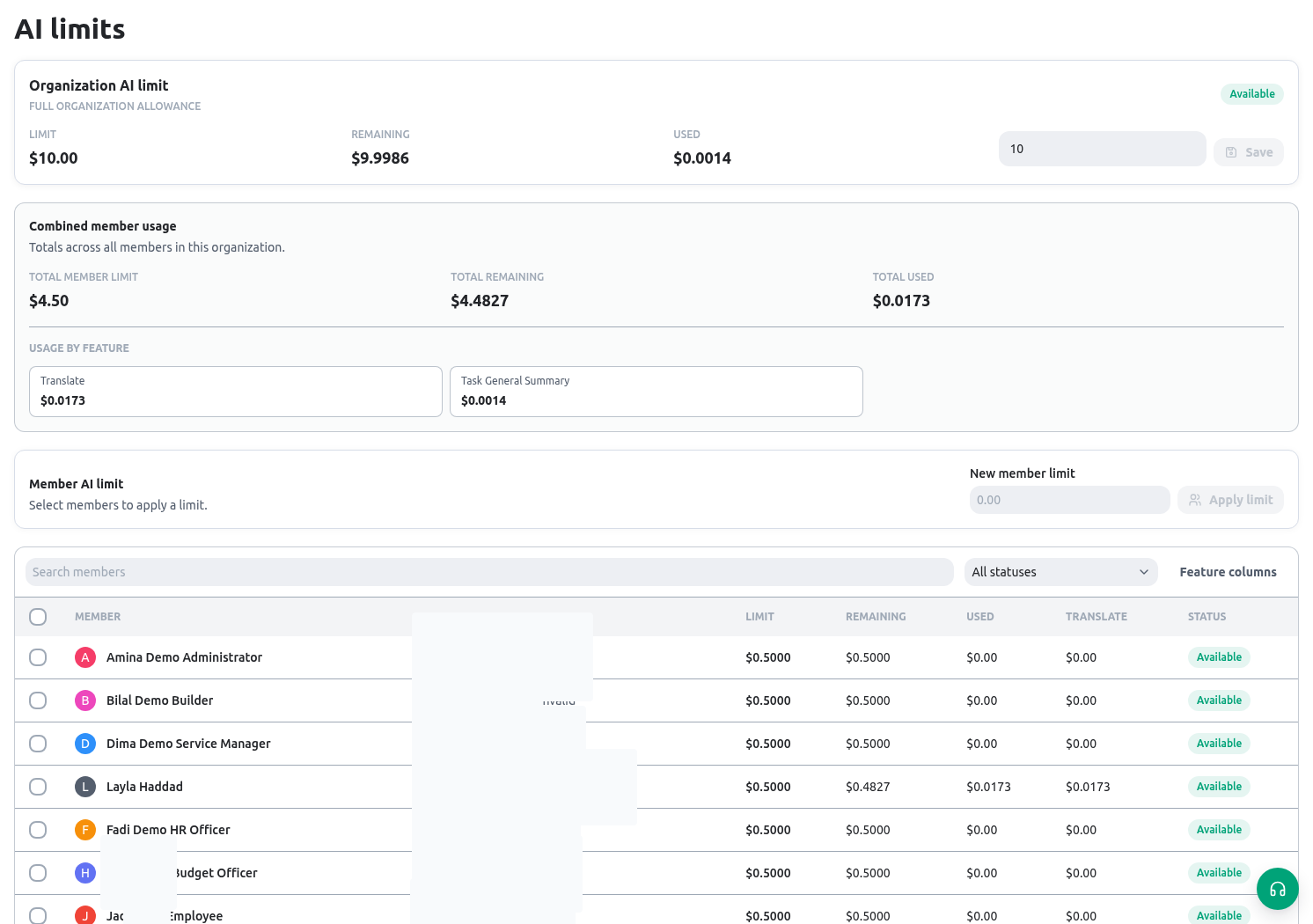
The AI limits settings surface is controlled for the organization owner. It shows organization-level limits and active-member rows with usage, remaining capacity, and status. It also supports feature-oriented usage review, status/search filtering, and bulk changes. The combined Recorded usage metric is summed from recorded feature events for active members; it is not recalculated as current member limits minus current remaining balances. General assistant and SOP assistant turns are attributed to separate feature labels when the recorded turn actually uses an SOP capability.
The interface may have implementation defaults, but public documentation should not treat an implementation default as a contractual quota. Your organization should publish its own approved limits, eligibility, review cadence, and escalation path.
Before changing a limit
- Confirm you are the organization owner and that the requested change has budget, security, and service-owner approval.
- Identify the member, feature, business purpose, expected duration, and maximum approved use. Avoid an organization-wide increase to solve one person’s short-term need.
- Confirm the member already has the normal permission needed for the underlying work. AI capacity cannot create/update an entity or field for someone who lacks Builder access.
- Decide what data may be included in the prompt or attachment. Do not submit citizen identifiers, confidential documents, secrets, private keys, or unapproved case evidence merely because usage is available.
- Define the human review outcome: who checks the proposal, where corrections are recorded, and who decides whether it is saved or published.
- Set a review/expiry date for a temporary member allocation and a named owner for unexpected consumption.
Set organization and member limits
Open Administration → AI limits. Review the organization summary before editing individuals.- Read the organization-level used, remaining, and status information. If usage is near a limit, identify the feature and member before increasing the total.
- Set the organization limit to the approved policy value. Record the approving owner and effective date.
- Search or filter the member table to find the intended member. Use status filters to identify members with no allocation, active capacity, or exhausted capacity.
- Set a member allocation that is proportionate to a specific approved purpose. The member limit should not exceed the organization’s governance decision.
- Use bulk editing only for a reviewed cohort with the same policy reason. Recheck the selected members before saving.
- Inspect feature usage columns or summaries to understand what consumed usage. A high total without feature context is not enough evidence for an increase.
- Save, then reopen the row/summary to confirm the new used, remaining, and status presentation.
Controlled Directorate scenario
The Directorate allows one Builder to prepare a draft proposal for a Citizen Service Request application. The organization owner sets a small approved member allocation for a limited period and records the purpose: prepare a structure for review, not publish a live service. The Builder uses synthetic service fields only—request category, service centre, status, inspection relation, and an estimated fee concept. The Builder reviews every proposed field, rejects a field that would collect unnecessary personal data, and saves nothing until the service owner and access administrator approve the design. The owner then reviews the feature usage summary and confirms that the allocation is still justified. Expected result: usage is visible and bounded; no citizen data has been sent; no application, role, form, or public portal appears automatically; and the proposal remains subject to normal review.When a limit is exhausted
An exhausted or unavailable status is a governance signal. Do not instruct members to create another account, use someone else’s allocation, or retry a request indefinitely. Use this decision path:- Check the organization and member status and remaining values.
- Check which feature used the allocation and whether the use matches the approved purpose.
- Confirm the member still needs the capability and has the underlying role/permission.
- Decide to wait for the organization’s approved renewal, reduce unnecessary use, or request a documented adjustment.
- If an adjustment is approved, make the smallest policy-justified change, save it, and verify it in the member row. If remaining stays at zero, compare the approved new limit with the recorded usage/overage instead of repeatedly increasing it.
Safe validation
Troubleshooting
Related guides
- Review AI-assisted application proposals in AI builder and import.
- Protect configuration through Roles and scopes.
- Design request fields before reviewing a proposal in Plan an app before building.
- Diagnose unavailable controls in Permissions and availability.