Goal
Create a small, reviewable export job; understand exactly what the format and dates mean; monitor its asynchronous result; download it only during the retention window; and record or remove the resulting file under the organization’s data-handling policy.Access and export boundary
Only the current organization owner can open the export-entity list, create a job, inspect jobs, or request a download link. A member who can view an entity, build a dashboard, or administer another setting is not automatically authorized to export it. Before an export, the owner should confirm:- Purpose: What decision, statutory report, migration, or approved analysis needs the data?
- Minimum data: Which entity or entities are necessary? Do not use a broad export to discover what might be useful.
- Recipient and location: Who receives the archive, how will they access it, and where will it be held?
- Date basis: Does the requested interval mean records created in the period or records updated in the period?
- Format: Does the recipient need readable labels or raw stored values for a controlled technical process?
- Retention and destruction: When will the downloaded copy be removed, and who will confirm it?
What an export job contains
The export dialog selects entities, not individual fields. For each selected entity, the job creates a spreadsheet inside a ZIP archive. It includes the entity’s non-deprecated fields and the system columns ID, Label, Created, and Updated. Review the entity design and classification before creating a job; do not assume an individual sensitive field can be excluded from this workflow.
Readable output is easier for people to interpret but is not a lossless technical interchange format. Raw output can expose identifiers and structured values that are less obvious in the application. Choose the format deliberately and protect it accordingly.
Before creating a job
- Confirm you are the current organization owner in the correct organization. If ownership has changed, resolve that before starting; a job will not proceed if the requester is no longer the owner when it runs.
- Write the export purpose, recipient, selected entities, date basis, date range, format, and deletion date in the approved request or change record.
- Open each selected entity and check its active fields, system fields, and any sensitive relations. The export includes system columns and current non-deprecated fields.
- Decide whether created or updated answers the question. For example, “requests received in June” normally uses created; “requests changed in June” normally uses updated.
- Confirm the organization’s default time zone. Date-only boundaries are normalized using that time zone, so a boundary near midnight can change which records belong to the period.
- Start with one entity and a short controlled interval when validating a new report. Use synthetic or approved non-production data where that is available.
- Prepare a secure destination. Do not download to a shared desktop, a public cloud folder, a personal email account, or an unapproved removable drive.
Create a controlled Citizen Service Request export
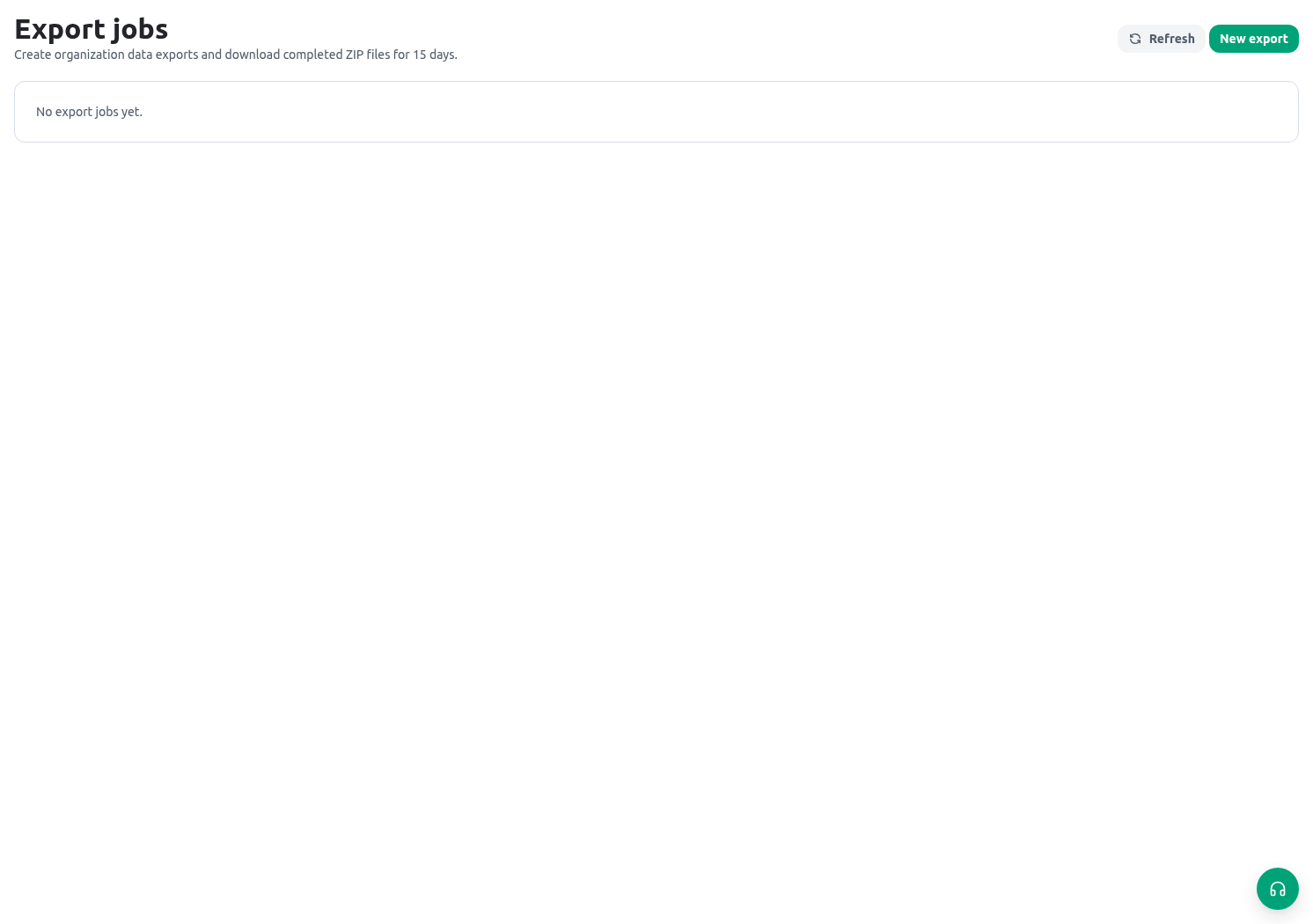
Suppose the Directorate needs a service-owner review of requests updated in the first week of a month. The owner wants a readable review workbook, not a technical archive of raw field structures.- Open Administration → Export jobs and select New export job.
- Select Citizen Service Request only. Do not include inspections, members, documents, or unrelated service entities unless the approved purpose requires them.
- Choose Updated as the date basis. Enter the approved first-week From and To dates, with the organization default time zone recorded in the change request.
- Choose Readable values. This presents status options and relations in a form service reviewers can understand.
- Create the job and note its purpose and job time in the change record. Creating the job queues work; it does not immediately create a downloadable archive.
- While the status is pending or processing, monitor the job table. The page refreshes running jobs automatically every ten seconds; use Refresh when investigating a result.
- When the status becomes completed, compare the listed entities, row count, file size, and expiry with the original request. A zero or unexpectedly large count is a reason to stop and investigate before download.
- Download the archive only to the approved location. Open the workbook in a controlled environment and verify its columns and a small number of synthetic/authorized rows.
- Share only through the approved recipient channel, record the handoff if required, and remove the local/archive copies at the approved deletion date.
Job states, downloads, and retention
Completed export results are retained for a limited period—currently fifteen days—and the issued download URL is itself short-lived—currently five minutes. The download control is available only when the job is completed, the result remains retained, and its storage record is available. Downloading the file does not extend its retention.
Do not treat the temporary KayanOS result as your retention plan. Once downloaded, the organization must manage every copy and derivative according to its own approved classification, access, and destruction controls.
Readable and raw examples
For a Citizen Service Request record, a readable export can render a status such as Ready for inspection, a member relation as the member’s label, and a duration or range in a display-friendly form. A raw export can preserve an option value, relation structure, or array/object as stored data, often represented as JSON. Use readable mode for a service manager reviewing a bounded queue. Use raw mode only when an approved technical owner needs to reconcile stored values or migrate data and has a secure process for identifiers and structured fields. Never use raw simply because “more detail might be useful.”Safe validation
Troubleshooting
Related guides
- Design and classify entity fields before exporting them in Entity fields and layouts.
- Protect export authority through Organization settings and Roles and scopes.
- Build safer operational analysis in Dashboards.
- Review access boundaries in Permissions and availability.