

What a trigger is
A trigger is the KayanOS event that starts an automation. It is not a general subscription to everything that happens in the organization. A good trigger answers one precise question: what happened, to which object, and why is this the moment to begin this workflow? Before selecting a trigger, choose and validate the approved organization-scoped KayanOS connection. The connection is required for the released catalog even when the trigger and its later action only work with internal KayanOS data. For a permit service, “a record was updated” is usually too broad. “A permit application moved fromCompleteness review to Ready for inspection” is a useful start because it describes a specific, reviewable change.
Choose the right trigger first
If two triggers appear possible, choose the one that carries the strongest business meaning. A form action such as
Submit for review is more reliable than watching a dozen form-field updates.
Current trigger catalog
The table preserves the visible trigger names and required inputs in the current KayanOS catalog. Optional filters refine the event; use them whenever they prevent unrelated runs.Record events
Forms, signatures, and entity actions
Tasks and grouped work
Interactive and public-entry events
Configure a trigger safely
- Write the event statement. State it in plain language: “When a complete permit application is moved to
Ready for inspection.” - Select the smallest source scope. Choose the exact table, form, task type, epic type, field key, or entry point that owns the event.
- Apply catalog filters. Select the relevant form version, action, signature rule, status transition, record operation, or link metadata where available.
- Run the trigger test with one approved non-production record. Use a recognisable record such as
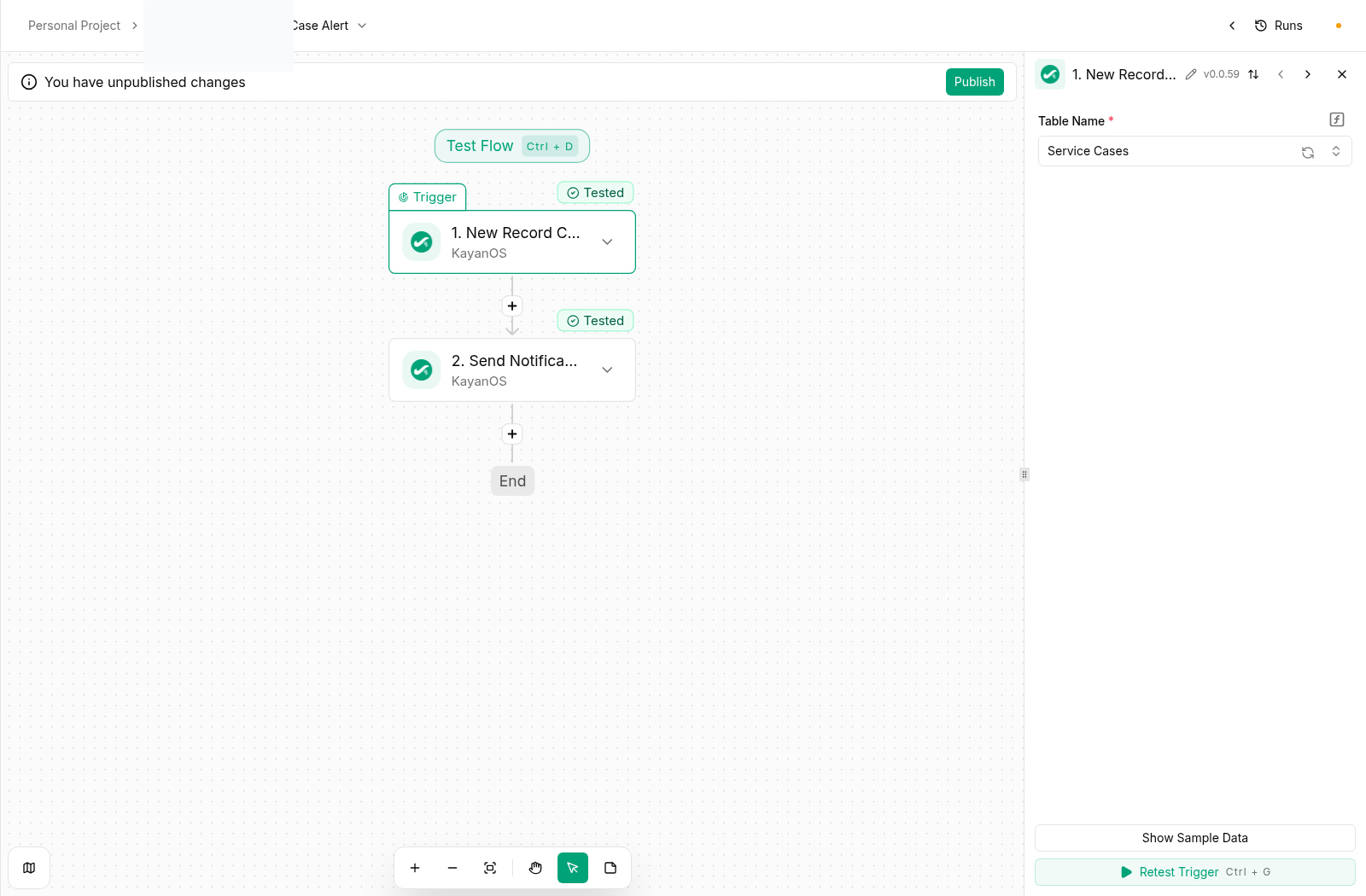
PERMIT-TEST-001; never use real citizen or staff data for this step. - Inspect the output before adding actions. For a tested record event, KayanOS returned
action,oldData,data, andchangedFields. Treat the actual test output as authoritative: different event types can expose different context. - Identify stable inputs. Prefer IDs, status codes, table values, and explicit relationship fields over labels a user could edit.
- Add the decision condition. Require the expected state, completeness, and absence of an existing follow-up before a write or notification action.
- Record the expected result. Note what downstream record, task, response, or notification should appear and who will confirm it.
Read the trigger output deliberately
The test panel is not just a connectivity check. It shows the data your automation will receive. Review it field by field:
Never assume a field is present because it appears on the screen. Inspect the test result, then map only the values the next step truly needs.
Avoid accidental repeat runs
Record and task events may legitimately happen more than once. Design the trigger and its first condition so that a retry or unrelated change does not create duplicate cases, tasks, notifications, or documents. For example, an inspection-routing flow can use this sequence:- Trigger on Record Changes for the
Permit Applicationstable and theupdateoperation. - Confirm that the current status is
Ready for inspection. - Confirm that the prior status was not already
Ready for inspection, or that there is no open inspection case for the application. - Only then create the inspection case and notify the assigned locality team.
Trigger examples
Route a complete permit application
- Business event: A permit application passes completeness review.
- Trigger:
Record ChangesonPermit Applications, observing updates. - Condition: Current status is
Ready for inspection; required address and locality values are present; no open inspection case exists. - Next action: Create one
Inspection Casesrecord and notify the appropriate internal team.
Continue a signature-controlled decision
- Business event: The required decision signature is completed.
- Trigger:
On Form Signature Signedfor the selected decision form. - Filter: Select the approved form version, signature, rule, and resolution where those options are available.
- Next action: Create or update the decision record, then create a task for the next accountable role.
Serve a dashboard widget safely
- Business event: A dashboard widget requests its data.
- Trigger:
On Dashboard Widget Callwith the intended mode and input. - Condition: Validate that the input belongs to the permitted service scope.
- Next action: Find only the permitted records and use Return Dashboard Widget Response with a minimal JSON body.
Guardrails
Continue building
- Map outcomes in KayanOS Automations actions.
- See complete workflow patterns in KayanOS Automations recipes.
- Learn the expression language used in supported builders in Expressions in the builder.