

What an action does
An action is the outcome of an automation step. It can retrieve information, create or update a record, wait for a later event, coordinate a task or approval, prepare a document, return a request/response result, notify people internally, or update role assignments. Every released action runs through the selected organization-scoped KayanOS connection. Validate that connection before mapping inputs; an internal KayanOS outcome does not remove this required authorization boundary. Choose an action because it produces a necessary, reviewable result—not because it is available in the catalog. The safest order is usually:- Read or find the relevant data.
- Check the decision condition.
- Make one controlled write or response.
- Notify the accountable person or team.
- Record enough information for a reviewer to find the result.
Before you map an action
For every action, answer these questions before saving it:
Do not map a display label when the trigger output supplies a stable ID or relationship value. IDs and scoped selectors are less likely to change unexpectedly.
Current action catalog
The tables below preserve the visible KayanOS action names and required inputs in the current catalog. The editor may present additional optional fields; use them to narrow scope and make the result easier to audit.Record actions
Task and grouped-work actions
Form and entity-action actions
Flexible-hours approval behavior
An Attendance Schedule Adjustments record created with the existing Create Record action is a schedule decision, not a time claim. It never creates a work-time entry. Actual closed punches remain the only source of productive minutes; an open punch can anchor arrival but contributes no worked minutes until it has a valid checkout. The record has no Decision or approval-status input. Every submitted adjustment is treated as approved.Note is the only optional free-text field. Revision, approval provenance, position, shift, schedule snapshot, and retroactive status are system-managed and never entered in Create Record. Source Submission is optional because the server uses the automation flow-run ID when it is blank. Use a stable source submission when a later run should update the same adjustment; the ledger increments its internal revision automatically.
Create Record presents schedule details as typed fields instead of a JSON object. Adjustment Type controls visibility:
- Fixed Times: Start Time and End Time.
- Shift Offset: Offset Minutes (positive moves later; negative moves earlier).
- Flex Window: optional Window Start Time and required Window End Time.
Shift Snapshot is captured by the server from the selected assignment’s shift and is never entered manually. Retroactive is also server-derived: it is true when the affected dates already have an approved salary slip. Such a change requires locked-period correction permission; it preserves locked attendance/payroll and uses the existing next-period adjustment behavior.
- Fixed times accepts an explicit start/end pair only when it preserves the base shift span. Shift offset is the equivalent signed-minute form. Every work range and configured break moves by the same offset.
- Flex window clamps the first check-in to the approved window. Before the window uses the window start, inside the window uses the actual arrival, and after the cap uses the cap; arrival after the cap is late by the excess.
- With no check-in, the base schedule remains effective and no minutes are granted. A missing checkout can still establish lateness, but it produces no worked minutes, last-out, early-leave, or overtime until corrected.
- Required productive duration and scheduled-break allowance do not change. Early leave is measured against the adjusted end. Overtime is productive punch coverage after the adjusted end, not early arrival or a skipped break.
- Example: base
08:00–16:00, flex window08:00–10:00, first check-in09:17gives09:17–17:17; a10:20arrival is anchored at10:00and is 20 minutes late. - The range is limited to 366 days. One approved adjustment may exist per member-day. A higher revision replaces the same adjustment and recalculates its affected range. Locked attendance is not rewritten—existing payroll adjustment behavior applies.
Documents, short links, and dashboard responses
Governance and internal notification
How to map actions without surprises
1. Read before creating
When the flow could be retried, begin with Get Record or Find Records. For the permit example, find an openInspection Cases record whose source application ID matches the permit. If one exists, update or notify that case. If none exists and the decision condition is true, create exactly one new case.
2. Keep correlation values
When one action creates a record, task, epic, form session, file, or response that a later action must use, retain its returned ID and relate it to the source case. That relationship is what makes a wait, update, or response action safe later.3. Separate machine work from human decisions
Use an action to assemble data, create a task, or wait for a form action. Do not use Execute Task Action, Execute Epic Action, Execute Form Action, or Execute Entity Action to skip a decision that policy assigns to a person or role.4. Make response actions paired and bounded
Return Form Response belongs with On Form Call; Return Dashboard Widget Response belongs with On Dashboard Widget Call. Define the expected JSON fields before building, return only that schema, and test missing input, no-result, and error cases separately.Detailed workflow patterns
Pattern: intake to inspection without duplicates
- Start with Record Changes on
Permit Applications. - Confirm that the status just became
Ready for inspectionand that the application contains the required locality and address. - Use Find Records to look for an open inspection case related to the application.
- If none exists, use Create Record to create one
Inspection Casesrecord with the source application relationship, locality, status, and accountable unit. - Use Create Task for the field-inspection team and Send Notification to its scoped coordinator.
- Store or expose the created case ID so a reviewer can trace the result from the application.
Pattern: wait for a human decision, then produce a document
- Start with On Form Action when a case is submitted for decision.
- Use Wait For Form Signature or Wait For Form Action for the actual approved decision point.
- Confirm the accepted decision and the required signed path.
- Use Word Template with only the approved fields.
- Optionally use Word to PDF, then update the case record with the generated artifact reference.
- Notify the accountable service owner inside KayanOS.
Pattern: serve a dashboard response
- Start with On Dashboard Widget Call.
- Validate its mode and input against the user’s permitted service scope.
- Use Find Records to retrieve only the necessary aggregates or records.
- Shape the result into the documented JSON schema.
- Finish with Return Dashboard Widget Response.
Test each action in the right order
Use one approved non-production record and perform these checks:- Trigger test: verify the source event and expected data.
- Read test: verify that lookup actions find the intended record set.
- Write test: create or update one clearly identified non-production target.
- Wait/execute test: confirm that the exact task, epic, form session, or entity action is correlated correctly.
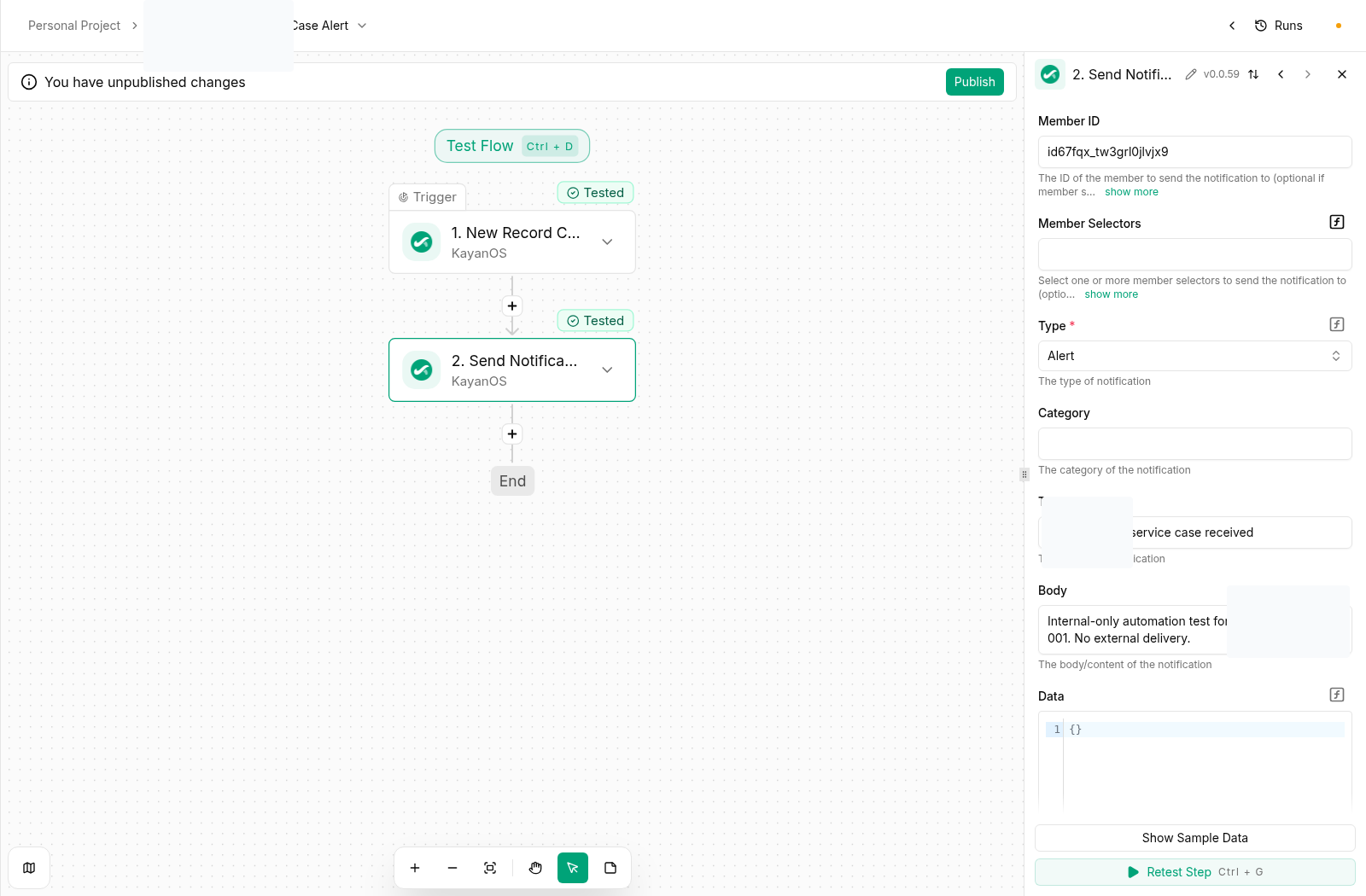
- Notification/response test: verify the recipient or returned payload without using a real citizen, external recipient, or production role scope.
- Review: locate the result in KayanOS and record its ID, owner, and outcome.
Continue building
- Combine triggers and actions in KayanOS Automations recipes.
- Test, run, and diagnose a flow in Test, run, and troubleshoot automations.
- Review permissions and availability before enabling role or notification actions.