

.xlsx source, immutable versions, validation results, output rules, action bindings, and an optional AI-assisted draft history. It does not replace the record that authorized the output or the review required before a workbook is shared.
This guide explains the managed lifecycle. For exact tags, vertical and horizontal loops, conditions, assets, formulas, and hard limits, read Spreadsheet-template tags and rendering.
When to use it
Use a spreadsheet template when recipients need a real workbook or a print-ready PDF whose layout is already designed. Good examples include a monthly service register, project-cost sheet, attendance roster, inspection checklist, or payment schedule. Keep authoritative values in KayanOS records; the workbook presents those values and may calculate display totals, but it should not be the only place where a decision or approval exists. Choose a dashboard for live exploration, a data export for unrestricted analysis, a form for collecting information, or a DOCX template for narrative correspondence. Prefer one focused workbook per operational purpose. A single workbook that mixes unrelated audiences, broad lookups, and many hidden sheets becomes difficult to test and risky to approve.Configuration
Create and version a workbook
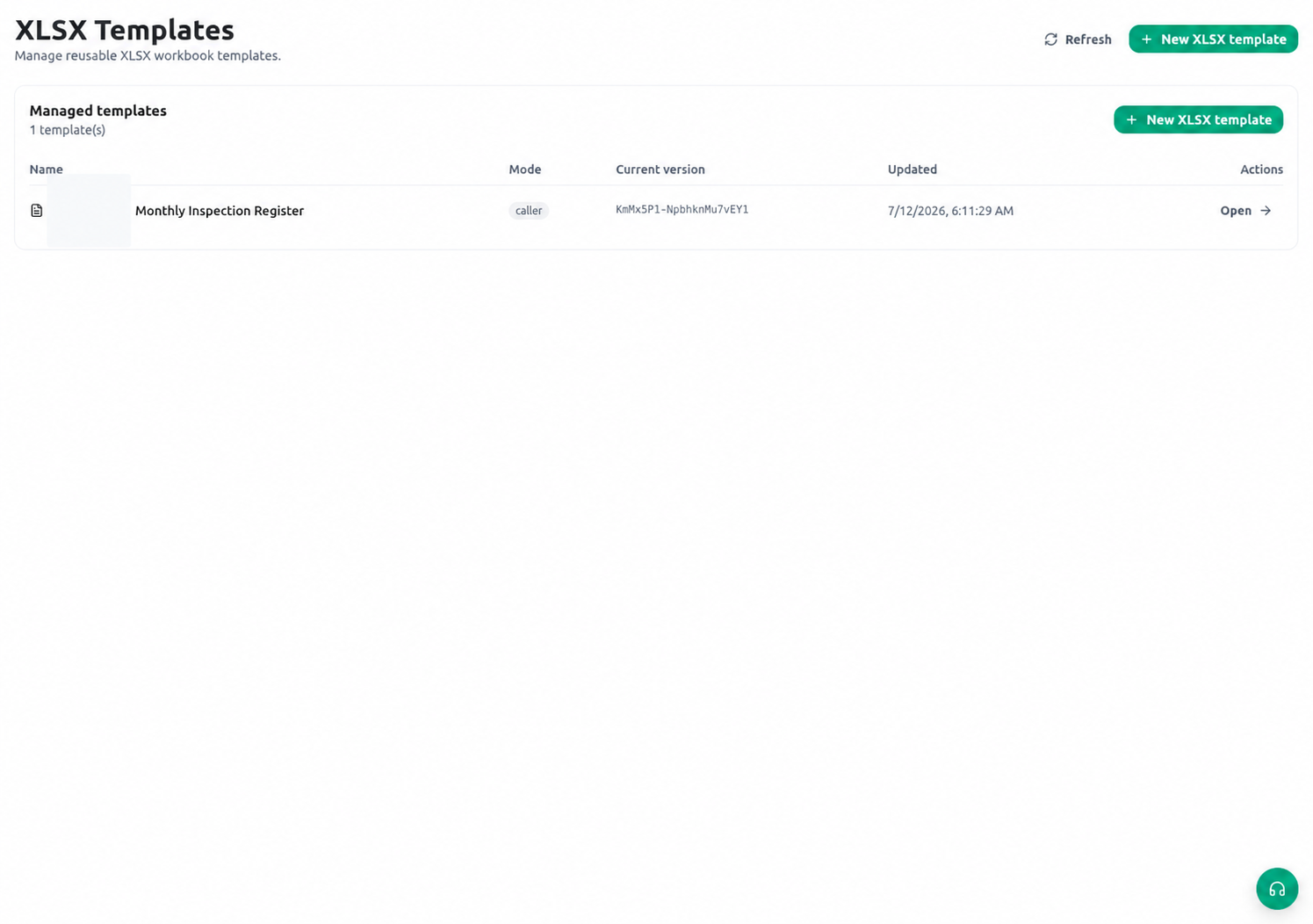
Open XLSX Templates in Build and upload a normal.xlsx file. Macro-enabled workbooks are not accepted. Give the template a clear name and description, choose the default execution mode, and optionally define a filename expression. Upload validation checks the ZIP package, workbook relationships, formulas that the renderer must rewrite, and all recognized template tags. A clean result means the package and supported grammar are safe to process; it does not prove that every real record has complete data or that every printed page looks correct.
Each upload creates an immutable version and makes it current. Existing actions follow the configured current version unless they are explicitly pinned. Retain the reviewed source and release decision according to your organization’s records policy.
Configure output and filenames
Managed rendering can return XLSX or PDF. XLSX preserves editable cells, formulas, styles, charts, tables, drawings, validation rules, and print settings. PDF conversion occurs after rendering through the office conversion service, so page size, orientation, margins, scaling, print area, repeated headings, RTL text, and chart placement must be tested in the PDF output. A filename expression uses the shared JEXL expression language. KayanOS sanitizes unsafe characters and forces the chosen extension. For example:Bind entity and form actions
An entity action can explicitly select an XLSX template and allow XLSX, PDF, or both. Legacy actions whose document kind is unset continue through the existing DOCX-then-generic fallback; XLSX is used only when configured. A form action uses the separatexlsx_template type and can supply additional data context. Runtime data cannot replace protected roots such as the managed record, organization, member, and current time.
Execution mode controls data access:
Use the AI workbook helper safely
The AI helper never edits the managed version directly. It builds a bounded map of sheets, used ranges, cell values, formulas, styles, and SHA-256 cell hashes without exposing raw OOXML. Each proposed content edit must name a sheet, cell address, and expected hash. If the workbook changed after the proposal, approval fails rather than overwriting the newer cell. Generation creates a private immutable source and revision chain. Review the downloadable XLSX and the rendered PDF, resolve mapping questions, then use the explicit approval dialog. Approval creates one managed version and is idempotent for the draft/revision key. Discarded, expired, and approved temporary objects are removed or scrubbed by scheduled cleanup.Worked example
A service directorate prepares a monthly inspection register. The source workbook contains a title sheet, a repeated row for inspections, twelve month columns, formulas for totals, a landscape print area, Arabic notes, and a summary chart. The template uses a vertical loop for inspection records and a horizontal loop for months. Where the two regions cross, KayanOS produces a row-by-column matrix. The builder binds the workbook to theinspection_registers entity with caller execution, allows XLSX and PDF, and uses this filename expression:
Testing
Test a representative workbook rather than only the upload response.Troubleshooting
Permissions and data-quality limits
Creating templates, uploading versions, using the AI helper, changing execution mode, and configuring actions require Builder administration. Using an approved action may be delegated separately. Prefer caller mode. Admin mode must have a documented purpose, narrow entity scope, bounded lookups, and periodic review. Do not place credentials, access tokens, hidden sensitive notes, or unreviewed personal data in cells, formulas, URLs, QR codes, image sources, filenames, or AI instructions. Validation protects package and renderer boundaries; it cannot decide whether disclosed data is lawful, current, or appropriate for the recipient. Store decisions in governed records and treat the rendered workbook as an output of those records.Related guides
- Author loops, conditions, assets, and formulas in Spreadsheet-template tags and rendering.
- Define stable data fields in Entity fields and layouts.
- Learn JEXL syntax in Expression language syntax.
- Compare narrative outputs in Document templates.