

When to use it
Use a managed template when the same approved document needs to be generated repeatedly from a record. Examples include a citizen-service acknowledgement, a property-inspection visit notice, an eligibility letter, a payment schedule, or a service-completion certificate. The template should read stored keys from a record; it should not be the only place where the organization remembers the decision or the document number. Choose another mechanism when the requirement has a different purpose:
Keep the use case narrow. A single “all purposes” document becomes hard to test, harder to approve, and risky when an action uses elevated access. Prefer one acknowledgement template and one certificate template, each tied to a clear record type and release decision.
Reuse editor text with personal writing templates
Writing templates are different from the managed document templates described in the rest of this guide. A writing template reuses rich-editor content inside a note, description, message, or another editor that enables the template control. It does not render a DOCX/PDF file, read an entity context, create an immutable version, or run with elevated lookups. Open the writing-template picker from the rich-editor toolbar, or use its slash-menu entry where available. Search for a built-in or saved template and select it to insert the content at the current editor position. To create a personal template, prepare the reusable content, open the picker, choose Save as template, and give it a unique, recognizable name. Saved templates can be renamed or deleted from the same picker. Personal writing templates are scoped to the current member inside the active organization. They are not automatically shared with colleagues, and switching organization context loads that member’s templates for the new organization. Built-in templates may also appear when the editor provides them, but they cannot be renamed or deleted like a personal template. Insertion creates editable content, not a governed final statement. Before saving or sending, review names, dates, recipients, references, language direction, and any wording that may have become outdated. Do not save credentials, personal data, or a live case-specific statement as a reusable template.Configuration
Create, validate, and version the template
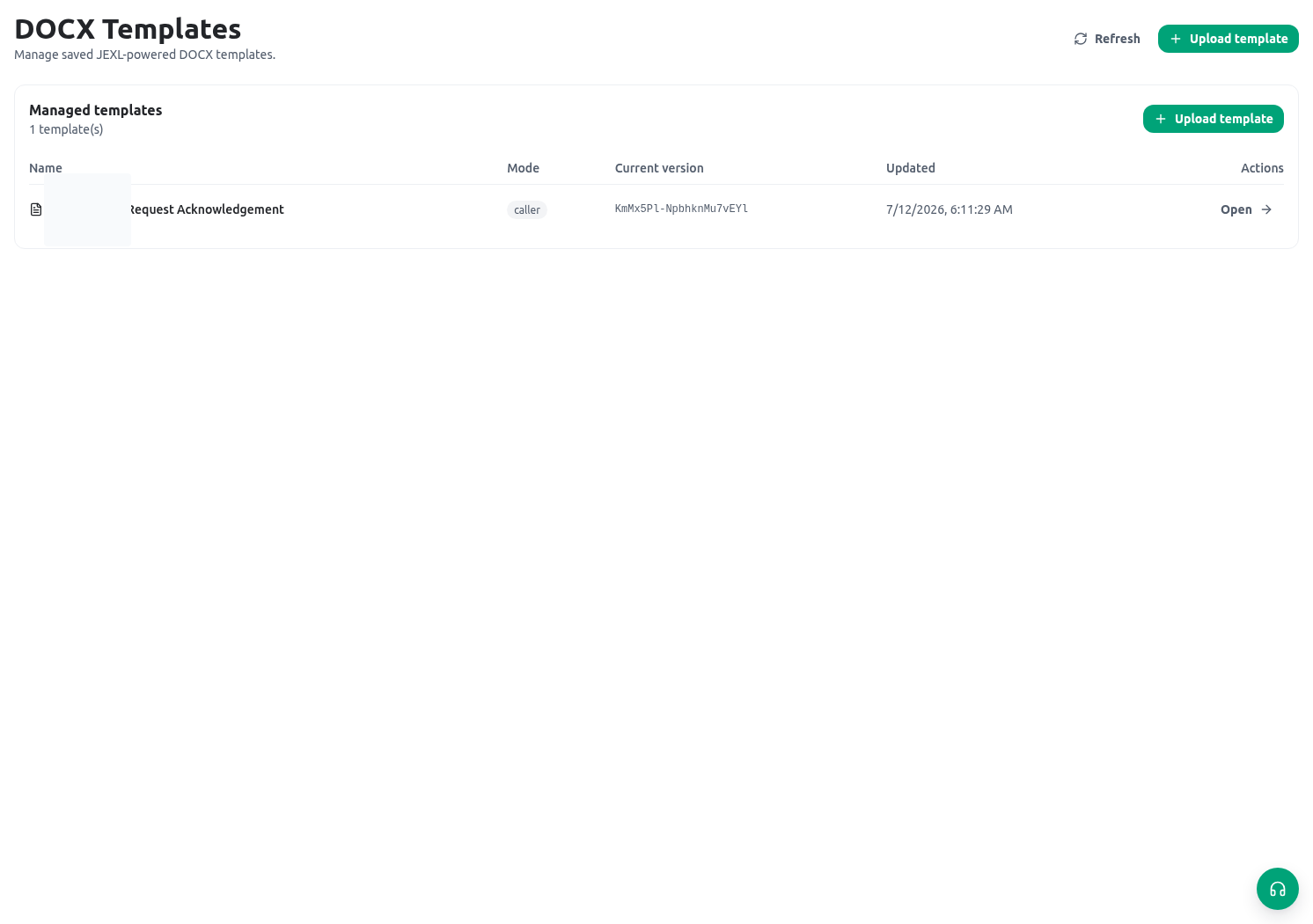
Open Document templates in Build, upload a.docx file, then enter a meaningful name and description. The service accepts DOCX templates, checks package safety, parses recognized tag text, and stores a validation summary and tag inventory with the uploaded version. A managed template points to one current version; uploading a new version makes it current. The service retains older versions, but the current Builder screen shows the current-version identifier and source download rather than a browsable previous-version list. Keep the approved source file and release record outside the screen so a wording change can be traced and reviewed.
Upload validation rejects unsafe DOCX packages and several tag problems, including an empty tag, raw XML insertion, malformed if or each syntax, unbalanced blocks, and the recognized unsupported @html and @chart commands. It does not prove that a control tag occupies a whole Word paragraph or table row, and it does not reliably identify an arbitrary unknown @... command. It also cannot prove that a real record has every optional field, that a relationship has the expected shape, or that the final Word layout is acceptable. Always render a representative saved record after validation; that render is the required test for every if, each, else, and include placement.
Set the filename and output policy
The filename expression is a JEXL expression. It uses the same record context as rendering, then KayanOS sanitizes unsafe filename characters, trims the result to a safe length, and forces the selected output extension. If the expression is blank or fails, the uploaded filename is the fallback. Do not place a file extension policy in staff memory: configure the requested output as DOCX or PDF and let the service enforce.docx or .pdf.
For a request acknowledgement, a readable filename can use the stored serial:
Bind an action to a record type
An entity action configuration binds an entity key and action field to a managed template. It can enable or disable the action, choosecaller or admin execution, constrain allowed output formats, define a default output format, choose a filename expression, and list allowed entities for elevated lookups. Entity actions deliberately use the template’s current managed version; do not assume that an action remains pinned to an earlier draft after a new version is made current.
The two execution modes are materially different:
If an admin-mode action has an allowed-entity list, a
getRecords lookup outside that list is rejected. Populate that list deliberately and keep each lookup narrowly filtered; elevated mode is not a reason to make a broad directory or case-history export available in a document.
Know the render context
The test renderer can accept JSON or load a saved entity record. A loaded entity-record context supplies$record, $inverseRelations, $organization, $member, and $now. In the entity-action context, $record is flattened so its stored field keys are available directly, $organization.id and $member.id identify the current organization and member, and $relations is currently an empty object. Inverse relations are supplied as configured record collections, so test their keys and timing on a real saved record.
Start with a minimal JSON context while authoring:
Create and revise with the AI helper
The DOCX AI helper is a temporary, review-before-save path. For a new template choose Create with AI helper; for an existing template open Versions → Revise with AI helper to start from the current managed version. A replacement file selected in Versions is not silently used as the AI source—use Validate and upload for that separate direct-upload path. Before generation, choose exactly one context source:- Entity context: select an entity and optionally an accessible representative record. Without a record, KayanOS generates a clearly labelled deterministic sample from the authorized field catalogue; sample values are not written into tags or metadata.
- Manual JSON: provide a valid object no larger than 256 KiB, 12 nesting levels, 1,000 items per array, or 32 KiB per string. Known credential material is rejected; still treat every supplied key/value as sensitive.
reviewable or ambiguous mapping issue before approval.
Approve and save requires human review, a valid revision, no blocking mapping issues, and a successful representative render. If PDF conversion is unavailable, download and inspect DOCX and explicitly acknowledge a DOCX-only review. Approval does not broaden permissions or alter action bindings/execution mode. Drafts expire after 24 hours without activity and no later than seven days after creation; discard or successful approval cleans temporary sensitive context while retaining a non-sensitive audit summary.
Worked example
A Syrian public-service office sends a request acknowledgement after staff register a resident’s service request. The entitycitizen_service_requests contains request_reference, resident_name, service_name, received_at, and a controlled submission_status. The acknowledgement must show the stored reference, tell the resident what was received, and avoid claiming approval before a reviewer completes the process.
Configure a template named Service request acknowledgement with caller execution. Bind it to the request entity’s “Generate acknowledgement” action, allow DOCX and PDF only if the office has tested both outputs, and use the filename expression shown above. In Word, place the reference and resident name in normal paragraphs, and keep a visible human-readable fallback sentence where an optional value may be empty. Use the wording “received for review” rather than “approved.”
The core text can use simple inline expressions:
Testing
Test the document as a complete lifecycle, not only as a tag expression. Use a non-production record that resembles the intended service record without exposing real personal data.
Test a filename rule with a known record before adding optional components:
Troubleshooting
Permissions and data-quality limits
Template administration is a Builder-level, administrator-controlled capability: creating templates, uploading versions, validating, downloading current source files, configuring actions, and using managed test rendering require the appropriate builder access and assigned administrative verbs. Treat the template file, its tag expressions, and its filename expression as controlled configuration. Review changes with the owner of the service and the owner of the document wording.caller mode is the normal least-privilege choice. admin mode can intentionally read more broadly during rendering, so protect it with an explicit business reason, an allowed-entity list, narrow lookup filters, tested output, and a periodic access review. Do not put access tokens, passwords, unreviewed personal data, or secret internal notes into a template, filename, QR value, or image URL.
Each managed run records whether it completed or failed, the template and version used, the actor, execution mode, requested and actual output format, lookup row counts, duration, output size, and an error stage/message when it fails. Use that run history to investigate an incident, but keep the authoritative service decision and retention policy in their governed records.
Related guides
- Write safe inline tags, loops, embeds, and includes in Document-template tags and rendering.
- Choose stable record fields and layouts in Entity fields and layouts.
- Learn the complete expression syntax and helper behavior in Expression language syntax.
- Configure traceable references for documents in Serial IDs.