

When to use it
Create a member when a person needs to appear in the workforce directory, be selected for an assignment, receive an operational record such as a leave or salary-slip record, or be enabled for organization sign-in under the organization’s approved process. Do not create a second member simply because the person changes position, location, shift, or reporting line. Preserve one person record and create, end, pause, or update the relevant assignment as the work relationship changes.Configuration
Use work contact details only when they are necessary for the directorate’s operations. Avoid adding sensitive personal information to free-text fields merely because a profile can store it.
Workflow
- Search by member code, approved work email, and name before creating a record.
- Enter the minimum approved identity and contact information. Select the preferred language and time zone when known.
- Save the member record and review it in the directory.
- Create the member’s position and assignment separately. The assignment supplies the employment period, shift, holiday context, and other workforce settings.
- Enable sign-in only through the organization’s approved identity process after the person record is complete.
- Review access separately from staffing. Grant only the entity capabilities and scopes the person needs.
- When the person changes work, update the assignment or create a new one; preserve the member record and prior operational history according to approved practice.
Worked example
The Directorate hires Rania as an Intake Adviser for the Damascus Regional Service Centre.Member: MEM-1042 — Rania Haddad Preferred language: Arabic Time zone: the organization’s configured local time zone Position: POS-INTAKE-01 — Intake Adviser Assignment start: 1 September Position context: Damascus Regional Citizen Services / Damascus Service CounterThe member record identifies Rania. The assignment proves which position she holds and from when. Her placement in the node or position hierarchy does not, by itself, allow her to view payroll, edit leave types, or approve a budget. If Rania moves to a mobile intake role, keep her member record. End or pause the previous assignment as appropriate, then create the new assignment with its own position, dates, shift, and holiday context.
Testing
Use a training or draft workspace with a temporary work identity and no real personal data.- Create one temporary member with a non-sensitive name and a clearly marked test code.
- Confirm the member is selectable in an assignment.
- Add a temporary assignment and verify that current position/node/location context is shown as expected.
- Confirm that the member cannot see a restricted area unless the correct capability and scope have been deliberately granted.
- Remove or retire the temporary record using the organization’s approved test-data process.
Troubleshooting
Permissions and data-quality limits
The Members area is visible only to people with the appropriate entity capability. Existing member records can have scoped update/delete/share behavior. Use least privilege because member, compensation, leave, and contact data can be sensitive. KayanOS stores operational workforce data. It does not turn a member record, profile preference, login setting, or current position into an employment-law conclusion, an identity-verification decision, or an authorization grant.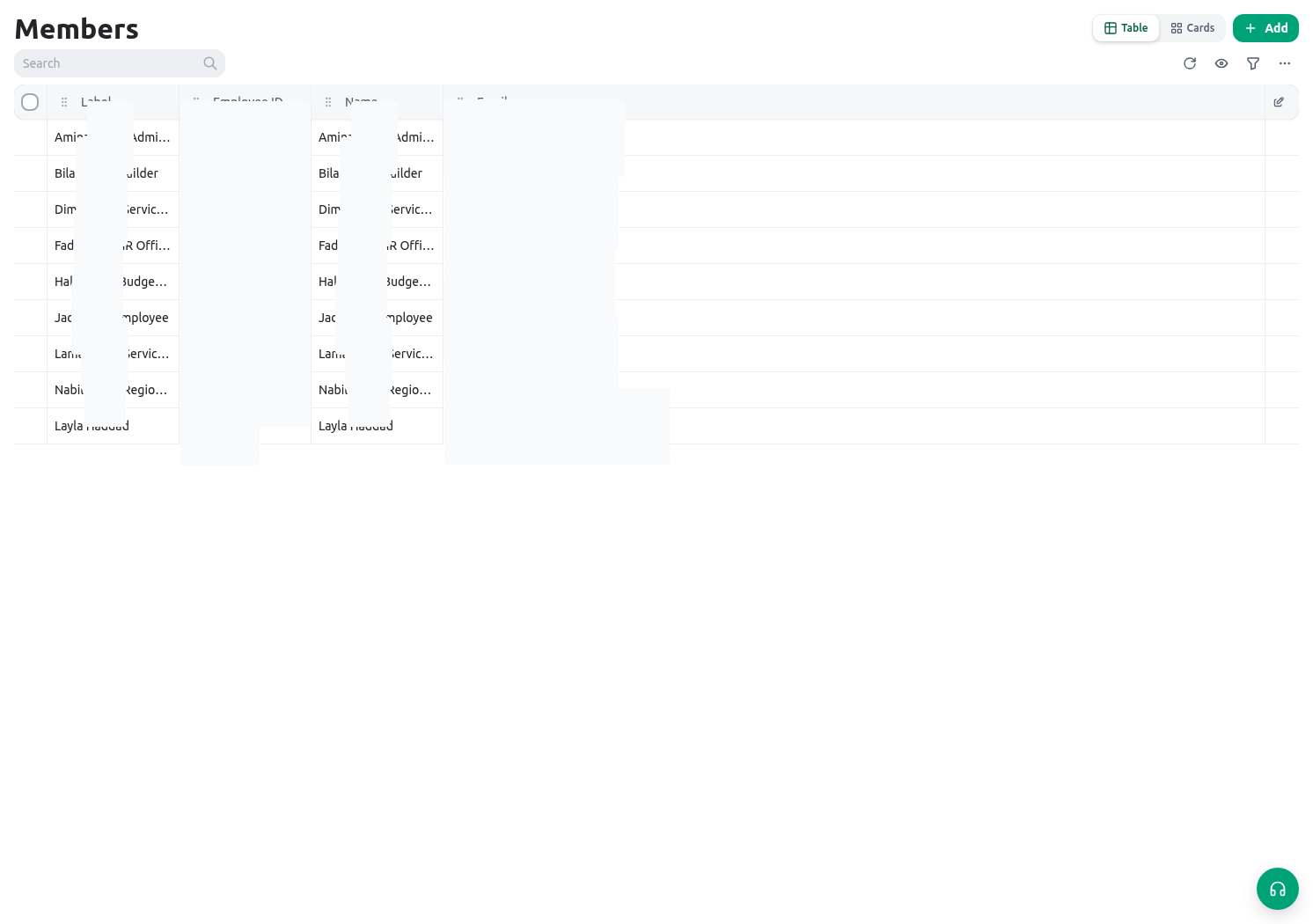
Related guides
- Model the operating structure in Nodes and locations.
- Connect a member to a role in Groups, positions, and assignments.
- Review access principles in Permissions and availability.