

Submit and approve corrections before the deadline
An organization owner or organization-scoped administrator can configure the correction deadline on Attendance Policies. Choose no restriction, the current work week, the current calendar month, or the last 1–366 calendar days including today. The week follows the organization’s start-of-week setting, and dates use the attendance time zone. The deadline applies at both submission and approval. Submitting in time does not reserve eligibility: a pending correction can become too old to approve. For an overnight correction, review the affected attendance days as well as the proposed timestamps. If blocked, check the current policy and day; do not move the correction to a false date or bypass a closed period. Existing correction permissions and closed-period restrictions still apply.When a shift cannot be deleted
A shift used by assignments, positions, or attendance records cannot be deleted. Review those references with the authorized workforce administrator before changing the schedule. Do not remove attendance history to force deletion; keep the existing shift where historical records still depend on it.When to use it
Define shifts before assigning staff to a service counter, mobile intake team, or regional centre. Review timesheets when managers need to understand work recorded during a day, week, or month, including approved and unapproved entries. The Syrian Citizen Services Directorate uses a regular day shift for the Damascus Service Counter and may use a split shift for an extended service day. A mobile team can use a different approved configuration without changing the counter’s standard shift.Configuration
Regular and split shifts reject equal start/end times and overlapping ranges, including a range that crosses midnight. Breaks are optional. When a shift includes one, it must be valid and fit inside the relevant working range; when it includes none, leave the break list empty instead of entering a dummy zero-length break. The available allowance, work-day, and time-zone fields are operational settings; they do not establish an employment-policy rule.
Shift inheritance and override
For an assignment, KayanOS looks for a shift in this order:- Direct assignment shift.
- Direct position shift.
- The position’s node, then that node’s parent chain.
- The position’s location, then that location’s parent chain.
Workflow
- Define the shift code, multilingual name, type, work days, duration, time zone, allowances, working ranges, and only the breaks that actually apply.
- Validate the ranges before assigning anyone. For an overnight range, make sure the displayed range is intentional and does not overlap another range.
- Attach the default shift to the appropriate position, node, or location.
- Create or update assignments and review the inherited shift. Record an override only for a real exception.
- Open Timesheets and choose a day, week, or month. Filter by member, node, location, project, approval state, and worked-hours view as needed. An empty filter or All leaves that facet unrestricted; selecting a member or structure narrows it without clearing the other active facets.
- Review a time entry with its member, shift, position, assignment, break data, and optional project before approving it.
Review My Attendance
Open My Attendance in the Time section to review the current member’s calculated month. Move one month at a time. The month list summarizes evaluated buckets, warning flags, recorded and unmatched device punches, and locked days; open a day for the shift timeline, minute totals, policy version, and the rule-by-rule explanation stored with that evaluation. The states have different meanings:
When consequence bindings, salary, and a complete rate basis exist, the day can show the priced lines derived from those inputs. KayanOS refuses to display a price when an input is missing instead of guessing. Treat a day amount as the policy calculation feeding payroll, not as permission to pay or a replacement for the salary slip. The month page can also show make-up minutes owed, ahead, or settled when ledger entries exist.
Every member reviews their own attendance by default. A member with
list on member_daily_attendance can use the people switcher to read another member’s month; that view is read-only and an unauthorized member link returns no attendance. Reading another member’s day does not grant correction or payroll authority.
Propose a correction from your own day
On your own day, Fix my day appears only when the attendance-correction service allows you to submit for yourself. Add a missing punch, move its time, or change its direction, choose the factual reason, and send the proposal. Existing device evidence stays identified; a changed punch shows its original time. The proposal enters the same scoped HR correction queue described below and does not change the day until it is approved or self-approved under the assigned verbs. While a proposal is pending, the day shows that status and allows the submitter to withdraw it. A manager who is merely viewing the member through the people switcher never receives this self-service editor. A locked-period warning does not overridecorrect_locked_period; the server remains the authority.
Configure Attendance Policies
Attendance Policies appears in the Time section only for a member withcreate or update on attendance_policies. Navigation visibility is not a permission grant: policy, version, rule, organization-setting, and activation writes still require their server-enforced entity permissions.
If no policy is available, attendance evaluation is paused. Create policy saves a neutral starter as a draft; it does not activate payroll consequences. An existing draft is also not what the engine runs. Review and save the draft, then use the separate Activate action only after approval. Activation archives the prior active version and makes the selected version available to later attendance evaluation. It does not rewrite an approved salary slip; locked-period changes continue through adjustment handling.
Use New policy when a different audience needs a separate rule set. Enter a distinctive, non-blank policy name before creation; KayanOS trims surrounding spaces and creates nothing until you confirm. If the name is rejected, the dialog remains open so you can correct it instead of creating an unnamed duplicate. KayanOS then creates a neutral non-default draft and opens it for configuration. When more than one policy exists, use the Policy selector to confirm which policy you are reading or editing before changing rules, scope, simulation, or activation. Creating or selecting a policy does not change the active policy by itself.
A policy whose versions have never left draft can be deleted after confirmation. Once any version has been active, preserve that history: the policy can be disabled, which archives its active version, but it cannot be deleted. A disabled policy remains visible with its archived version and no longer drives new attendance evaluation. Disable only after confirming how its audience will be covered; if no policy resolves for a day, evaluation stays paused rather than falling back to invented rules.
In Rules, review the measured families for late arrival, early leave, break overrun, missed breaks, unexplained shortfall, overtime, absence, rest-day work, and holiday work. For each family, configured bands must cover their range without gaps or overlaps. A genuinely unconfigured family records measured minutes in the family-specific default bucket named by the editor; once any bands exist, an uncovered gap remains Unclassified so broken coverage is visible. If a family is empty, choose Add the first band to create one band from zero through the open-ended upper range. Splitting a band starts the new upper band with that same family default; review its outcome before saving rather than assuming it inherited the lower band’s decision.
A band records a minute boundary, an outcome bucket, and an optional multiplier. The final band’s upper bound is always open-ended and cannot be edited, which prevents the policy from losing the tail of the range. Multipliers accept decimals such as 1.5; an empty multiplier means forgiveness, not numeric zero. After saving, the newest draft should reopen even while an older active version still runs. Conditional rules are visible but read-only in this editor. The policy’s displayed band-math mode controls how a matched band is applied.
Use Try a time on late arrival with a representative or selected real shift to inspect the same trace renderer members see. After saving a draft, Simulate replays the previous month and reports changed buckets, affected members, skipped days, and whether conditional rules make the result only a lower bound. A preview or simulation changes no attendance data and is not approval to activate.
The Assigned to tab explains the policy scope. The default policy is a pinned catch-all and cannot be narrowed in this editor. On a non-default policy, select people directly or use a node with the intended hierarchy reach, a location, or a position. These selectors and any stored shift or position selectors form a union: matching any one can select the policy. Organizational selectors resolve against current membership when attendance is evaluated, so a later assignment or hierarchy change can change who matches without another policy edit. Save the scope separately, then test direct members and representative hierarchy matches. Policy resolution is part of the day evidence, so verify the policy version shown on representative member days after activation.
Set the organization working days per month from 1 to 31 only when payroll has approved that divisor. Hours per day come from the member’s shift; a specific assignment can override either workdays per month or hours per day. Blank or non-positive overrides inherit. If any required rate input is missing, attendance remains unpriced rather than using a guessed rate.
Correct a flagged attendance day
KayanOS checks active assignments with shifts for attendance problems. A blocking flag can mean an unmatched check-in/check-out, a duplicate check-in, an implausibly long pair, or no punches on a scheduled work day without a full-day leave or holiday. A suspicious flag can identify very short recorded work or punches far outside the shift window. A flag is a prompt for human review, not proof of misconduct, absence, or pay treatment. Open Attendance Corrections from the Time section, a warning marker in Timesheets, an attendance notification, or the optional Attendance needing your attention Home tile. The navigation entry appears when the member has at least one scopedsubmit, approve, or dismiss verb, and the queue is limited to the union of those scopes. It opens on the last 30 days ending yesterday and Needs action, because a still-running day can look incomplete before the final punch arrives. Narrow the queue with searchable department/node, location, team/group, and person filters; use Include historical flags only when older work is required. Reset filters restores the ending-yesterday window, Needs action, no historical flags, and every scope the member may see.
For one flagged day:
- Open the row and verify the member, local date, plain-language reason, shift window, original device punches, derived gaps, and worked/break/versus-shift totals.
- If punches are wrong or missing and you hold
submitfor that member’s scope, add a punch, move its time, change its direction, or remove it from the proposed day. Dragging the timeline and typing in the punch list update the same draft. The timeline marks worked, gap, and still-broken segments and can offer the likely missing punch at the shift boundary. Removing an original device punch proposes voiding it after approval; KayanOS retains the original and its correction provenance. Use Discard changes to restore the punches as loaded; it deliberately keeps the selected reason and typed justification, so review those separately before submitting. - Choose the factual reason. Other requires a justification. Do not make a speculative change simply to clear the flag.
- Use the action KayanOS derives from your verbs. Save correction applies immediately when you can both submit and approve for the member. Send for approval creates a pending proposal when you can submit only. A reviewer with
approvesees the submitter, reason, note, exact add/remove/move operations, and proposed day before choosing Approve or Reject. Rejection returns the flag to the needs-action queue. - If the punches are already correct and you hold
dismiss, use Actually correct. For a scheduled day with no punches, Confirm absence records that distinct assertion. Either action closes the flag without changing punches; it does not register leave or decide pay.
dismiss for those exact rows can use Dismiss N flagged days. The button count comes from the filtered rows the server says that member may dismiss. The confirmation requires typing the exact count and then dismisses all currently filtered, eligible open flags—not only the visible first page. Bulk dismissal does not correct punches or create a pay consequence; it asserts that the flags are not real problems, and it cannot be undone in bulk. Never use it merely to clear a backlog.
New live flags can notify the affected member, submitted proposals can notify eligible approvers, and decisions can notify the submitter. Delivery still follows notification preferences, channel readiness, and quiet hours. Historical backfill before the organization’s activation date is intentionally silent even though its flags can appear when historical work is included.
Correction permission and safety boundaries
Attendance correction uses four separate scoped verbs:submit, approve, dismiss, and correct_locked_period. An employee may be limited to submitting their own day; a manager may approve for members in their hierarchy; HR may hold a wider approved scope. Seeing Timesheets, a Home count, or a notification does not expand any of those scopes.
An approved salary slip locks its month. Without correct_locked_period, the day is read-only for correction. With that exceptional verb, an approved correction is marked retroactive and recomputes attendance, but it never rewrites the approved salary slip; payroll must review the resulting adjustment through its accountable process.
KayanOS compares the punch set you reviewed with the current set before applying a proposal. If the day changed meanwhile, reload it and review the fresh data; reloading discards the stale local draft. After approval, recomputation runs through the normal attendance pipeline and anomaly detection checks the day again. Verify the resulting Timesheet state—a correction can be accepted yet the day can reopen if it remains anomalous.
Allocate recorded time to projects
Use Daily work allocations in the Time section when one evaluated attendance day needs to be split across projects. Choose the attendance day and project, then enter allocated minutes from1 to 1440. Start and end times and a note are optional. When both times are supplied, the end must be after the start and KayanOS can show the allocation as a timeline block. A minutes-only allocation still contributes to project filtering and payroll allocation without inventing a time range.
Allocations inherit the readable member-day scope of member_daily_attendance. A member with the corresponding scoped actions can list, open, create, update, or delete only allocations for accessible days. The project and attendance day must belong to the current organization. KayanOS rejects an allocation when the day has no recorded work or when the day’s allocation total would exceed its recorded minutes. A day without an assignment is still eligible only when its underlying work entries are also unassigned.
Timesheets include projects attached through these allocations in the project filter. Salary slips derive project percentages and amounts from allocated minutes, while recorded minutes not allocated to a project remain in a separate no-project portion. Review that unallocated remainder before salary-slip approval. Approval stores the slip’s project breakdown; later allocation changes do not silently rewrite an approved slip.
Record protected time
Use Protected Time Entitlements in the Time section when an authorized HR process has approved paid protected time for a specific member assignment. Select the member first, then the matching assignment. Choose Breastfeeding Break or an approved custom type, record the rule source, effective start and end dates, and a daily limit from 1 to 1,440 minutes. The only supported usage arrangement is flexible use during the shift. Use Approved only for a reviewed entitlement; Suspended, Ended, and Cancelled records do not affect attendance. For an approved entitlement covering the attendance day, KayanOS can satisfy ordinary scheduled shortfall across one or more missing parts, up to the daily limit. It records those minutes asPROTECTED_PAID. The day must have punches; protected time does not turn a full absence, rest day, or holiday into paid scheduled time, and it does not increase or reduce overtime. This calculation is attendance evidence, not a legal eligibility decision or payment authorization.
Keep one approved entitlement per assignment and day. Overlapping approved records stop that day’s protected-time resolution rather than choosing one silently. If the member changes assignment, create or update the entitlement through the approved HR review so its member, assignment, dates, and rule source remain accurate. Access follows the entity’s scoped list, open, create, update, and delete actions; seeing a member or attendance day does not grant entitlement-management access.
Worked example
The Damascus Service Counter is open Sunday through Thursday from 08:00 to 16:00.Shift: SHIFT-DAM-DAY — Damascus Counter Day Shift Type: Regular Working range: 08:00–16:00 Break: 12:00–12:30 Position: Intake Adviser Assignment: Rania inherits SHIFT-DAM-DAY through the position Time entry: 3 September, 08:05–16:02, with break and optional link to the intake-modernization projectThe manager filters the Timesheets view to Damascus Regional Citizen Services and the selected day. If a time entry needs approval, the manager checks its context first. In the current screen, approving selected members can update all loaded, unapproved entries for those members in the active filtered date range. Narrow the date/filter view before using that action.
Testing
Use temporary shifts and assignments with no live attendance or payroll reliance.- Create one regular test shift with a valid range and no break, and confirm it saves with an empty break list.
- Add a valid break to that test shift and confirm it remains inside the working range.
- Try an overlapping or equal-time range and confirm the form prevents an invalid save.
- Create a temporary position/assignment and confirm inherited shift behavior.
- Change only the temporary assignment to an override and confirm the exception is visible.
- Create a temporary time entry where permitted, then filter it independently by date, member, node, location, and optional project. Confirm that All removes only the relevant restriction and that combined filters intersect as expected.
- Test approval only with records created for the test and a narrow date filter.
- In a non-payroll test month, create one missing-punch flag and verify that an employee with
submitsees Send for approval, an authorized reviewer sees the exact proposal, and an unrelated member cannot open or act on the day. - Verify the default queue ends yesterday, then narrow it independently by one department/node, location, team, and person. Confirm Reset filters restores the full permitted scope and default dates.
- Test Discard changes after moving one synthetic punch and confirm the punch draft returns to its loaded state while the reason/note remain available for review.
- Test self-approval, dismissal, and the leave hand-off only with specifically assigned test verbs and a test form. For bulk dismissal, use a tiny controlled filter, read the count before confirming, and verify an out-of-scope/open flag is untouched. Confirm that removing an original punch preserves it as correction history and that an approved proposal recomputes the Timesheet.
- As a regular test member, open My Attendance, verify the current month and one historical day, and submit then withdraw one synthetic own-day punch proposal. Confirm a manager’s people-switcher view is read-only.
- As a policy administrator in a non-payroll test organization, create a second policy with a distinctive name through New policy and confirm the Policy selector keeps its draft separate from the catch-all. In one empty family, verify the displayed default bucket, use Add the first band, introduce a test boundary, and review the new upper band’s default outcome. Confirm the final band stays open-ended and that a gap or overlap cannot be saved. Enter a fractional test multiplier, save, reload, and confirm the newest draft and decimal value remain. Use Try a time with a test shift.
- Assign that draft directly to one test member and through one narrow node/location/position selector. Save the scope, move a second test member into and out of the selected structure, and verify policy resolution follows the current organization structure without narrowing the pinned catch-all.
- Save the draft and run its simulation. Record skipped days and any lower-bound warning. Do not activate from simulation results alone.
- After an authorized test activation, verify a newly evaluated test day names the expected policy version. Confirm the old active version is no longer selected and that an approved salary slip was not rewritten.
- Create and then delete a never-enabled test policy. For a policy that has been activated in the test organization, confirm the available lifecycle action is Disable, that the archived version remains visible, and that disabling does not delete its history.
- On a test attendance day with recorded work, allocate minutes to two test projects and leave a known remainder. Confirm the Timesheets project filter finds the day, a timed allocation appears on the timeline, the total cannot exceed recorded minutes, and the salary-slip project split preserves the unallocated portion.
- Create one approved protected-time entitlement for a temporary assignment and a short punched workday. Confirm the evaluated trace records no more than the daily limit as
PROTECTED_PAID, leaves overtime unchanged, and grants nothing on a full absence, rest day, or holiday. Add a second overlapping approved test record and confirm the conflict is reported instead of choosing one.
Troubleshooting
Permissions and data-quality limits
Shifts, work-time entries, own-attendance reading, other-member attendance reading, daily work allocations, protected-time entitlements, policy administration, attendance corrections, and payroll exceptions have separate capabilities. A user who can view a position, node, or their own day does not automatically have permission to read another member, write an allocation, manage protected time, edit a policy, approve time entries, correct punches, dismiss a flag, or alter a locked period. Saving a policy draft is reversible review work; activating and disabling are consequential rules changes. Approving a time entry or correction changes operational data; it does not certify attendance, authorize overtime, trigger payment, or establish a legal record. An optional break field does not decide whether employment policy requires a break. Record the approved schedule truthfully, and do not omit a required break merely because KayanOS permits an empty list. Keep notes and project links factual and limited to operational context. Verify corrections through your organization’s approved review process.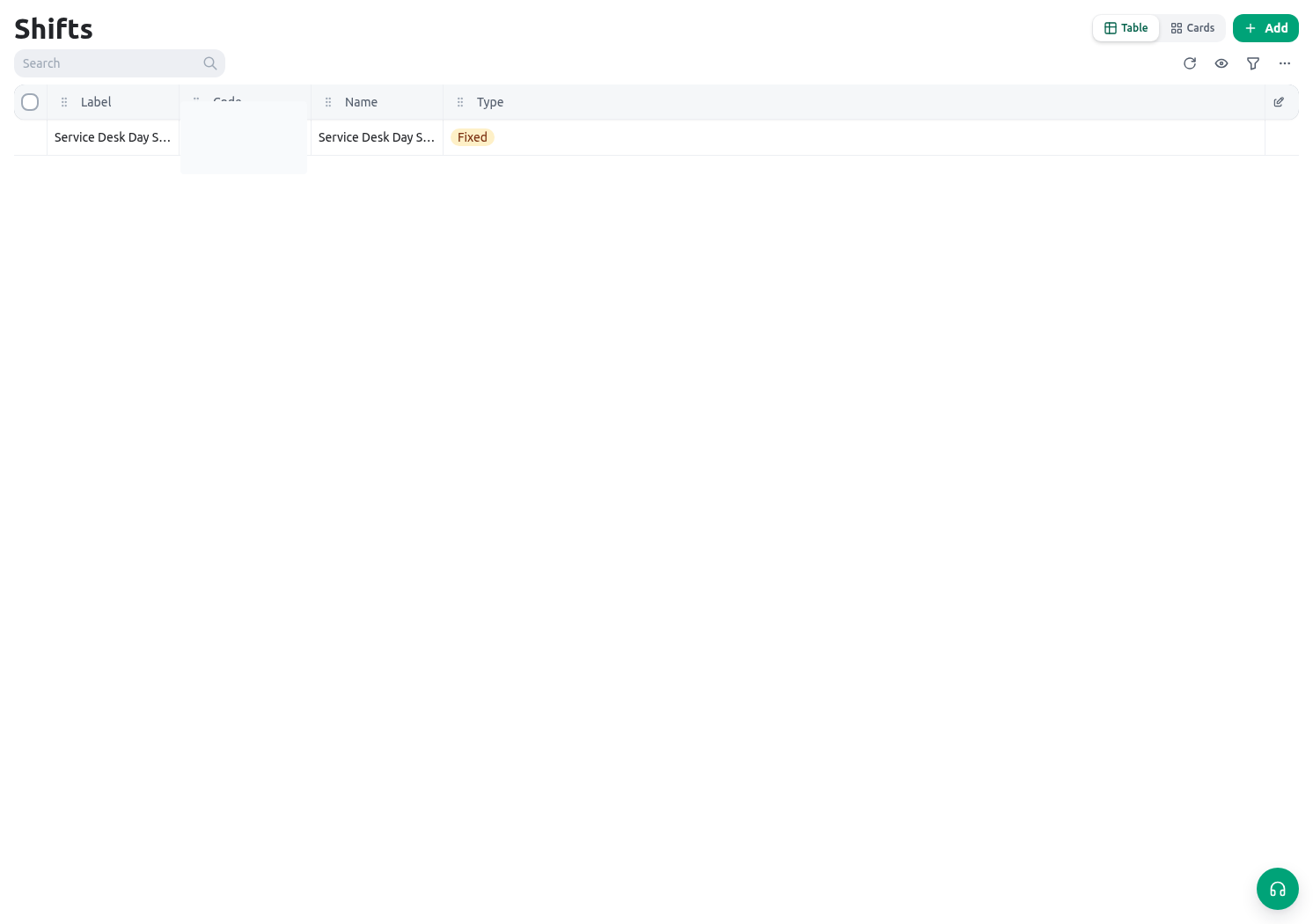
Related guides
- Set structural defaults in Nodes and locations.
- Assign people and approved exceptions in Groups, positions, and assignments.
- Record time away in Holidays and leave.